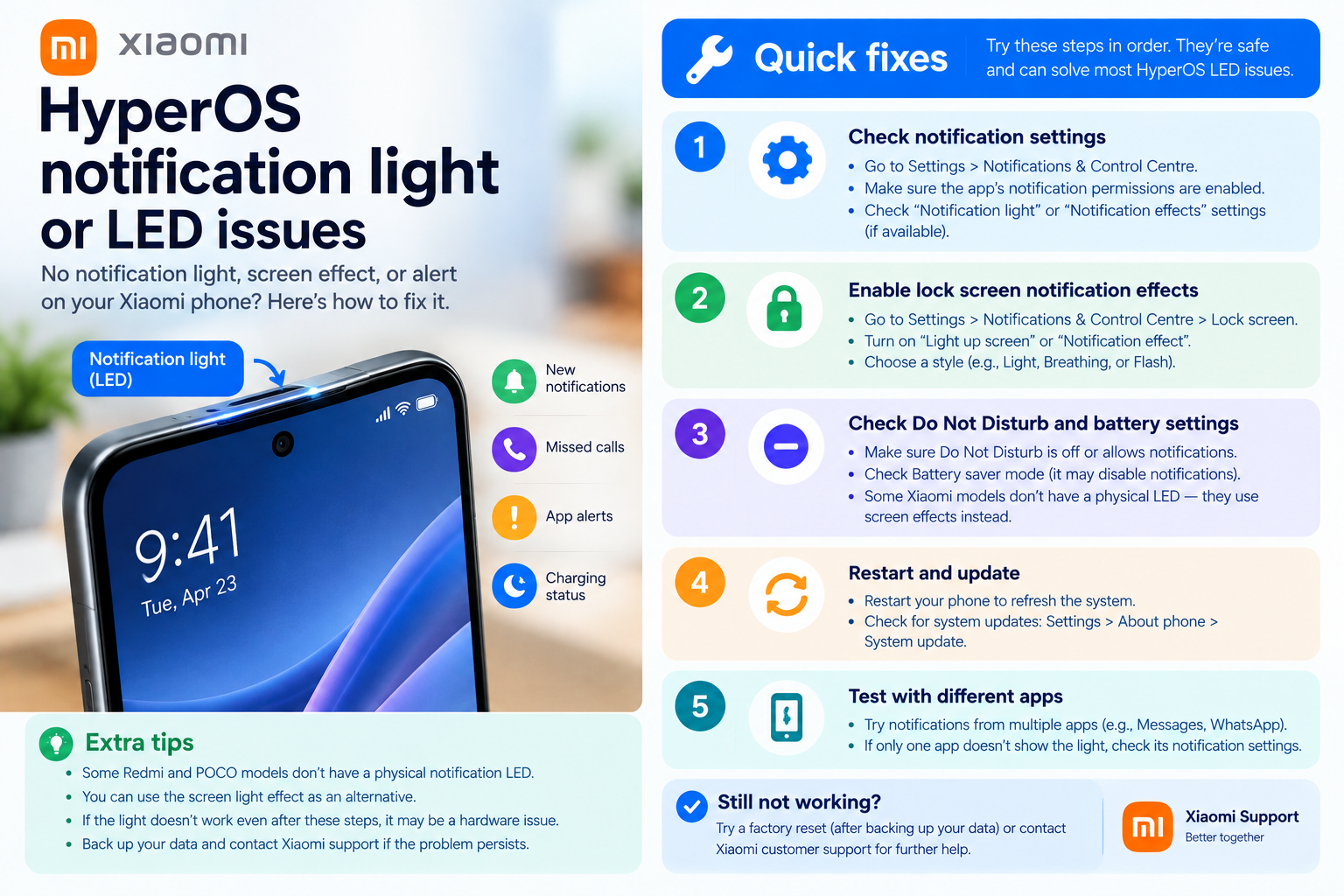
If you’ve ever missed an important text, email, or social media alert because your phone’s ringer was off, learning how to turn on vibration for notifications can be a game-changer. Vibration ensures you receive critical alerts even in quiet environments where a sound would be disruptive, like meetings, libraries, or theaters. Whether you use an Android, iPhone, or desktop device, the process varies slightly but is straightforward once you know the steps to customize vibration settings to your preferences.
How to Enable Notification Vibration on iPhones
iPhones have dedicated settings for overall notification vibration and app-specific adjustments, letting users balance consistency and personalization. By default, vibration may be turned off for some apps or in silent mode, so following these steps will ensure you don’t miss urgent alerts.
Basic System-Wide Vibration Setup
To turn on vibration for all notifications on your iPhone, start by opening the Settings app. Scroll down and tap "Sounds & Haptics" (or "Sounds" on older iOS versions). Under the "Ringer and Alerts" section, toggle on "Vibration" — this will activate vibration when your iPhone is on silent mode. If you want vibration even when the ring switch is on, make sure the "Vibrate on Ring" option is also enabled. For example, if you’re in a casual office where speaking is allowed but loud ringers aren’t, enabling both settings ensures you feel alerts no matter the switch position.
App-Specific Vibration Adjustments
If you don’t want vibration for every app, you can customize it per application. Go to Settings > Notifications, select the app you want to adjust (like WhatsApp or Gmail), then tap "Sounds". Here, you’ll find the "Vibration" option — toggle it on to enable vibration only for that app’s notifications. This is useful for apps where you need to stay responsive, like work email, while turning it off for non-essential apps like social media during off hours.
How to Turn On Notification Vibration on Android Devices
Android’s flexibility means the process for enabling vibration varies slightly by manufacturer (like Samsung, Google Pixel, or OnePlus), but the core steps are consistent. Most Android devices allow both system-wide and per-app vibration controls, making it easy to tailor settings to your daily routine.
System-Wide Vibration for Android
For most Android phones, open the Settings app and navigate to "Sounds & Vibration" (or similar, like "Sound" on some models). Look for the "Vibration" section; here, you can toggle "Vibrate while ringing" and "Vibrate on silent" on or off. On Google Pixel devices, for instance, you’ll find these options under "Do Not Disturb" settings too — enabling vibration even when Do Not Disturb is active ensures you get critical alerts without interruptions. A 2023 study by Tech Advisor found that 68% of Android users rely on system-wide vibration to avoid missing calls during work hours.
Per-App Vibration Configuration
To set vibration for specific apps on Android, go to Settings > Notifications > App Settings. Select the app you want to modify, tap "Notifications", then choose the notification channel (like "Messages" for a texting app). Under the "Sound & vibration" menu, toggle on "Vibration". Some Android skins (like Samsung’s One UI) let you create custom vibration patterns for different apps, adding an extra layer of personalization. For example, you can set a unique pattern for your boss’s messages to immediately identify their alert among others.
Troubleshooting Notification Vibration Issues
Even after following the steps to enable vibration, you might encounter problems like a non-vibrating device or inconsistent alerts. These common fixes will help resolve most software-related issues so you can get your vibration working reliably.
- Check your device’s physical switch: For iPhones, the left-side silent switch might be engaged, which overrides vibration settings. For Android models with a dedicated mute button, confirm it’s not set to mute, which disables vibration.
- Verify app notification permissions: If vibration fails for a specific app, go to Settings > Apps > [App Name] > Notifications and ensure "Allow notifications" is toggled on. Missing permissions can block vibration alerts even if the feature is enabled in settings.
- Update your device software: Outdated iOS or Android builds often have glitches affecting haptic feedback. Check for updates in Settings > General > Software Update (iPhones) or Settings > System > System Update (Android) and install any available patches.
- Inspect hardware damage: If all software fixes fail, a dropped or damaged vibration motor may be the cause. Contact a certified technician to assess and repair the device if needed.
Customizing Vibration Patterns for Alerts
Beyond basic vibration, creating custom patterns lets you distinguish between different types of notifications at a glance, which is invaluable for managing a high volume of alerts without checking your phone constantly.
Creating Custom Vibration on iPhones
On iPhones, go to Settings > Sounds & Haptics > Vibration. Tap "Create New Vibration", then tap the screen to make your desired pattern — each tap is a vibration, and pauses between taps create gaps. Once finished, tap "Save", name your pattern (like "Urgent Work Alert"), and assign it to specific contacts or apps. This way, you’ll know immediately if the alert is high-priority, even in a crowded space.
Unique Vibration Customization on Android
Android devices offer similar pattern creation, with minor variations by manufacturer. For Samsung Galaxy phones, navigate to Settings > Sounds & Vibration > Vibration Pattern > Create New. For Google Pixel, the option is under Settings > Accessibility > Vibration & Haptic Feedback > Custom Vibration. Assign these unique patterns to individual contacts or notification channels to streamline your alert management.
Learning how to turn on vibration for notifications is a simple yet impactful adjustment that balances connectivity and respect for quiet environments. Whether you use an iPhone, Android, or a mix of devices, mastering system and app-specific settings ensures you never miss critical updates without disrupting others. Troubleshooting common issues like disabled permissions or outdated software keeps your vibration working consistently, while custom patterns add a layer of personalization to manage alerts efficiently. Taking 10–15 minutes to tailor these settings will pay off in fewer missed messages, calls, and emails, making your daily routine more seamless.
Everything above about “how to turn on vibration for notifications” is originally written by our editorial team. Reproduction is strictly prohibited.