how to fix app permissions not working is the central topic of this article, and the following content explains the key points, practical uses, and decisions around it.
App permissions control what access your apps have to your device’s camera, location, storage, and personal data—when these permissions stop working, it can lead to frustrating issues like apps crashing, missing features, or unexpected privacy gaps. If you’re grappling with this problem, understanding how to fix app permissions not working is critical to restoring functionality and keeping your device secure.
Basic Preliminary Fixes to Start With
Many minor permission glitches are caused by temporary system bugs or outdated software, which can be resolved in minutes without deep technical knowledge. A 2023 TechRadar survey found that nearly 58% of permission-related issues are fixed with these quick steps:
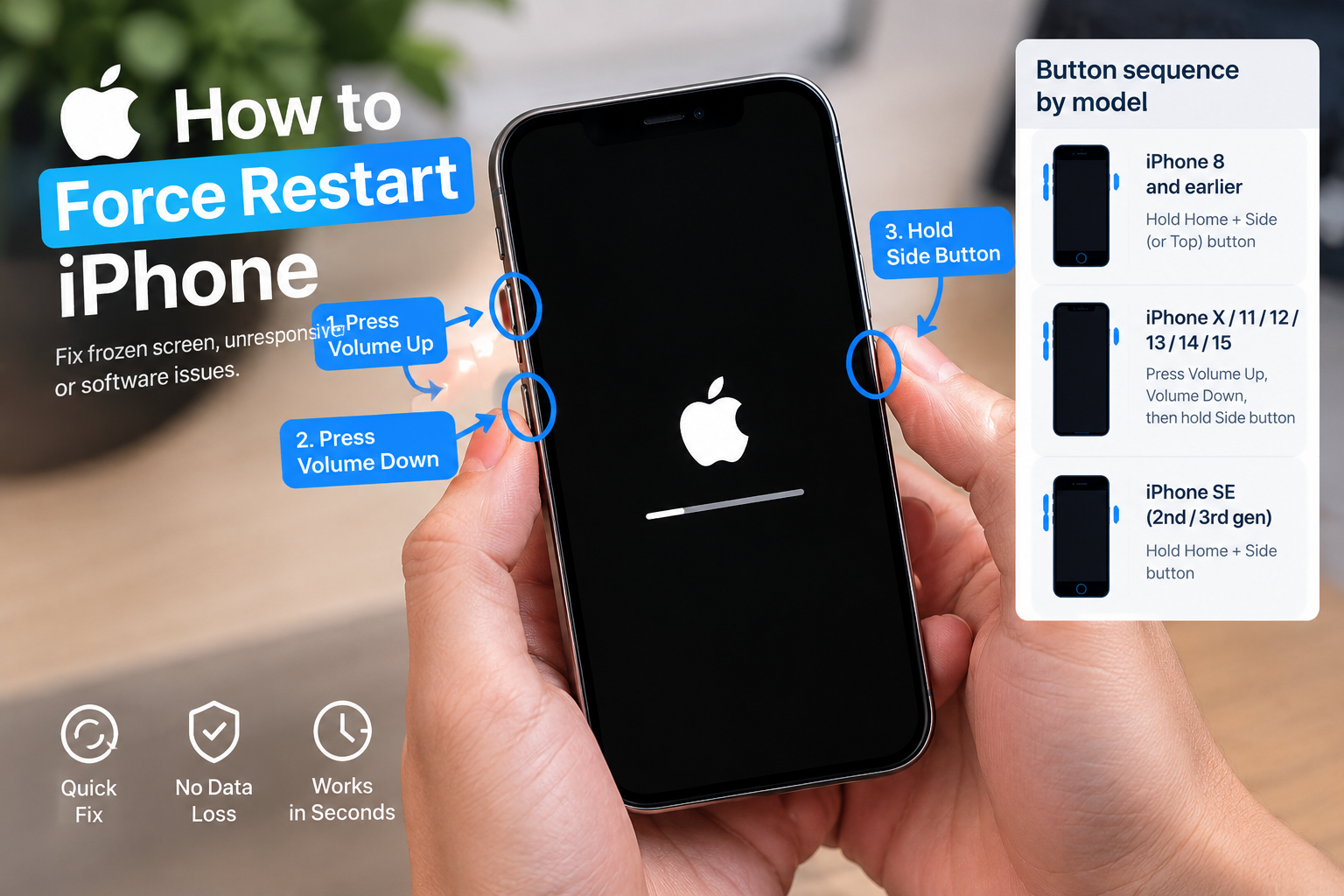
- Restart your device: Rebooting clears temporary cache and resolves software conflicts that block permission requests. For both Android and iOS, a full power cycle (turn off, wait 30 seconds, turn back on) is more effective than a quick sleep-wake cycle.
- Install app updates: Outdated apps often fail to comply with new OS permission rules, such as Android 13’s one-time access feature. Visit your device’s app store to install pending updates for the problematic app.
- Update your system OS: Older operating systems may have unpatched bugs that break permission functionality. Go to your device’s Settings to install the latest security and feature updates.
How to Manually Reset App Permissions
For persistent issues, manually adjusting permissions gives you granular control to fix access problems. The process varies slightly between Android and iOS:
Resetting Permissions on Android
Android’s settings let you toggle individual permissions or reset all app preferences to default. Open Settings > Apps, select the problematic app, tap Permissions, and adjust access as needed (e.g., turn off and re-enable camera access). For bulk fixes, go to Settings > System > Reset > Reset app preferences—this restores default permissions for all apps without deleting personal data.
Adjusting Permissions on iOS
iOS prioritizes privacy, so permissions are organized by access type. Go to Settings > Privacy & Security, choose the permission (like Location Services or Photos), find the problematic app, and adjust its access to “Never”, “Ask Next Time”, or “Allow While Using App”. If issues continue, delete and reinstall the app to refresh its permission bindings to iOS’s system.
Clear App Cache and Data to Resolve Conflicts
Corrupted app cache or stale data can cause permission conflicts, as apps rely on cached files to manage access requests. Clearing cache is safe and fixes many issues without losing personal data. For Android, navigate to Settings > Apps > [App Name] > Storage > Tap “Clear Cache”. If that doesn’t work, tap “Clear Data” (this will log you out and delete saved preferences). For iOS, offloading the app removes cache while keeping your data: Go to Settings > General > iPhone Storage > [App Name] > Offload App, then reinstall the app from the App Store. A 2022 Samsung study found that clearing app cache resolves 22% of permission-related crashes on Android devices.
When to Reach Out for Additional Support
If none of the above steps work, the problem may stem from an app-specific bug or a hardware-related system issue. For app issues, check the app’s official support page or user forums—many developers post fixes for known permission bugs. For device-wide issues (where multiple apps have broken permissions), contact your device manufacturer’s support team to rule out firmware problems. In rare cases, a missing security patch may be the cause, so double-confirm your device is running the latest OS version.
Fixing app permissions not working doesn’t have to be overwhelming, as most issues are resolved with basic troubleshooting. Start with quick restarts and updates, move to manual permission resets, and clear cache if needed. If problems persist, app or device support can provide targeted solutions. Regularly reviewing app permissions and keeping your software updated will also help prevent future permission glitches, ensuring your apps work as intended while protecting your privacy.
Everything above about “how to fix app permissions not working” is originally written by our editorial team. Reproduction is strictly prohibited.