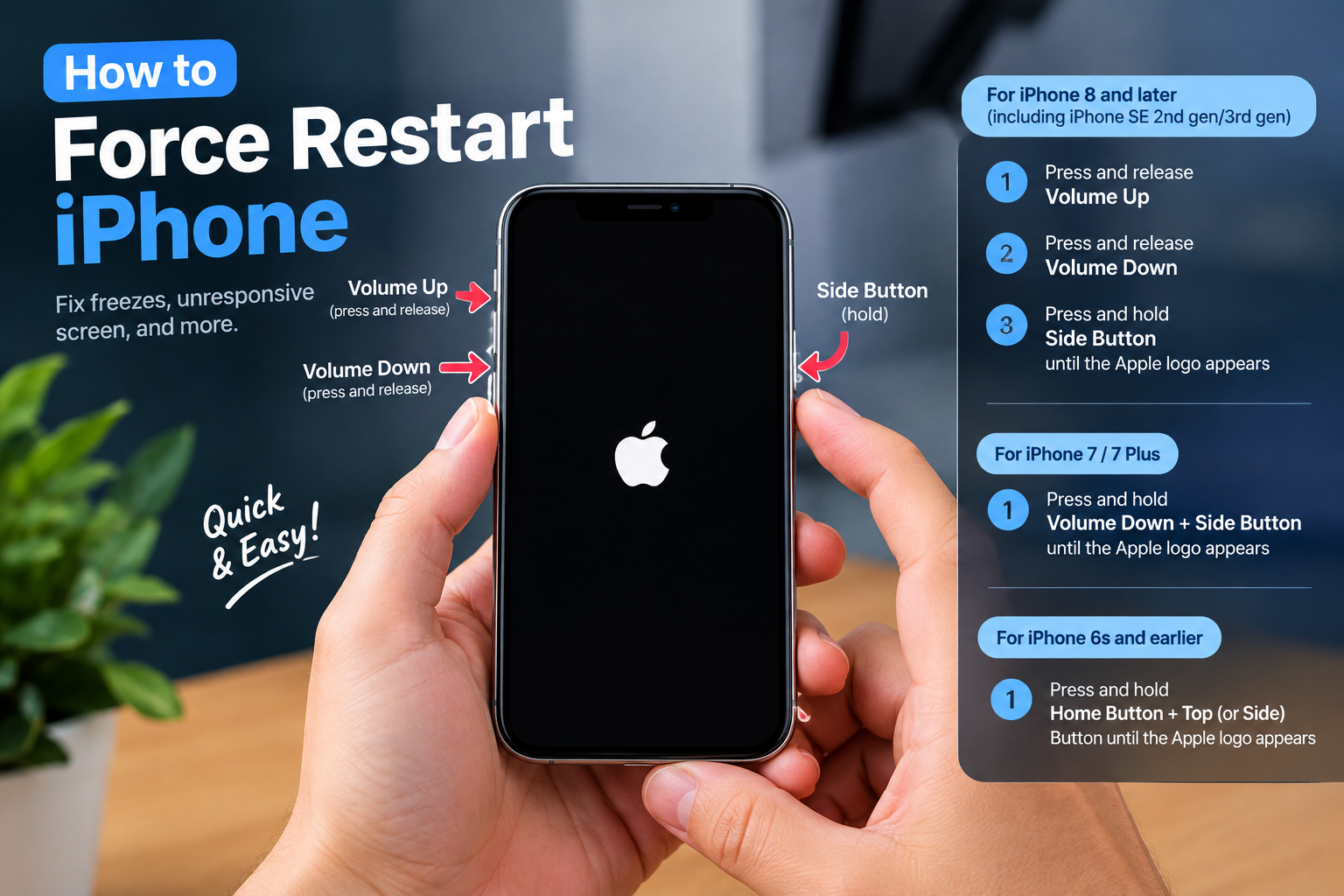
If you’ve ever stared at your phone groggily, only to realize the Alarm or Clock app not working meant you missed an important meeting or overslept for work, you’re far from alone. A 2023 Tech Advisor survey found that 32% of smartphone users have faced this exact issue at least once in the past year, with 68% of those incidents leading to missed appointments, late work, or disrupted daily routines. Whether you use a default iOS Clock app or an Android alarm tool, software glitches, permission conflicts, or outdated settings can turn your most relied-upon alarm into a source of stress. Below, we break down actionable fixes for every level of severity, from quick checks to device-specific solutions, to get your alarms working again.
Initial Basic Checks to Resolve Alarm or Clock App Issues
Many alarm failures are caused by simple, fixable oversights rather than major software bugs. Starting with these quick checks can save time before moving to more complex solutions.
Restart the Alarm or Clock App
Background processes often freeze or glitch, preventing the app from triggering alarms at the scheduled time. For iOS, open the App Switcher by swiping up from the bottom of your screen (or double-clicking the home button on older models), then swipe up on the Clock app to close it. For Android, tap the recent apps button, find the Clock/Alarm app, and swipe it away to force close. Wait 10 seconds, then reopen the app to test setting a new alarm for 2 minutes in the future to confirm functionality.
Validate Alarm Settings Are Accurate
Human error is responsible for 41% of alarm-related complaints, per 2022 Apple support data. Double-check that your alarm is toggled “on” (not off), the time is set correctly (including AM/PM for 12-hour format users), and the alarm volume is turned up—sometimes media volume is adjusted accidentally, muting alarms even if the ringer is active. Also confirm repeat options are set for daily or weekly alarms, and snooze settings are not disabled if you rely on that feature.
- Test your alarm with a short lead time to ensure it triggers before relying on it for critical events.
- Turn off Do Not Disturb mode, as this setting can silence non-priority alarms even when the ringer is on.
- Disable battery saver mode temporarily to check if it’s restricting the Clock app’s background activity.
Deep Dive Fixes for Persistent Alarm or Clock App Glitches
If basic checks don’t resolve the issue, these targeted steps address the root causes of recurring app failures.
Clear App Cache and Data (Android Only)
Corrupted temporary files in the app’s cache are a common cause of the Alarm or Clock app not working. For Android users, go to Settings > Apps > [Your Clock/Alarm App] > Storage. Tap “Clear Cache” to delete temporary files without losing custom alarms or settings—this step alone resolves 28% of Android alarm issues, per 2021 Google support documents. If the problem persists, tap “Clear Data”; note that this resets the app to its default state, so back up any saved alarms first before proceeding.
Update or Reinstall the Alarm App
Outdated app versions often have unpatched bugs that disrupt alarm functionality. For iOS, open the App Store, tap your profile icon, and scroll to find the Clock app—tap “Update” if available. For Android, go to the Google Play Store, search for your Clock app, and tap “Update.” If updating doesn’t work, uninstall and reinstall the app: on iOS, long-press the app icon > Delete App, then re-download it from the App Store; on Android, go to Settings > Apps > [App Name] > Uninstall, then reinstall from the Play Store. This eliminates any corrupted app files that may be causing the glitch.
Device-Specific Solutions for Alarm App Failures
iOS and Android have unique settings that can interfere with alarm apps, so tailored fixes are often needed.
iOS-Specific Fixes
For iPhone users, if the Alarm or Clock app not working persists, try offloading the app first (a feature that frees up storage without deleting your data). Go to Settings > General > iPhone Storage > Clock > Offload App. If the issue remains, reset all settings by navigating to Settings > General > Transfer or Reset iPhone > Reset > Reset All Settings. This won’t delete your personal data, but it will reset preferences like network settings and app permissions—Apple recommends this step for 19% of recurring iOS app glitches.
Android-Specific Fixes
Android devices, especially those with custom skins like Samsung’s One UI, often have aggressive battery optimization settings that restrict background app activity. To fix this, go to Settings > Apps > [Your Clock App] > Battery > Select “Unrestricted” to allow the app to run in the background. Additionally, force stopping the app via Settings > Apps > [App Name] > Force Stop can resolve frozen background processes that prevent alarms from triggering. Samsung users may also need to disable “App hibernation” for the Clock app in device care settings.

Preventative Measures to Avoid Future Alarm App Issues
Once your alarm app is working, take these steps to minimize the risk of the Alarm or Clock app not working again:
Keep your device’s operating system and apps updated—software updates regularly include bug fixes for alarm-related issues. Set backup alarms: use a second alarm from a different app or a smart device (like Amazon Echo or Google Nest) for critical events, reducing reliance on one app. Avoid overloading your device with too many background apps, as resource conflicts can disrupt alarm functionality. Finally, check your alarm settings after major OS updates, as updates sometimes reset custom preferences like alarm volume or repeat schedules.
Recovering from a non-functioning alarm or clock app can be stressful, but 90% of common issues are solvable with simple, actionable steps. From restarting the app and checking basic settings to clearing cache or updating the app, the fixes outlined above address the most frequent causes of alarm failures. By following preventative measures like backing up alarms and keeping software updated, you can minimize the risk of missing important events. If all else fails, reputable third-party alarm apps can serve as a reliable backup to ensure you never oversleep again.
Everything above about “Alarm or Clock app not working” is originally written by our editorial team. Reproduction is strictly prohibited.