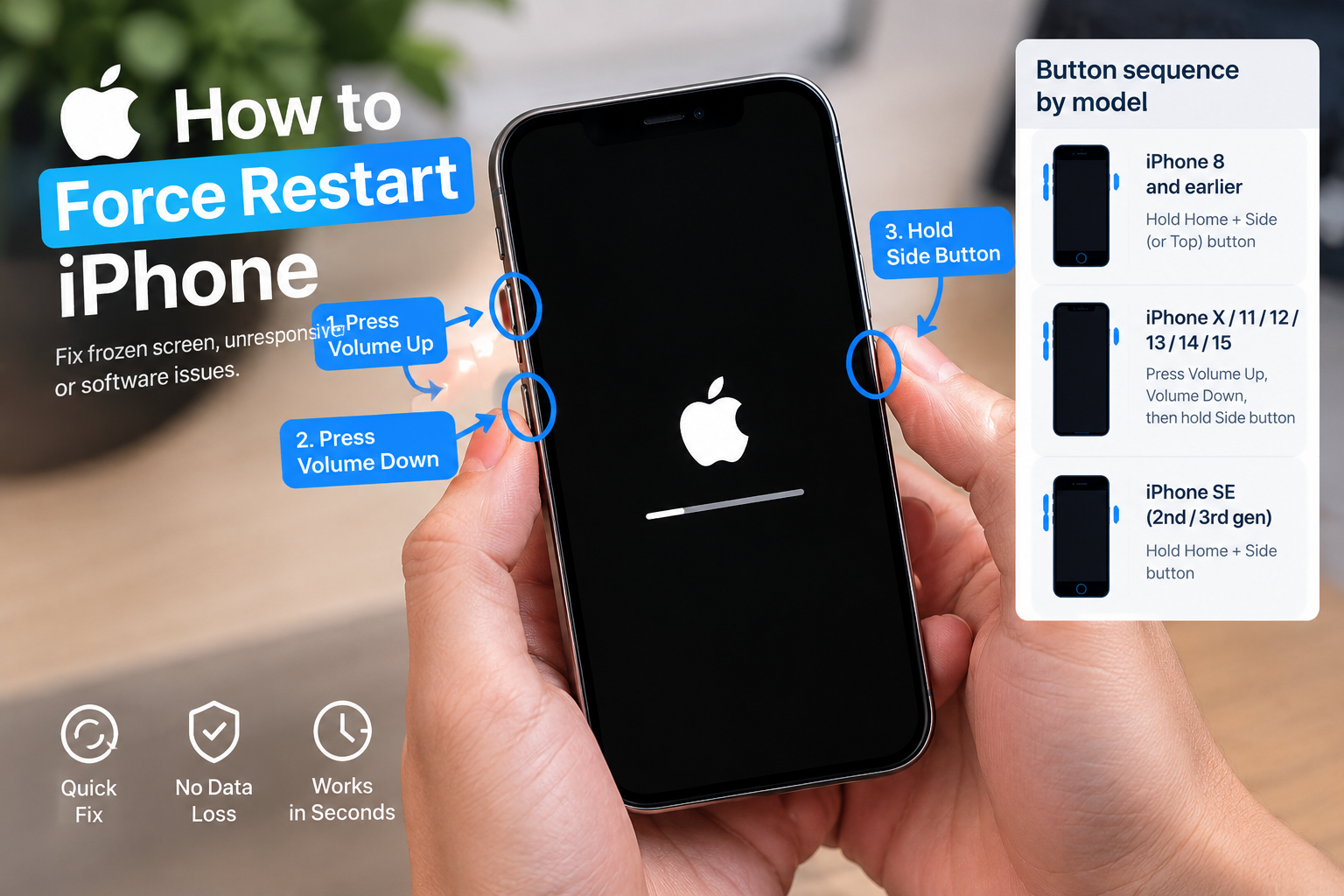
One UI 9 problems and fixes is the central topic of this article, and the following content explains the key points, practical uses, and decisions around it.
One UI 9, Samsung’s latest iteration of its custom Android skin designed for Galaxy smartphones and tablets, introduces intuitive gestures, personalized features, and enhanced security—but like any major software release, it can come with unexpected issues. For users navigating glitches, slow performance, or broken features, understanding how to address One UI 9 problems and fixes quickly helps restore functionality without resorting to extreme measures like a factory reset. Whether you’re a long-time Galaxy user or new to Samsung devices, these actionable steps will help resolve most common One UI 9 bugs in minutes.
Fixing One UI 9 Performance Lag and Stutter
Many Galaxy owners report a noticeable slowdown after updating to One UI 9, including stuttering when scrolling, delayed app launches, or unresponsive touch inputs. This lag is often triggered by leftover system cache from prior Android versions, background apps consuming excessive resources, or the device still optimizing apps post-update. While some temporary slowdown is normal for the first 24 to 48 hours after an update, persistent issues require targeted fixes.
Wipe the System Cache Partition
A corrupted or outdated cache partition is a leading cause of post-update performance issues. Unlike app cache, which stores data for individual apps, the system cache holds temporary files used by the entire operating system. To clear it without deleting your personal data, power off your device, then boot into recovery mode by pressing and holding the Volume Up and Power buttons simultaneously until the Samsung logo appears. Use the volume keys to navigate to the “Wipe Cache Partition” option, select it with the Power button, wait for the process to complete, then reboot. This step resolves most cache-related stutters and improves overall speed.
Disable Background Processes for Unused Apps
Apps running in the background—even ones you don’t actively use—can drain system resources and cause lag. To reduce this, open Settings > Apps, select an app you rarely use (like a pre-installed tool you never open), tap “Battery”, and choose “Background restriction” to limit its activity. For a broader fix, go to Settings > Battery and device care > Battery, then enable “Adaptive battery”, which automatically restricts background activity for apps that don’t frequently need it. This reduces unnecessary processing and improves overall performance.
Resolving One UI 9 Battery Drain Issues
Accelerated battery life is one of the most common One UI 9 problems, with users reporting that their devices lose charge much faster than before the update. This often happens when the system is still optimizing apps, a background process that usually resolves within 48 hours. If the drain persists beyond that, these steps will help restore your battery life.
- Adjust display settings: Lower screen brightness manually or enable adaptive brightness in Settings > Display, and set the screen timeout to 15 or 30 seconds (instead of 2 minutes or more) to cut down on power use from the screen, which is the biggest battery consumer.
- Disable unused connectivity tools: Turn off Bluetooth, Wi-Fi, GPS, or NFC when not in use via the quick settings panel (swipe down from the top of the screen) or Settings > Connections, as these radio components draw power even when idle.
- Identify and restrict rogue apps: Use the Battery usage chart in Settings > Battery and device care > Battery to find apps that are using an unusually high amount of battery. For example, a third-party social media app that drains 30% of battery in a few hours may be running inefficiently—update it, uninstall it, or restrict its background activity to fix the drain.
Another useful tip is to enable “Power saving mode” in Settings > Battery, which limits background data, reduces performance, and dims the screen to extend battery life. You can also turn on “Ultra power saving mode” if you only need basic functions like calls and messages, though this disables most features temporarily.
Fixing App Crashes and Core Feature Malfunctions
One UI 9 can cause certain apps to crash unexpectedly, or break core features like the camera, Samsung Pay, or notification alerts. These issues are usually due to app incompatibility, corrupted system files, or permission conflicts, and can be fixed without a full reset.
Update or Reinstall Problematic Apps
Older apps may not be optimized for One UI 9, leading to crashes. To resolve this, open the Google Play Store, tap your profile icon in the top right, go to “Manage apps & device”, and check for pending updates. If an update is available for the crashing app, install it. If no update is available, uninstall the app, restart your device, then reinstall it from the Play Store. This clears any corrupted app data that’s causing conflicts with One UI 9.
Reset App Preferences
Resetting app preferences reverts all custom settings for apps—like default apps, permissions, and background restrictions—to their original state. This fixes conflicts where a setting is misconfigured, causing features to break. To do this, go to Settings > Apps, tap the three-dot menu in the top right corner, select “Reset app preferences”, and confirm the action. Note that this won’t delete any personal data, just reset app configurations, so it’s a safe step.

Troubleshooting Connectivity Issues (Wi-Fi, Bluetooth) in One UI 9
Connectivity issues—like Wi-Fi not connecting, Bluetooth devices dropping, or slow mobile data—are another common set of One UI 9 problems. These can be caused by network glitches, outdated settings, or conflicts with other devices.
Start by toggling Wi-Fi or Bluetooth off and back on via the quick settings panel, as this often resolves temporary glitches. If that doesn’t work, forget the network (for Wi-Fi) or un-pair the Bluetooth device, then reconnect: go to Settings > Connections, select Wi-Fi or Bluetooth, tap the network/device name, choose “Forget”, then re-enter the Wi-Fi password or re-pair the Bluetooth device. For persistent Wi-Fi issues, reset network settings: go to Settings > General management > Reset > Reset network settings, which resets all Wi-Fi, mobile, and Bluetooth settings to default. This won’t delete personal data, just network configurations.
Most One UI 9 problems and fixes are simple and don’t require advanced technical knowledge. Whether you’re dealing with performance lag, battery drain, app crashes, or connectivity issues, starting with quick steps like clearing the cache partition, updating apps, or adjusting settings usually resolves the problem. If none of these steps work, a factory reset may be necessary, but only as a last resort—be sure to back up your data first before doing so. By following these targeted solutions, you can get your One UI 9 device running smoothly again in no time.
Everything above about “One UI 9 problems and fixes” is originally written by our editorial team. Reproduction is strictly prohibited.