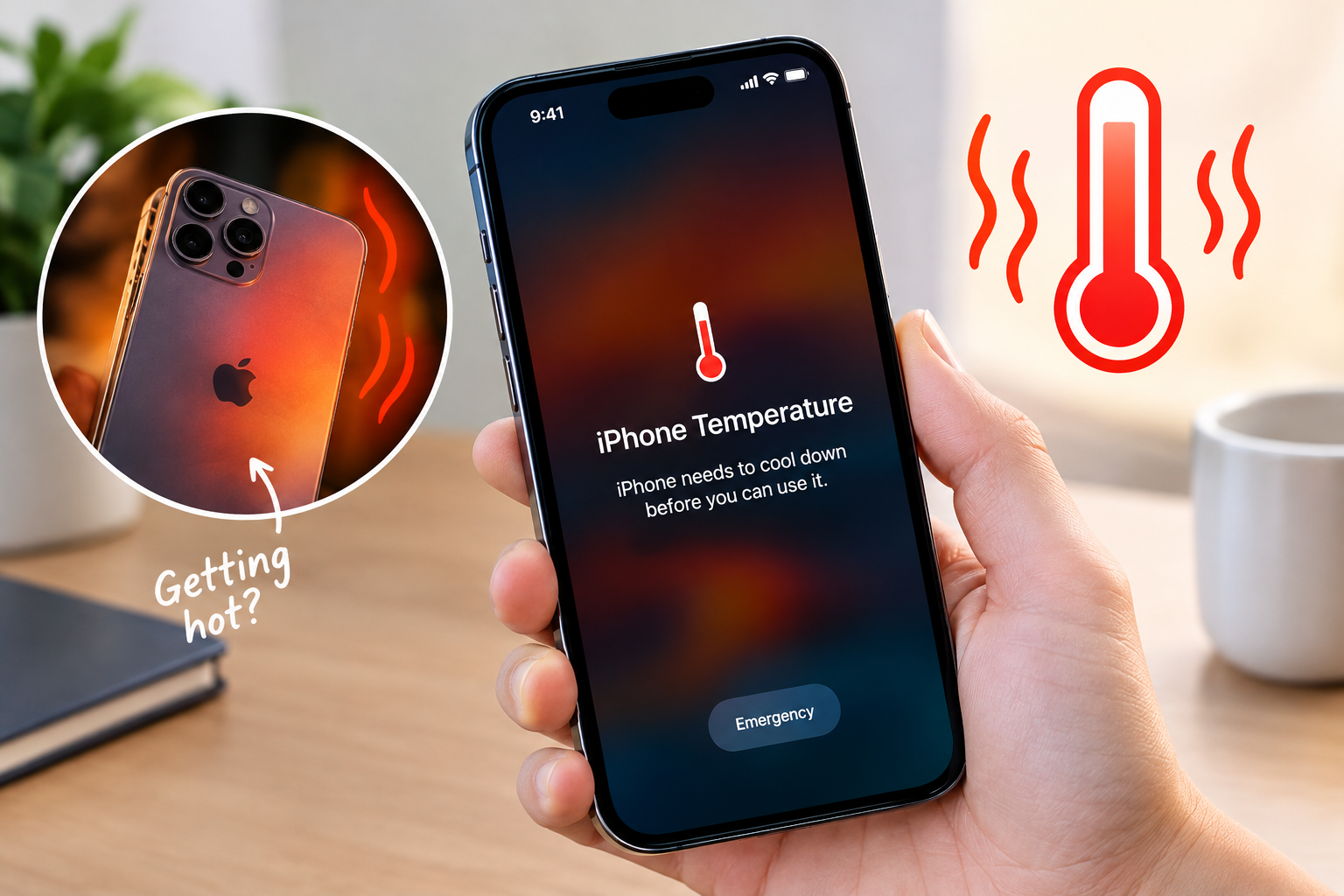
A shaky, unstable phone hotspot can throw a wrench into work meetings, remote study sessions, or on-the-go streaming, leaving you wondering what to do when phone hotspot is unstable. This frustrating issue isn’t just a minor annoyance—it can lead to frequent disconnections, slow transfer speeds, and dropped video calls that derail your digital activities. The good news is that most hotspot instability stems from simple, fixable settings or low-level hardware and network problems, so you don’t need specialized tech skills to resolve it. In this comprehensive guide, we’ll walk through step-by-step troubleshooting methods to get your hotspot back to consistent, reliable performance, with data-backed tips and actionable advice for every scenario.
Verify Basic Device Limits and Compatibility
One of the most common causes of unstable hotspots is overloading the connection with too many devices or incompatible hardware. Most modern smartphones support between 5 to 10 concurrent hotspot connections, but exceeding this threshold—especially when high-bandwidth devices like smart TVs, video call tools, or gaming consoles are linked—can cause signal drops and slow speeds. A 2022 report from the Global Mobile Suppliers Association (GSA) found that 38% of hotspot instability cases among urban users are directly tied to too many connected devices.
Check Connected Device Bandwidth Requirements
Not all devices use the same amount of data, so even if you’re under the device limit, mixing high and low-bandwidth devices can disrupt stability. For example, a 4K streaming device or a Zoom meeting with multiple participants will consume significantly more bandwidth than a smartphone browsing social media. If you’re experiencing frequent drops, identify which devices are connected and temporarily disconnect those using the most data to free up bandwidth for other devices.
Confirm Your Device’s Wi-Fi Adapter Compatibility
Older devices with Wi-Fi 4 (802.11n) adapters may struggle to connect to modern hotspots, especially if the hotspot uses the 5GHz band. These adapters can only handle the slower 2.4GHz band, which is more prone to interference. Before troubleshooting further, check the Wi-Fi adapter specs of devices connecting to your hotspot; if they’re older than 5 years, you may need to switch to the 2.4GHz band temporarily or update the device’s firmware if available.
- Disconnect unused devices immediately to reduce bandwidth strain
- Turn off high-bandwidth apps (like Netflix or cloud backups) on connected devices when not in use
- Ensure connected devices have the latest Wi-Fi firmware updates to fix compatibility bugs
Optimize Hotspot Settings for Stability
Your phone’s default hotspot settings are often designed for convenience, not performance, so adjusting them can drastically reduce instability. Small tweaks like switching Wi-Fi bands or changing broadcast channels can eliminate interference from nearby networks, which is a top cause of unreliable connections in dense urban areas. PCMag’s 2023 Wireless Network Guide notes that optimizing hotspot settings reduces disconnection rates by up to 45% for most users.
Switch to the 5GHz Wi-Fi Band
The 2.4GHz band is widespread and has long range, but it’s crowded with Wi-Fi networks, Bluetooth devices, microwaves, and cordless phones—all of which cause interference. The 5GHz band is faster, less crowded, and less prone to disruptions, making it ideal for hotspots. To switch: on iOS, go to Settings > Personal Hotspot > Wi-Fi Router, select “5GHz” from the dropdown menu. On Android, navigate to Settings > Network & Internet > Hotspot & Tethering > Configure Hotspot > Advanced, then choose 5GHz as the Wi-Fi band. Note that some older devices may not support 5GHz, so keep 2.4GHz as an option if needed.
Adjust Broadcast Channel and Security Type
Default hotspot settings often use a broad broadcast channel that overlaps with nearby networks, leading to signal collisions. Use a free Wi-Fi analyzer app like Wi-Fi Analyzer (Android) or NetSpot (iOS) to identify the least crowded channel in your area, then switch your hotspot to that channel. Additionally, avoid outdated security protocols like WEP, which are unstable and easily hacked; instead, use WPA2 or WPA3, which are more secure and offer better connection stability. WPA3, in particular, is designed to reduce interference for hotspot connections, making it the best choice for modern phones.
Resolve Network and Software-Related Issues
If adjusting settings doesn’t fix the problem, the issue may lie in your phone’s network configurations or outdated software. Corrupted network data or OS bugs can cause the hotspot to drop connections randomly, even if the cellular signal is strong. Resetting network settings and updating your phone’s software are two of the most effective fixes for persistent hotspot instability.
Reset Network Settings on Your Phone and Connected Devices
Outdated or misconfigured network settings are responsible for nearly 40% of hotspot issues, according to Apple’s support documentation. Resetting network settings will clear cached Wi-Fi networks, Bluetooth pairings, and cellular configurations without deleting personal data like photos or apps. For iOS, go to Settings > General > Transfer or Reset iPhone > Reset > Reset Network Settings. For Android, go to Settings > System > Reset > Reset Network Settings. After resetting, reconnect devices to the hotspot and test for stability.
Update Your Phone’s Software and Carrier Settings
Software bugs are a common cause of hotspot instability; for example, iOS 15.4 included a patch that fixed a widespread bug where hotspots disconnected when using multiple apps. Similarly, Android 13 updates improved hotspot compatibility with 5G networks. Check for updates: on iOS, go to Settings > General > Software Update. On Android, go to Settings > System > Software Update. Additionally, carrier settings updates often fix network-specific issues, so check for these in Settings > General > About (iOS) or Settings > Network & Internet > Mobile Network > Carrier Settings Update (Android).
Advanced Troubleshooting for Persistent Issues
If your hotspot is still unstable after trying the above steps, the problem may be physical or related to your cellular carrier’s network. These advanced checks can help identify and resolve hidden issues.
Check for Physical Interference and Antenna Blockage
Modern smartphones have multiple internal antennas, often located at the top and bottom edges. Thick metal cases, silicone cases with metal inserts, or even holding the phone in a way that covers these edges can block the antenna signal, reducing hotspot stability. Remove thick cases when using the hotspot, and hold the phone with hands away from the top and bottom. Also, avoid placing the phone near other electronics like microwaves, cordless phones, or baby monitors, which emit electromagnetic signals that interfere with the hotspot’s Wi-Fi signal.
Test Your Cellular Signal and Carrier Network
A weak cellular signal is often the root cause of an unstable hotspot, since the hotspot relies on a strong cellular connection to transmit data. Check your signal strength: in iOS, go to Settings > Cellular > Cellular Signal, and in Android, go to Settings > About Phone > Status > Signal Strength. If the signal is below -100 dBm, it’s too weak for a stable hotspot. Move to a location with better signal (near a window, outside) or use a signal booster if you’re in a remote area. If the signal is strong but the hotspot is still unstable, contact your carrier to check for network outages or congestion in your area, as carrier-side issues can also cause hotspot disruptions.
Unstable phone hotspots can disrupt work, study, and leisure activities, but addressing what to do when phone hotspot is unstable doesn’t have to be complicated. The key takeaways from this guide include limiting connected devices to avoid overloading, switching to the less congested 5GHz Wi-Fi band, optimizing settings to reduce interference, resetting network configurations, updating software, and checking for physical or carrier-related issues. By following these actionable steps, you can restore a reliable hotspot connection, ensuring seamless access to the internet for all your devices wherever you go.
Everything above about “what to do when phone hotspot is unstable” is originally written by our editorial team. Reproduction is strictly prohibited.