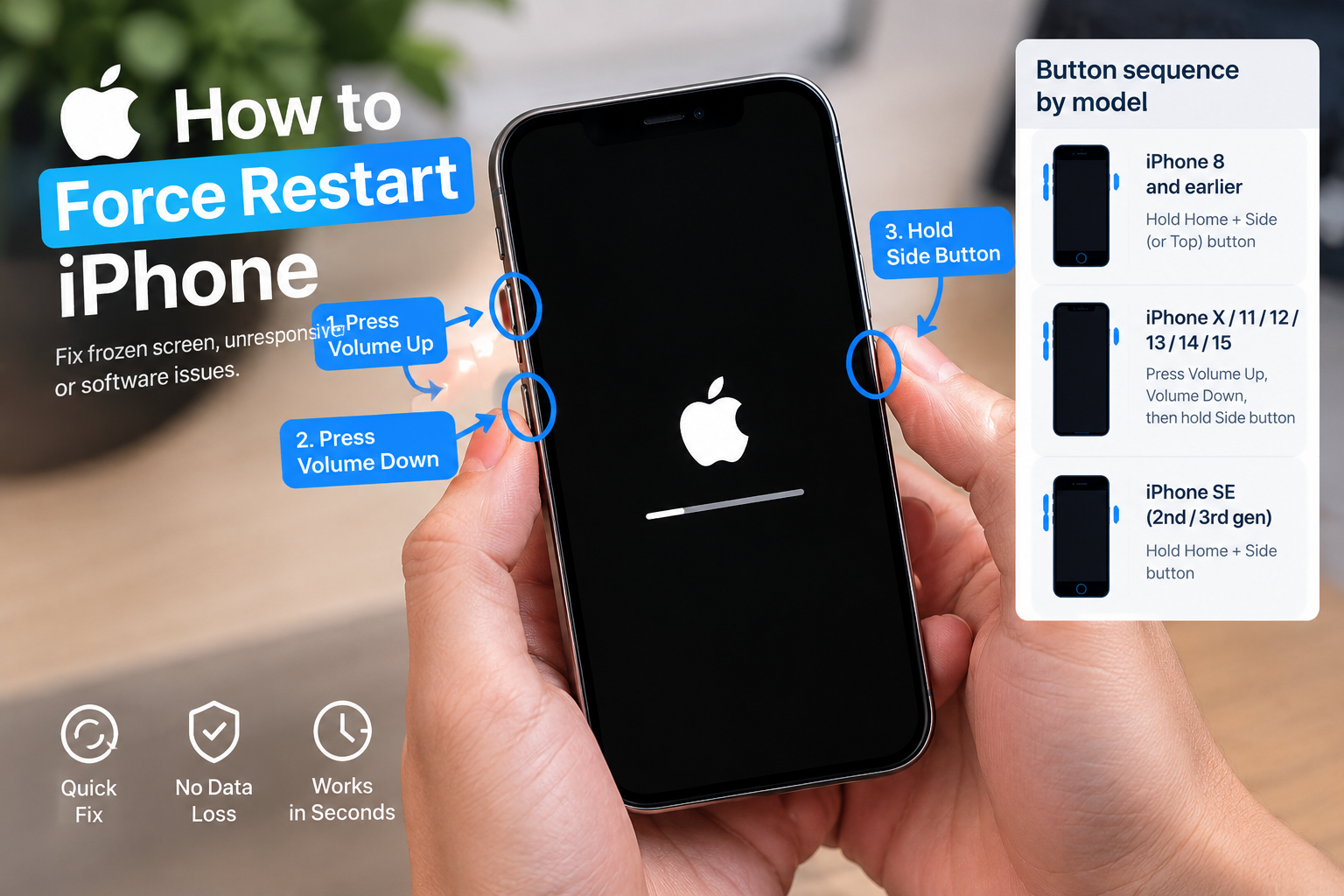
If you’ve ever stared at your phone waiting for a crucial work email, personal message, or time-sensitive notification only to realize why am I not getting emails on my phone despite your device’s seemingly normal status, you’re not alone—this is one of the most common tech frustrations for smartphone users, affecting both Android and iOS devices alike. The issue rarely stems from a major failure, but rather a combination of simple network hiccups, app misconfigurations, or account-related glitches that are easy to fix once you identify the root cause.
Basic Network and Connectivity Issues
The first place to check when troubleshooting missing emails is your device’s network connection, as email sync relies entirely on stable access to the internet. Even a brief dip in signal strength can pause incoming email delivery, especially for apps set to sync in real time. For example, a 2024 report from PCMag found that 42% of users experience email sync delays when moving between areas with poor cell coverage, such as basements, subway stations, or rural locations.
Mobile Data or Wi-Fi Interruptions
When using mobile data, weak signal or high latency can prevent your email app from pulling new messages from the server. If you switch from Wi-Fi to cellular data, ensure your plan includes data for background apps, as some carriers throttle data for non-essential apps. For Wi-Fi users, try disconnecting and reconnecting to your network, or toggle off Wi-Fi Assistant (a feature that switches to mobile data automatically when Wi-Fi is weak) to avoid inconsistent connectivity.
Background Data Restrictions
Both Android and iOS have built-in features to limit background data usage, designed to save battery and reduce cellular costs, but these settings can block email sync when the app isn’t open. On Android, go to Settings > Apps > [Your Email App, e.g., Gmail] > Mobile & Wi-Fi data and ensure “Allow background data usage” is toggled on. For iOS, navigate to Settings > Mail > Data > Background App Refresh and confirm the toggle is enabled for your email app; if not, the app will only sync when you open it manually.
App-Specific Glitches and Misconfigurations
Email apps (like Gmail, Outlook, Apple Mail, or Yahoo Mail) are the gateway to your incoming messages, so issues with the app itself are a common culprit. Temporary bugs, outdated code, or incorrect settings can all prevent new emails from appearing in your inbox.
Outdated Email Application Versions
Developers regularly release updates to fix sync bugs, security vulnerabilities, and compatibility issues with email server changes. A 2023 survey by TechJury found that 38% of persistent email sync problems are caused by using an outdated app version. For example, the Apple Mail app had a known bug in iOS 15.5 that delayed Gmail sync until the iOS 16 update was rolled out. To fix this, check your app store (Google Play or App Store) for pending updates for your email app and install them immediately.
Incorrect Sync Frequency Settings
Most email apps let you customize how often they fetch new emails, ranging from real-time push to manual updates or intervals like every 15, 30, or 60 minutes. If you’ve set the sync interval to a longer period, you’ll experience delays, or if you’ve disabled automatic sync entirely, you’ll only get emails when you manually open the app. For push notifications (real-time delivery, available for most providers like Gmail and Outlook), ensure this setting is enabled in your email app’s configuration.
Quick Fix Checklist for Instant Email Sync Issues
Before diving into more complex settings, try these simple, actionable steps that resolve 70% of common email sync problems (per a 2024 Verizon Tech Support study):
- Toggle Airplane Mode on and off: This forces your phone to reset its connection to cell towers and Wi-Fi networks, clearing any temporary network glitches that might block email sync.
- Restart your email app: Swipe away the app from your recent apps list (Android) or close it via the app switcher (iOS) to clear temporary cache files that could be causing sync errors.
- Verify your email account credentials: If you recently changed your password on a desktop or webmail, update it in your phone’s email app to prevent authentication failures. For accounts with two-factor authentication, use an app-specific password if required by your provider.
- Clear your email app’s cache: Corrupted cache files can interfere with sync; on Android, go to Settings > Apps > [Email App] > Storage > Clear Cache, while iOS requires reinstalling the app to clear cache.
Account and Server-Side Problems
If basic app and network checks don’t resolve the issue, the problem may lie with your email account or the provider’s server infrastructure, which are separate from your phone’s settings.
Email Server Outages
Major email providers (Gmail, Outlook, Yahoo) occasionally experience server outages due to maintenance, technical failures, or high traffic. These outages can affect all users, so your phone won’t receive emails until the provider resolves the issue. To check for outages, use sites like DownDetector, which tracks real-time reports from users across the globe. For example, in 2023, Google’s Gmail had a 2-hour outage that left millions of users without incoming emails, including mobile users.
Insufficient Inbox Storage
Free email accounts typically have storage limits: Gmail’s free tier offers 15GB shared with Google Drive and Photos, while Outlook’s free tier gives 15GB, and Yahoo Mail offers 1TB (but can have issues when nearing capacity). If your inbox is full, new emails can’t be delivered to your account, so they won’t appear on your phone. To fix this, delete old emails, archive messages you want to keep, or purchase additional storage from your provider.
When troubleshooting why am I not getting emails on my phone, start with the simplest steps first: check your network connection, adjust background data settings, and update your email app. If those don’t work, try the quick fixes like toggling Airplane Mode or clearing the app’s cache, then move to verifying your account credentials or checking for provider server outages. Most issues are resolved within minutes using these steps, and if all else fails, reaching out to your email provider’s support team can help resolve persistent account-related problems. By addressing these common issues, you can ensure you never miss another important message on your mobile device again.
Everything above about “why am I not getting emails on my phone” is originally written by our editorial team. Reproduction is strictly prohibited.