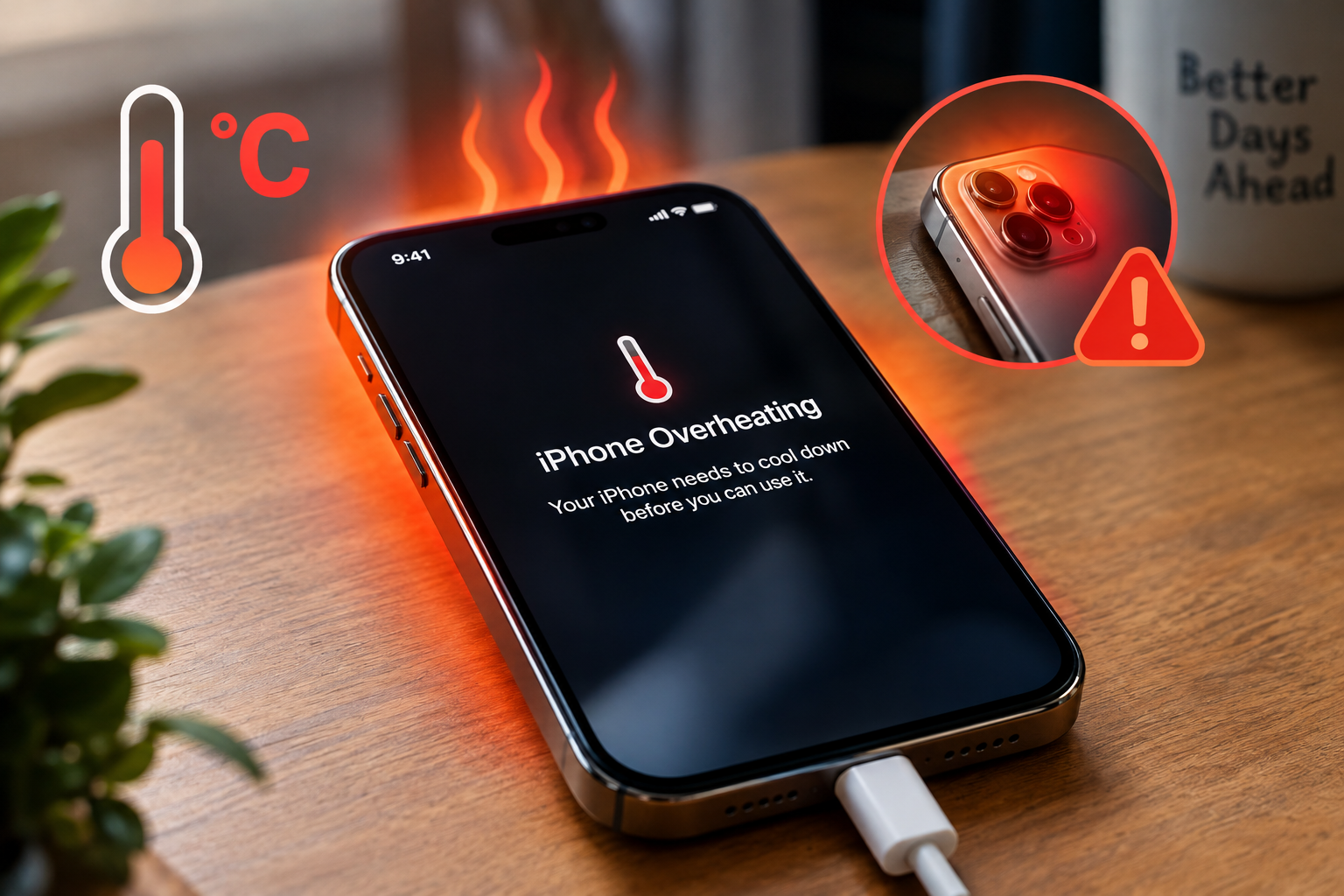
iPhone fast charging not working is the central topic of this article, and the following content explains the key points, practical uses, and decisions around it.
If you’ve ever rushed to top up your iPhone before a long day or trip, only to find your device is taking hours to charge instead of the usual 30 minutes for 50% power, you’re all too familiar with the frustration of iPhone fast charging not working. Fast charging, introduced with the iPhone 8 and all subsequent models, relies on advanced power delivery technology to cut charging time significantly, but when it malfunctions, it can disrupt plans, drain productivity, and leave you stranded with a dead device. Before you reach for a new phone or schedule an expensive repair, there are actionable troubleshooting steps you can take at home to resolve this common issue.
Troubleshoot Charging Hardware for Fast Charging Issues
Ensure Your Accessories Are MFi-Certified
Apple requires all third-party cables and adapters used with fast charging to carry MFi (Made for iPhone) certification, which confirms they meet Apple’s safety and compatibility standards. Uncertified products often lack the necessary electronics to support the 18W or higher power output needed for fast charging, forcing your iPhone to use slower standard charging instead. For example, a $5 USB-C to Lightning cable from a discount store may not be engineered to handle the consistent high power required, resulting in your iPhone charging at a fraction of the expected speed.
Inspect Charging Ports and Cables for Damage
Physical damage or debris is another major cause of fast charging failures. Lint, dust, or pocket debris can accumulate in your iPhone’s Lightning port over time, creating a barrier between the cable’s connector and the device’s pins that disrupts power flow. Bent pins in the port, frayed cable insulation, or a damaged USB adapter can also prevent stable power delivery. To check, examine the port with a bright light; if you see debris, use a soft-bristled toothbrush or compressed air (held 6 inches away) to clear it, avoiding sharp tools that could puncture internal components.
- Only use USB-C Power Adapters with 18W or higher wattage (older 5W adapters won’t support fast charging)
- Avoid cables longer than 6 feet, as they can reduce power output and slow charging speed
- Replace any frayed, cracked, or physically damaged cables immediately to prevent safety risks and charging issues
Adjust iPhone Settings to Enable Fast Charging
Check Optimized Battery Charging Status
Apple’s Optimized Battery Charging feature is designed to extend your iPhone’s battery lifespan by learning your daily charging routine. It pauses charging after your device reaches 80% until just before you typically unplug it, which can make fast charging seem like it’s not working—even though the feature is still active. This is especially noticeable if you charge your phone overnight, as it will slow charging during the night and finish quickly before you wake up. To test if this is the issue, go to Settings > Battery > Battery Health & Charging and toggle off “Optimized Battery Charging” temporarily to see if fast charging runs at full speed.
Disable Low Power Mode
Low Power Mode is a setting that conserves battery life by limiting background activity, reducing screen brightness, and slowing performance—but it also intentionally slows charging to extend the time between charges. If you’ve enabled Low Power Mode to save battery, this can directly disable fast charging. To fix this, open Settings > Battery and tap the Low Power Mode toggle to turn it off. After disabling it, plug your iPhone in again to see if fast charging activates.

Resolve Software Glitches That Block Fast Charging
Update Your iOS to the Latest Version
Software bugs are a common cause of fast charging malfunctions, especially after a new iOS update or when your device runs an outdated version. Apple regularly releases updates that fix connectivity issues, power management glitches, and fast charging problems. To check for updates, go to Settings > General > Software Update. If an update is available, download and install it—ensure your iPhone is connected to Wi-Fi and has at least 50% battery, or plug it in during the update process to avoid interruptions.
Reset All Settings (Without Erasing Data)
Misconfigured settings, even from a recent app install or accidental toggle, can sometimes interfere with fast charging. A reset of all settings will restore default preferences (like Wi-Fi passwords, display settings, and privacy controls) without deleting your photos, apps, or personal data. To do this, go to Settings > General > Transfer or Reset iPhone > Reset > Reset All Settings. After your iPhone restarts, try charging it with a certified adapter and cable to see if fast charging works again.
When dealing with iPhone fast charging not working, the key is to start with simple, low-effort fixes before moving to more advanced steps. Check that your accessories are MFi-certified and have sufficient wattage, clear debris from your charging port, and adjust settings like Optimized Battery Charging or Low Power Mode to rule out software-related slowdowns. If these steps don’t resolve the issue, updating iOS or resetting your settings can fix hidden glitches. For persistent problems, contact Apple Support or visit an authorized service provider to check for hardware issues like a faulty charging circuit, which may require professional repair.
Everything above about “iPhone fast charging not working” is originally written by our editorial team. Reproduction is strictly prohibited.