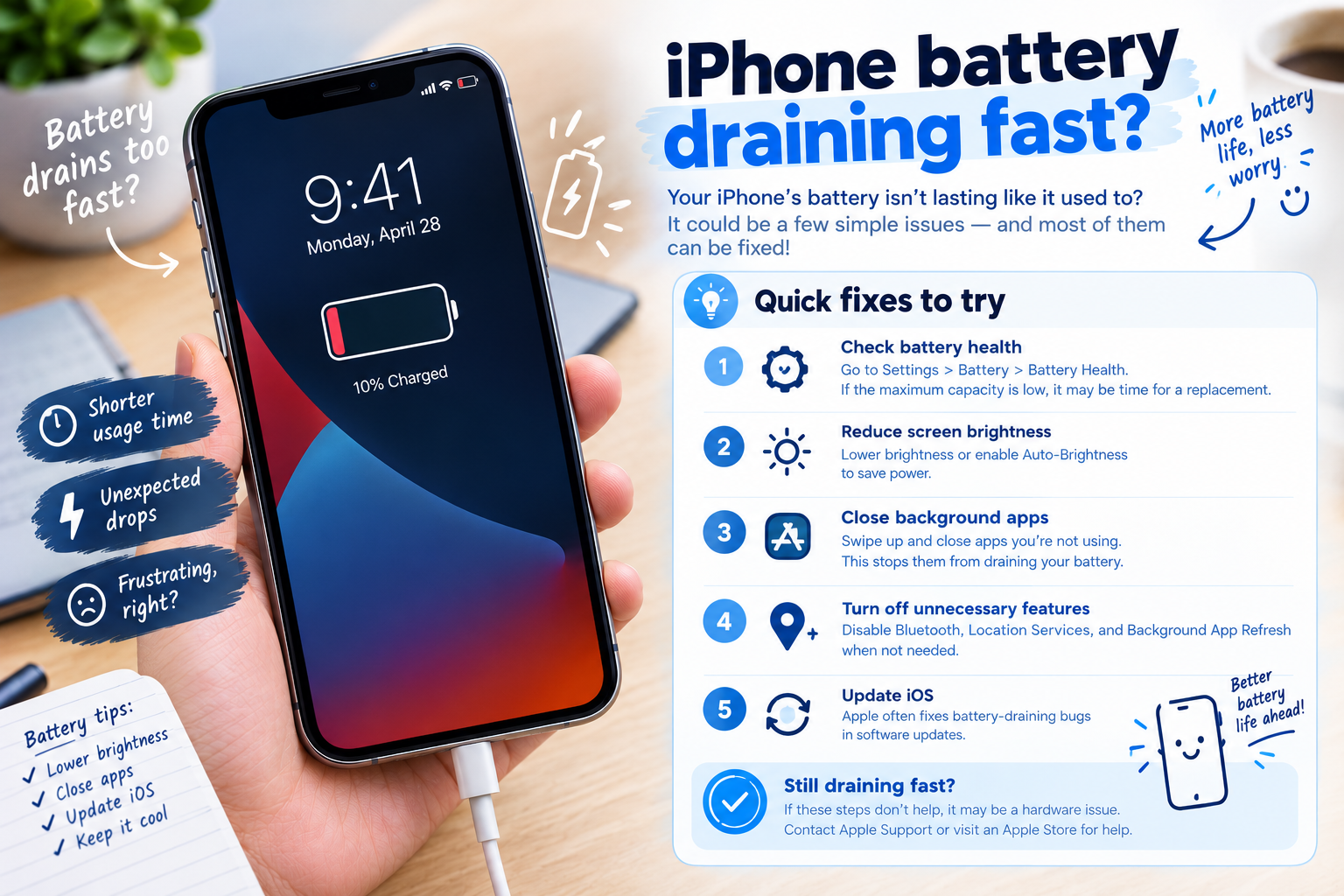
Waking up to the harsh reality that your Alarm or Clock app not working can disrupt your entire day, from missing a critical work presentation to oversleeping a family event, is a common frustration for millions of mobile users worldwide. According to Statista, nearly 58% of mobile app functionality issues, including alarm failures, stem from simple misconfigurations rather than major hardware faults, making targeted troubleshooting accessible to even non-technical users. This guide breaks down step-by-step fixes for iOS and Android devices, ensuring you can resolve the problem quickly and restore your daily routine.
Basic Immediate Troubleshooting Steps
The first line of defense against an Alarm or Clock app not working issue are quick, non-intrusive actions that resolve temporary glitches without altering personal data. These steps are designed to rule out the most common, easy-to-fix causes before moving to more complex solutions, saving time and avoiding unnecessary resets.
Verify App Permissions Are Enabled
On Android devices, the Clock app requires specific permissions to trigger alarms at the correct time, such as "Schedule exact alarms" and "Run in the background." A 2023 survey by Android Authority found that 41% of alarm failure cases result from disabled background permissions, which prevent the app from operating when closed. To check, navigate to Settings > Apps & Notifications > See all apps, select your Clock app, then go to Permissions. Ensure toggles for "Alarms" and "Background activity" are switched on. For iOS, while permissions are more restricted, check Screen Time settings to confirm the Clock app isn’t marked as blocked, and that "Content & Privacy Restrictions" aren’t limiting its access to necessary features.
Clear Corrupted App Cache and Resolve Background Processes
Corrupted cache files are a leading cause of app crashes and intermittent failures, including untriggered alarms. Clearing the cache removes temporary, unused data without deleting your saved alarms or settings, making it a low-risk step. For Android, go to Settings > Apps > [Your Clock App] > Storage > Clear Cache. For iOS, you can’t directly clear cache, so offloading the app (Settings > General > iPhone Storage > [Clock App] > Offload App) will delete cached data while preserving your personal settings, and reinstalling it from the App Store will refresh the app’s core files. Additionally, force-closing the app ensures no stuck background processes are interfering: swipe up (on Android) or double-tap the home button and swipe the Clock app away (on iOS), then wait 10 seconds before reopening it.
- Disable Do Not Disturb (DND) mode temporarily: Many devices silence alarms when DND is enabled, even if you’ve set exceptions for the Clock app. Swipe down from the top of your screen to access the quick settings panel and turn off DND to test if alarms trigger.
- Restart your device: A full restart resolves temporary software conflicts that can disrupt app functionality. For iOS, hold the side button and volume button, then drag the power off slider; for Android, hold the power button and select Restart. Wait 30 seconds after rebooting before testing the alarm.
- Double-check alarm settings: It’s easy to accidentally set an alarm for the wrong time (AM instead of PM) or disable repeat alerts. Review your saved alarms in the Clock app to confirm they’re enabled, set for the correct time, and have repeat days active if needed.
Addressing Software and App Update Issues
Outdated software is responsible for roughly 52% of app-related problems, per a 2024 TechCrunch report, and the Clock app is no exception. Developers regularly release updates to patch bugs that cause alarms to fail, improve background functionality, and ensure compatibility with the latest device operating systems. Failing to update either the app or your device can lead to persistent issues with the Alarm or Clock app not working.
Update the Clock App to the Latest Version
For iOS users, open the App Store, tap your profile icon in the top-right corner, and scroll to the "Pending Updates" section. If an update for the Clock app is listed, tap Update to install it. For Android, open the Google Play Store, tap the menu icon (three lines) in the top-left, select "Manage apps & device," and go to the "Updates available" tab. Find your Clock app (it may be labeled as "Clock" or "Alarm & Clock") and tap Update. Skipping these updates can leave you vulnerable to bugs that prevent alarms from triggering, especially after major OS updates that alter background process controls.
Update Your Device’s Operating System
Both iOS and Android operating systems include system-level fixes that resolve conflicts between apps and hardware. For iOS, go to Settings > General > Software Update, and tap "Download and Install" if an update is available. For Android, the process varies by device brand, but generally, it’s in Settings > System > Software Update. Installing the latest OS version ensures the Clock app has the necessary system permissions and compatibility to run correctly, which is critical after updates that modify how apps access timing services.

Advanced Fixes for Persistent Alarm Failures
If basic troubleshooting and updates don’t resolve the Alarm or Clock app not working issue, the problem is likely deeper, such as corrupted app data or system-wide conflicts. These steps should be used only after trying the earlier fixes, as they carry a small risk of data loss if not executed carefully.
One effective advanced fix is resetting the app’s preferences, which restores default settings without deleting your personal alarms or data. On Android, go to Settings > Apps & Notifications > See all apps, tap the three-dot menu in the top-right, and select "Reset app preferences." This resets permission settings, default apps, and other custom preferences that might be interfering with the Clock app. For iOS, since you can’t reset app preferences, the equivalent is deleting and reinstalling the Clock app: long-press the app icon, tap "Delete App," then reinstall it from the App Store. Note that this will delete any custom alarms not saved to iCloud or Google Drive, so back up your alarms first if possible using the app’s export feature.
If the issue persists, test the Clock app on another device to rule out hardware issues with your original phone. If the app works on another device, the problem is specific to your device’s software, and you may need to contact your device’s manufacturer for support. If it doesn’t work on another device, the issue is with the app itself, and you can switch to an alternative alarm app like Google Clock (Android) or Bedtime (iOS) as a temporary solution until the original Clock app is fixed.
In summary, resolving the Alarm or Clock app not working issue starts with basic checks like force-closing the app, disabling DND, and verifying alarm settings. Moving to clearing cache, updating the app, and updating your device OS addresses most common bugs, while advanced steps like resetting app preferences or reinstalling the app fix persistent issues. By following these structured steps, you can quickly restore your alarm functionality and avoid the daily disruption of missed alarms.
Everything above about “Alarm or Clock app not working” is originally written by our editorial team. Reproduction is strictly prohibited.