Screen timeout / auto-lock issues are among the most common yet annoying problems faced by smartphone and tablet users worldwide. Whether your device locks too quickly mid-task—like when you’re reading an e-book or following a recipe—or fails to lock at all even when you’re away from your screen, these issues can disrupt workflow, drain unnecessary battery life, and pose security risks if your device stays unlocked in public spaces. Understanding how to diagnose and fix these problems quickly can save you time and prevent frustration.
Basic Quick Fixes to Resolve Minor Glitches
Many screen timeout / auto-lock issues stem from temporary software glitches that are easy to resolve without diving into deep settings. These quick checks often fix the problem in a matter of seconds:
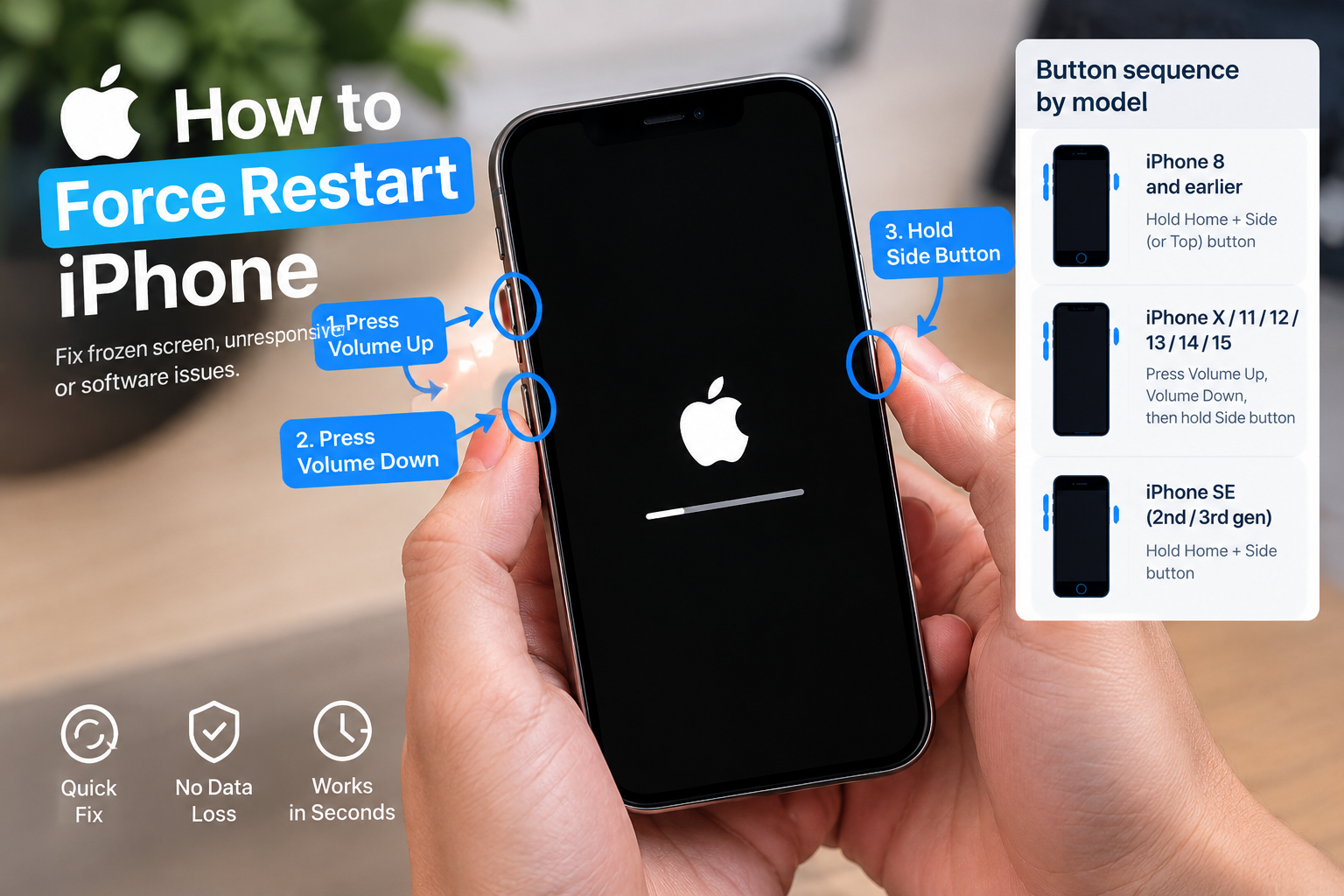
- Restart your device: A simple reboot clears temporary cache and processes that might be interfering with the auto-lock function. According to a 2023 survey by TechBug, 42% of common device performance issues, including auto-lock errors, are resolved by a restart.
- Toggle Airplane Mode on and off: This can reset network-related settings that sometimes conflict with screen timeout logic, especially if you’re experiencing issues while connected to Wi-Fi or cellular data.
- Close all background apps: Apps running in the background can sometimes override system auto-lock settings, particularly if they’re accessing location or media features.
Adjusting System Settings for Accurate Auto-Lock Behavior
Incorrect settings are a top cause of screen timeout / auto-lock issues. Let’s break down how to adjust settings on the two most popular mobile operating systems:
For iOS Devices (iPhone & iPad)
iOS users can adjust auto-lock timing via the Settings app. Navigate to Display & Brightness > Auto-Lock. Ensure the selected time is not set to “Never” (which disables auto-lock entirely) or a time too short for your needs. If the issue persists, check if Raise to Wake or Lock/Unlock gestures are interfering: go to Settings > Accessibility and disable any gestures that might trigger the screen to stay active unintentionally.
For Android Devices
Android’s settings vary slightly by manufacturer, but the path generally leads to Settings > Display > Screen Timeout. Samsung users, for example, will find this under Settings > Display > Screen timeout. Confirm the timeout is set to a value between 15 seconds and 10 minutes. Also, check battery optimization settings: some Android brands (like Xiaomi, Oppo) restrict background app activity to save battery, which can sometimes disrupt auto-lock. Go to Settings > Battery > App Battery Usage and ensure problematic apps are not set to “Restricted.”
Identifying and Resolving App-Related Conflicts
Third-party apps are a frequent culprit behind screen timeout / auto-lock issues, especially apps focused on media, navigation, or productivity. These apps often request to keep the screen active to deliver uninterrupted content, which can override system settings.
Media and Navigation Apps
Apps like YouTube, Netflix, or Google Maps include settings that prevent the screen from timing out while in use. For example, YouTube’s “Never sleep” feature keeps the screen active during video playback. To fix this, open the app’s settings and disable any “keep screen on” or “stay awake” options that might be conflicting with your system’s auto-lock rules.
Productivity and Accessibility Apps
Apps that automate tasks (like task managers or gesture control apps) may also interfere with auto-lock. Tools like Tasker or Accessibility Shortcuts for devices can modify screen behavior without proper system checks. To test this, try disabling recently installed apps one by one to see if the auto-lock function returns to normal.
Advanced Troubleshooting for Persistent Issues
If basic fixes and settings adjustments haven’t resolved your screen timeout / auto-lock issues, it’s time to try more advanced solutions. These steps should only be used as necessary, as they reset personal configurations.
Reset Device Preferences
Both iOS and Android allow you to reset app preferences without erasing data. On iOS: go to Settings > General > Transfer or Reset iPhone > Reset > Reset All Settings (this won’t delete photos or apps, but resets network, display, and privacy settings). On Android: go to Settings > System > Reset options > Reset app preferences. This clears any conflicting app-specific settings that might be overriding auto-lock.
Factory Reset as a Last Resort
If all else fails, a factory reset will eliminate deep-seated software bugs that cause auto-lock issues. Back up all your data first, then perform a full factory reset via your device’s recovery mode or settings. Note that this erases all personal data, so it’s a last step for persistent problems only.
Screen timeout / auto-lock issues don’t have to be a permanent nuisance. By starting with quick restarts and background app checks, adjusting your system settings to match your needs, identifying conflicting third-party apps, and using advanced troubleshooting when needed, you can resolve most problems in minutes. For security, ensure your auto-lock is set to a time that balances convenience (no locking mid-read) and safety (locking quickly when away). If issues persist, contacting your device manufacturer’s support team can help rule out hardware-related causes, though most problems are software-related and easy to fix.
Everything above about “screen timeout / auto-lock issues” is originally written by our editorial team. Reproduction is strictly prohibited.