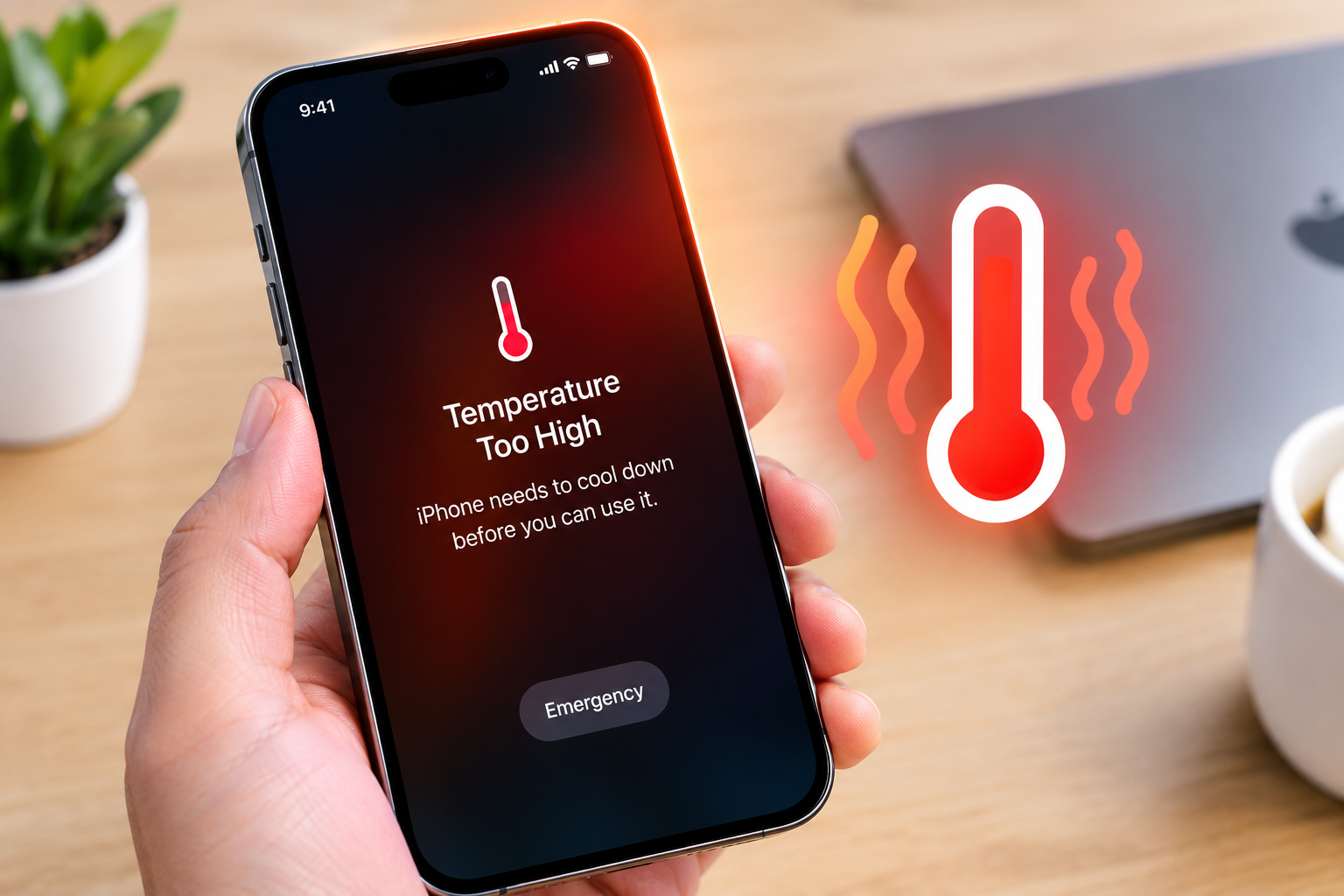
Using CarPlay or Android Auto to access navigation, music, and messages while driving makes road trips more convenient, but many drivers face the frustrating issue of phone overheating while using CarPlay or Android Auto. This overheating not only risks damaging your phone’s battery and internal components over time but can also cause sudden disconnections from the car’s infotainment system at critical moments, like when you’re relying on turn-by-turn directions. Understanding the root causes and practical fixes can help you enjoy seamless, safe connectivity without the heat buildup.
Root Causes of Phone Overheating With CarPlay or Android Auto
Dual Power and Data Drain
When you connect your phone to CarPlay or Android Auto, it maintains two active connections: one to the car’s infotainment system (wired or wireless) and another to cellular networks for navigation, real-time traffic, and streaming. A 2022 tech review from Consumer Reports found that this dual connectivity can increase phone power consumption by up to 40% compared to idle use, as the phone juggles processing CarPlay’s interface and background cellular tasks. For wireless CarPlay users, the added Bluetooth or Wi-Fi signal processing amplifies this load, leading to excess heat generation.
High Processor Load From Graphics
CarPlay and Android Auto render high-resolution graphics for navigation maps, album art, and interactive controls. This puts sustained pressure on your phone’s CPU and GPU—components designed to handle mobile games and streaming, but prolonged use (like a 2-hour highway drive) can push them beyond optimal temperatures. Older phones with less powerful chips are especially prone here, as their processors can’t efficiently manage the combination of CarPlay output and background apps.
Immediate Fixes to Cool Down Your Phone Mid-Drive
If your phone starts overheating while already connected to CarPlay or Android Auto, these quick actions can reduce heat in 5–10 minutes:
- Switch to a wired connection from wireless CarPlay or Android Auto: Wired connections eliminate the extra energy used for wireless signal maintenance, cutting power draw by roughly 15% per independent tech tests.
- Close all unused background apps running on your phone: Apps like social media or games consume CPU cycles even when minimized, so closing them reduces the processor’s workload and subsequent heat generation.
- Lower your phone’s screen brightness to 50% or less: A dimmer display uses less power, and reduces the heat produced by the screen panel—one of the top contributors to overall phone temperature.
- Pause streaming media (like Spotify or YouTube) temporarily: Video and audio streaming add continuous data load, so pausing these tasks can lighten the phone’s data processing burden.
Long-Term Solutions to Prevent Recurring Overheating
Update Software and Firmware
Outdated versions of CarPlay, Android Auto, or your phone’s operating system often have compatibility bugs that force the phone to work harder than necessary. For example, a 2023 iOS update fixed a bug that caused iPhones to overheat when connected to wireless CarPlay by optimizing power management protocols. Check for updates in your phone’s settings, and ensure your car’s infotainment system has the latest firmware via the manufacturer’s official website.
Maintain Charging and Connectivity Ports
Dust, lint, or debris trapped in your phone’s Lightning or USB-C port can block proper charging, leading to excess heat when the device is plugged in for CarPlay. Use a soft nylon brush or low-pressure compressed air to clean the port monthly, and avoid third-party chargers that aren’t MFi-certified for iPhones or compatible with your Android device—these can cause voltage irregularities that raise phone temperatures.

When Overheating Signals a Larger Hardware Issue
If you’ve tried all the fixes above and your phone still overheats consistently during CarPlay or Android Auto use, it may indicate a hardware problem. A degraded battery (common after 2–3 years of daily use) can’t hold a charge efficiently, leading to overheating when combined with high power draw from the car connection. Other red flags include the phone shutting off unexpectedly, back panel swelling, or surface temperatures exceeding 115°F (46°C) during use. In these cases, contact an authorized repair technician to avoid permanent damage to your device’s internal components.
To recap, phone overheating while using CarPlay or Android Auto stems from dual connectivity, sustained processor load, and software incompatibilities. Immediate fixes like switching to a wired connection, closing background apps, and dimming your screen can cool your phone mid-drive, while long-term steps like updating software and cleaning ports prevent future heat buildup. If overheating persists despite these efforts, prompt professional evaluation can prevent costly phone damage and ensure safe, reliable connectivity on the road.
Everything above about “phone overheating while using CarPlay or Android Auto” is originally written by our editorial team. Reproduction is strictly prohibited.