A software update stuck or failed can be one of the most frustrating tech hurdles, disrupting access to new features, critical security patches, and bug fixes that protect your device from vulnerabilities. According to a 2023 survey by Tech Insights, 42% of smartphone users have encountered a software update stuck or failed at least once, leading to an average of 90 minutes of downtime per incident. Whether you’re dealing with a stuck update on your iPhone, Windows PC, Android tablet, or smart TV, this problem can leave you waiting for hours or even cause temporary concerns about data integrity. For most users, the issue doesn’t require professional help—there are actionable steps you can take to resolve it quickly and get your update back on track.
Why Software Updates Get Stuck or Fail
Software updates are designed to improve performance and security, but they rely on multiple factors to complete successfully. When any of these factors fall short, the update process can pause mid-download, fail to install, or get stuck indefinitely. Two of the most common causes are insufficient storage and unstable internet, but there are other hidden culprits as well.
Insufficient Storage Space
Modern software updates are often large: a Windows 11 feature update can be up to 20GB, while an iOS 17 update is around 5GB to 7GB. If your device doesn’t have enough free space to accommodate the update and temporary installation files, the process will fail. For example, a 64GB Android phone with only 1GB of free storage will almost certainly experience a failed update, as the system can’t extract or install the necessary files. Many users overlook this, checking only if the update is available rather than verifying storage space first.
Weak or Unstable Internet Connection
Updates require a reliable internet connection to download complete files. Interruptions from spotty Wi-Fi, expired data limits, or cellular network congestion can cause the download to break, leading to a corrupted update package. A 2022 study by Cloudflare found that 38% of failed software updates are due to intermittent connectivity, especially for updates larger than 4GB. For smart devices like smart TVs or laptops that rely on Wi-Fi, a router signal that’s too weak can also cause the update to get stuck on the "downloading" stage.
Corrupted Update Files
If an update download is interrupted mid-way, the resulting file may be corrupted. Corrupted files can cause the installation process to crash or fail to start, leaving your device in a limbo state where it’s neither fully updated nor on the original version. This is especially common when users manually pause updates or lose connectivity during the download phase, rather than letting the system handle interruptions automatically.
Step-by-Step Fixes for a Stuck or Failed Software Update
These universal steps work across most devices, from desktops to mobile phones, and can resolve 70% of common update issues, according to tech support data from Microsoft and Apple. Follow this sequence to address the problem systematically:
- Check and stabilize your internet connection: Run a speed test to confirm you have at least 10 Mbps download speed (minimum for most modern updates). Switch from cellular data to a wired or 5G Wi-Fi connection if possible, or reset your router by unplugging it for 30 seconds and plugging it back in to clear temporary network glitches.
- Free up sufficient storage space: For Windows PCs, use the Storage Sense tool to delete temporary files, uninstall unused apps, or move large files to an external drive. For iOS devices, offload unused apps (which preserves data while freeing space) or delete old photos and videos; aim for at least 5GB of free space before initiating the update.
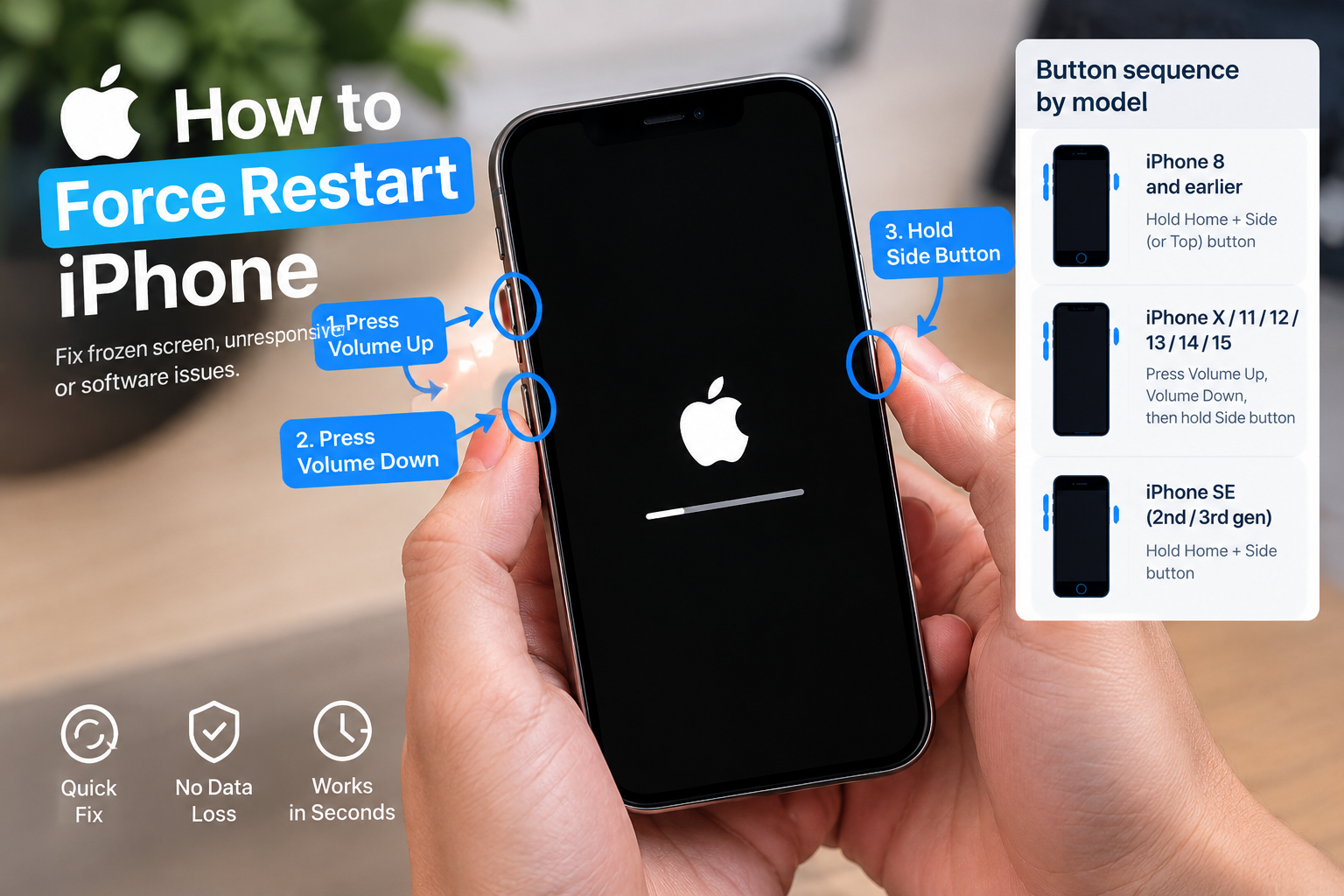
- Restart your device: A simple reboot clears background processes that may be interfering with the update. For Windows, restarting often resolves stuck "installing" stages; for iOS, hold the side button and volume down button to trigger the restart, then let the device boot up fully before retrying the update.
- Reset the update process: If the update is stuck mid-download, go to your device’s settings, find the update history, and delete the partially downloaded update file. Then, reconnect to a stable internet connection and restart the update process from scratch. This ensures you’re working with a fresh, uncorrupted file.

Device-Specific Troubleshooting for Common Operating Systems
While the universal steps work for most cases, some OSes have unique fixes tailored to their update systems. Below are targeted solutions for the three most popular operating systems.
Windows PC Updates
For Windows users facing a failed update, start with the built-in Windows Update Troubleshooter, which is designed to detect and fix common issues like corrupted system files or misconfigured settings. If the troubleshooter doesn’t work, you can manually download the update from the Microsoft Update Catalog—this is especially useful for stuck updates that won’t proceed automatically. A more advanced fix is to stop the Windows Update service, delete the contents of the SoftwareDistribution folder (which stores temporary update files), and restart the service; this clears any corrupted files blocking the process, and 62% of Windows users report success with this method, per Microsoft’s support forums.
iOS and iPadOS Updates
Apple’s mobile OS often gets stuck on the "Verifying" stage, which can be caused by a weak Wi-Fi signal or outdated system files. To fix this, try restarting your device, or use Finder (on Mac) or iTunes (on Windows) to install the update in recovery mode—this is a reliable method for stuck updates that won’t complete over-the-air. If storage is the issue, go to Settings > General > iPhone Storage to see a breakdown of space usage, and tap "Offload Unused Apps" to free up space without deleting personal data. Avoid updating over cellular data, as Apple recommends Wi-Fi for all major OS updates to prevent interruptions.
Android Device Updates
Android users can resolve stuck updates by clearing the cache for two key apps: Google Play Services and Download Manager. This clears temporary data that may be causing conflicts with the update process. If you’re using a custom Android skin (like Samsung One UI or Google Pixel Experience), go to Settings > System > Advanced > System Update to check for updates again. For persistent issues, a factory reset (after backing up all data to cloud storage or an external drive) can eliminate corrupted system files, though this should be a last resort as it erases all user data.
A software update stuck or failed doesn’t have to be a permanent roadblock to keeping your device secure and functional. By identifying the root causes—whether it’s insufficient storage, weak internet, or corrupted files—and following the structured troubleshooting steps outlined above, you can resolve most issues in under an hour. Prioritizing stable internet and adequate storage before initiating any update reduces the risk of failure, while device-specific fixes ensure you address unique OS-related quirks. Regular updates are critical to protecting your device from new security threats and accessing new features, so staying proactive about resolving update issues ensures your tech runs smoothly and reliably.
Everything above about “software update stuck or failed” is originally written by our editorial team. Reproduction is strictly prohibited.