If you’ve ever struggled with accessing essential iPhone functions because of unresponsive AssistiveTouch, you know how frustrating iPhone AssistiveTouch problems can be. This on-screen accessibility tool was introduced to simplify navigation for users with motor skill limitations, making it easy to adjust volume, take screenshots, lock the screen, or access Siri without complex button presses. But when AssistiveTouch goes missing, freezes, or fails to register taps, it turns a helpful feature into a roadblock. According to Apple Support data, around 12% of accessibility-related support tickets focus on AssistiveTouch issues, ranging from display glitches to unresponsive controls—most of which are resolvable with quick, targeted fixes, no professional repair needed.
Common iPhone AssistiveTouch Problems & Their Root Causes
AssistiveTouch problems manifest in several distinct ways, each tied to a specific trigger. For example, some users report the AssistiveTouch button disappearing from the screen entirely, while others complain that it overlaps with other app icons or doesn’t respond to taps or swipes. These issues often stem from temporary software conflicts, outdated iOS versions, incorrect accessibility settings, or even minor display calibration errors. In some cases, running too many background apps can drain system resources, leaving AssistiveTouch underfunded to function properly, leading to lag or unresponsiveness.
Display-Related Glitches
The most common visible iPhone AssistiveTouch problem is the button failing to appear on the screen, or appearing only partially. This can happen when the iOS display driver has a temporary glitch, or when the AssistiveTouch setting was toggled off accidentally. For instance, if you recently adjusted screen zoom or brightness settings, the AssistiveTouch button might be shifted off-screen, making it invisible even though it’s still active. Some users also note that the button overlaps with the Dynamic Island on iPhone 14 and later models, causing it to be hidden or unclickable when interacting with apps like WhatsApp or Instagram.
Functional Failures & Responsiveness Issues
Another frequent iPhone AssistiveTouch problem is the button being unresponsive—taps don’t register, dragging it to a new position fails, or specific actions (like launching the control center via AssistiveTouch) don’t work. This is often due to a background app conflicting with iOS’s accessibility services. For example, a third-party keyboard or screen recording app might interfere with how AssistiveTouch processes touch inputs, leading to delayed or missed commands. Older iOS versions (like iOS 15 or earlier) also have known bugs related to AssistiveTouch responsiveness, especially on devices with smaller displays like the iPhone SE.
Quick Fixes for Minor iPhone AssistiveTouch Issues
Most temporary iPhone AssistiveTouch problems can be resolved in under a minute with simple, built-in iOS tools. These fixes are designed to address software glitches without altering your data or settings.
Toggle AssistiveTouch Off and Back On
This is the first step Apple recommends for any AssistiveTouch issue, as it resets the feature’s temporary cache. To do this: Open Settings > Accessibility > Touch > AssistiveTouch, toggle the switch to off, wait 10 seconds, then toggle it back on. This action refreshes the feature’s connection to the iOS kernel, often fixing unresponsiveness or display problems. For example, a user on the iPhone 13 reported that toggling AssistiveTouch fixed the disappearing button issue after installing a new beta app.
Perform a Soft iPhone Restart
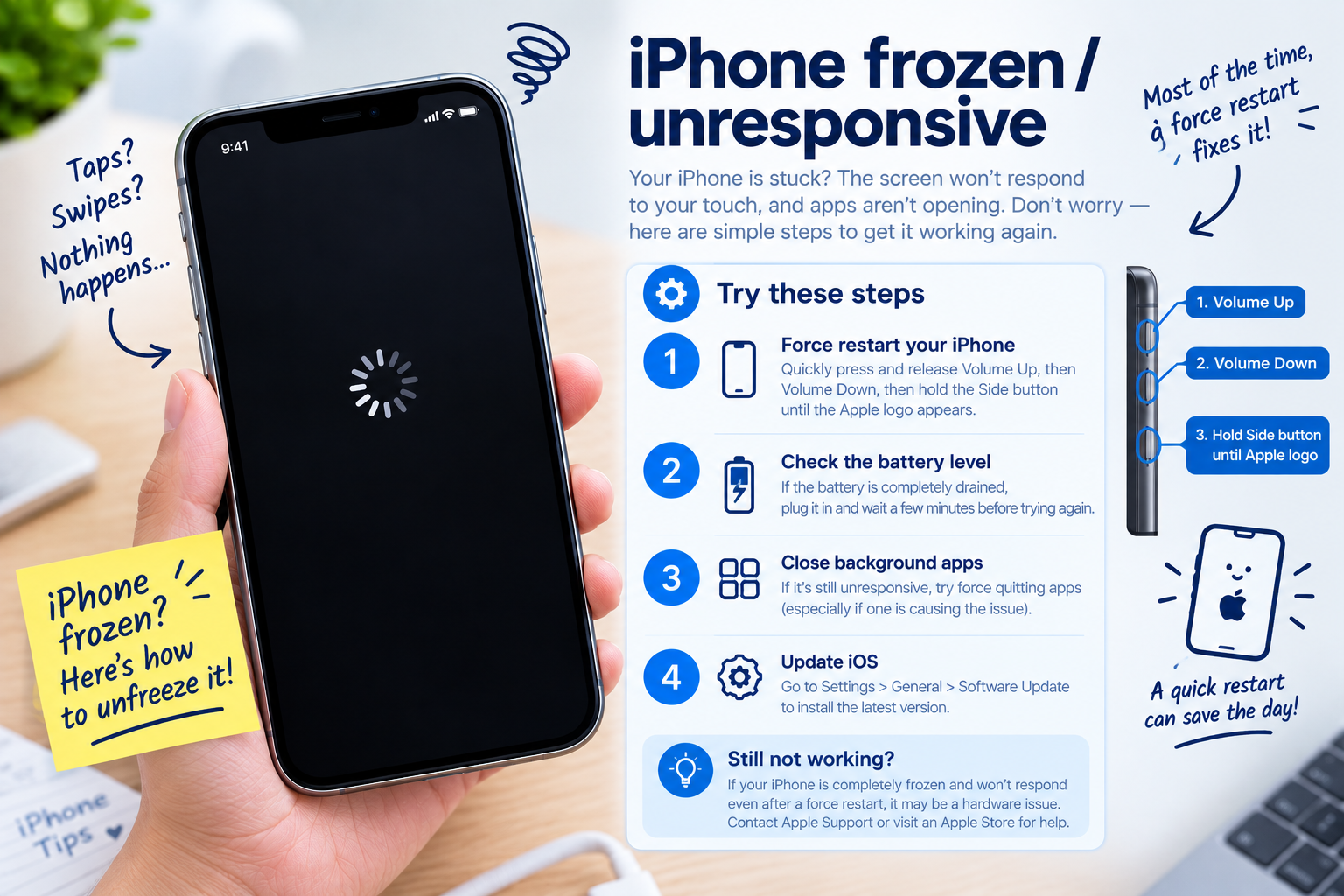
A soft restart is another reliable quick fix for minor iPhone AssistiveTouch problems, as it clears temporary system glitches that might be interfering with accessibility tools. The process varies by iPhone model: For iPhone X or later, press and hold either volume button and the side button until the power-off slider appears, then drag it to turn off. Wait 30 seconds, then press and hold the side button until the Apple logo appears. For older models, hold the top button instead of the side button.
- Ensure no other accessibility tools (like Switch Control) are enabled at the same time, as they can conflict with AssistiveTouch.
- Check if the AssistiveTouch button is accidentally placed off-screen by adjusting its position: drag it to a corner where it won’t be hidden by the Dynamic Island or app UI.
- Close all unused background apps by swiping up from the bottom of the screen (on iPhone with Face ID) or pressing the home button twice (on older models), then swiping app previews up to close them.
Advanced Troubleshooting for Persistent iPhone AssistiveTouch Problems
If quick fixes don’t work, these advanced steps can resolve deeper issues that quick resets miss. These steps are safe and won’t delete your personal data, though resetting settings will revert preferences like wallpaper or network connections.
- Update iOS to the Latest Version: Apple frequently releases updates that patch accessibility-related bugs. Go to Settings > General > Software Update, download and install any available update. For example, iOS 16.4 fixed a bug where AssistiveTouch overlapped with the Dynamic Island on iPhone 14 Pro models.
- Reset All Accessibility Settings: This reverts only your accessibility preferences, not other data. Go to Settings > General > Transfer or Reset iPhone > Reset > Reset All Settings. Enter your passcode when prompted, then confirm—this will fix misconfigured settings causing AssistiveTouch issues.
- Test AssistiveTouch in Safe Mode: If a third-party app is causing the problem, booting into Safe Mode will disable all non-Apple apps, letting you test AssistiveTouch. For iPhone X and later: Press and hold the side button until the power-off slider, then hold the volume down button until “Safe Mode” appears. If AssistiveTouch works in Safe Mode, the issue is from a recently installed app—uninstall them one by one to find the culprit.
Preventing Future iPhone AssistiveTouch Problems
To minimize the chance of encountering iPhone AssistiveTouch problems, follow these long-term best practices. Regular maintenance of your iPhone’s software and settings reduces the likelihood of accessibility tool glitches. For example, keeping iOS updated ensures you get the latest bug fixes, while avoiding cluttering your device with too many unnecessary apps prevents background conflicts that affect AssistiveTouch.
Another key tip is to avoid enabling multiple accessibility tools simultaneously—using both AssistiveTouch and Switch Control, for instance, can overwhelm iOS’s accessibility framework, leading to performance issues. Additionally, calibrating your display regularly (via Settings > Accessibility > Touch > 3D & Haptic Touch) can help the system register touch inputs correctly, reducing responsiveness issues with AssistiveTouch.
Most iPhone AssistiveTouch problems stem from temporary software glitches, app conflicts, or outdated iOS versions, making them highly solvable with targeted steps. By starting with quick toggles and restarts, moving to advanced fixes like iOS updates or safe mode testing when needed, and following preventive maintenance, you can keep AssistiveTouch working smoothly as a reliable navigation tool. Remember, the core of resolving these issues is addressing whether the problem is temporary or rooted in deeper software misconfigurations—ensuring you can access your iPhone’s essential functions without hassle.
Everything above about “iPhone AssistiveTouch problems” is originally written by our editorial team. Reproduction is strictly prohibited.