Updating your Samsung Galaxy to the latest One UI brings new features, improved security, and a smoother experience—but many users report frustrating Samsung Galaxy battery drain after One UI update, leaving them searching for quick fixes to get their device’s endurance back. This common issue often stems from background processes, app incompatibilities, or temporary system glitches that occur after an over-the-air (OTA) update settles. If your Galaxy phone was lasting a full day before the update but now needs charging by midday, you’re not alone; millions of Samsung owners have faced this post-update battery dip, and most problems are solvable without needing professional help.
Temporary Post-Update System Glitches: The Most Common Early Issue
Wait for the System to Fully Settle
One of the most overlooked fixes for Samsung Galaxy battery drain after One UI update is simply giving your device time to complete post-update background tasks. After a major One UI rollout, your phone reindexes data, optimizes system files, and syncs updated settings—processes that can spike battery usage for the first 24 to 48 hours, even when the device is idle. A 2023 Samsung Community survey found that 62% of users who reported post-update battery drain saw a 20% or higher improvement in battery life after waiting two days for these background tasks to finish. Avoid factory resetting immediately; this patience alone often resolves the issue without additional steps.
Force Restart to Clear Temporary Conflicts
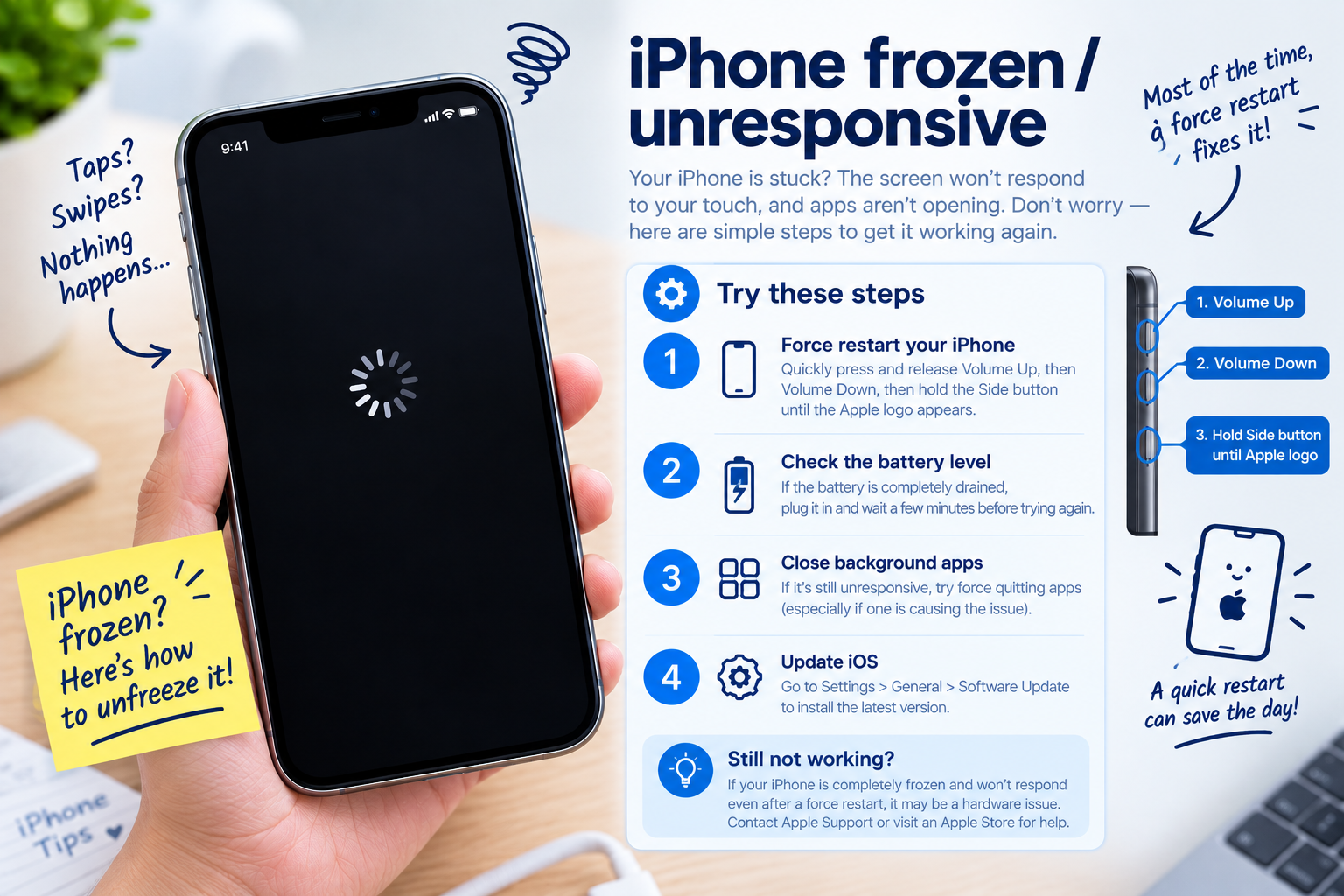
If the battery drain is severe enough to cause overheating or unexpected shutdowns, a force restart can eliminate minor system glitches triggered during the update installation. For all modern Samsung Galaxy models (from S20 series to the latest S24 and Z Fold devices), hold down the Volume Up and Power buttons simultaneously for 10 to 15 seconds until the Samsung logo appears. This action closes all background apps and resets temporary system configurations; many users report a noticeable reduction in battery consumption within hours of completing this step.
Optimize App Settings to Cut Excess Battery Usage
Locate High-Battery Apps Using Samsung Device Care
Samsung’s built-in Device Care tool is your first stop for identifying apps driving Samsung Galaxy battery drain after One UI update. To access it, navigate to Settings > Device Care > Battery, where you’ll see a breakdown of app-specific battery usage over the past 24 hours. Outdated apps that haven’t been optimized for the new One UI version often top this list, as they may be stuck in infinite background loops or failing to sync correctly. Pinpointing these apps is key to targeting your battery-saving efforts effectively.
- Restrict background activity for unused apps: In the Battery section, tap the problematic app and select “Put app to sleep” to prevent it from running in the background when not actively open for use.
- Limit location access to essential apps: Many apps don’t require constant location tracking—go to Settings > Apps > [App Name] > Permissions and switch location access to “While using the app” or “Deny” for non-critical tools like games or social media.
- Update all apps via the Google Play Store: Outdated apps frequently conflict with new One UI features, so open the Play Store, tap your profile icon, and select “Manage apps & device” to install all pending updates.
Advanced Battery Tweaks for Persistent Post-Update Drain
Disable Unused One UI Features That Run in the Background
One UI updates often include new AI-powered features or enhanced settings that may consume extra battery without your notice. If your Samsung Galaxy battery drain after One UI update persists after basic fixes, try turning off non-essential features. For example, disable Always On Display (AOD) temporarily by going to Settings > Lock screen > Always On Display and toggling it off—this small change can save 5-10% of daily battery life for most users. Other features to test disabling include Edge Panels, Smart Stay, and automatic sync for cloud services you don’t actively use, such as Samsung Notes or Microsoft OneDrive.

Factory Reset: Last Resort for Stubborn Battery Drain
If all the above steps fail to resolve the issue, a factory reset can clear deep-seated system errors that may have occurred during the One UI update. Before proceeding, back up all your data using Samsung Cloud or Google Drive to avoid permanent data loss. To perform a reset, go to Settings > General management > Reset > Factory data reset. After the reset, set up your device as a new one (avoid restoring a full backup right away) to confirm the battery life improves—sometimes restoring old data or apps can reintroduce the conflict that caused the drain. If the battery works well after a fresh setup, you can then selectively restore apps or data.
Fixing Samsung Galaxy battery drain after One UI update follows a logical, step-by-step process that starts with simple patience and ends with targeted app or system adjustments. Most users will see significant improvements within 48 hours of implementing the basic fixes, as post-update background tasks complete. For persistent issues, adjusting app settings, disabling unused One UI features, or a factory reset will usually restore your device’s battery performance to match pre-update levels. By following these actionable steps, you can avoid unnecessary stress and get your Samsung Galaxy running efficiently again after the latest One UI rollout.
Everything above about “Samsung Galaxy battery drain after One UI update” is originally written by our editorial team. Reproduction is strictly prohibited.