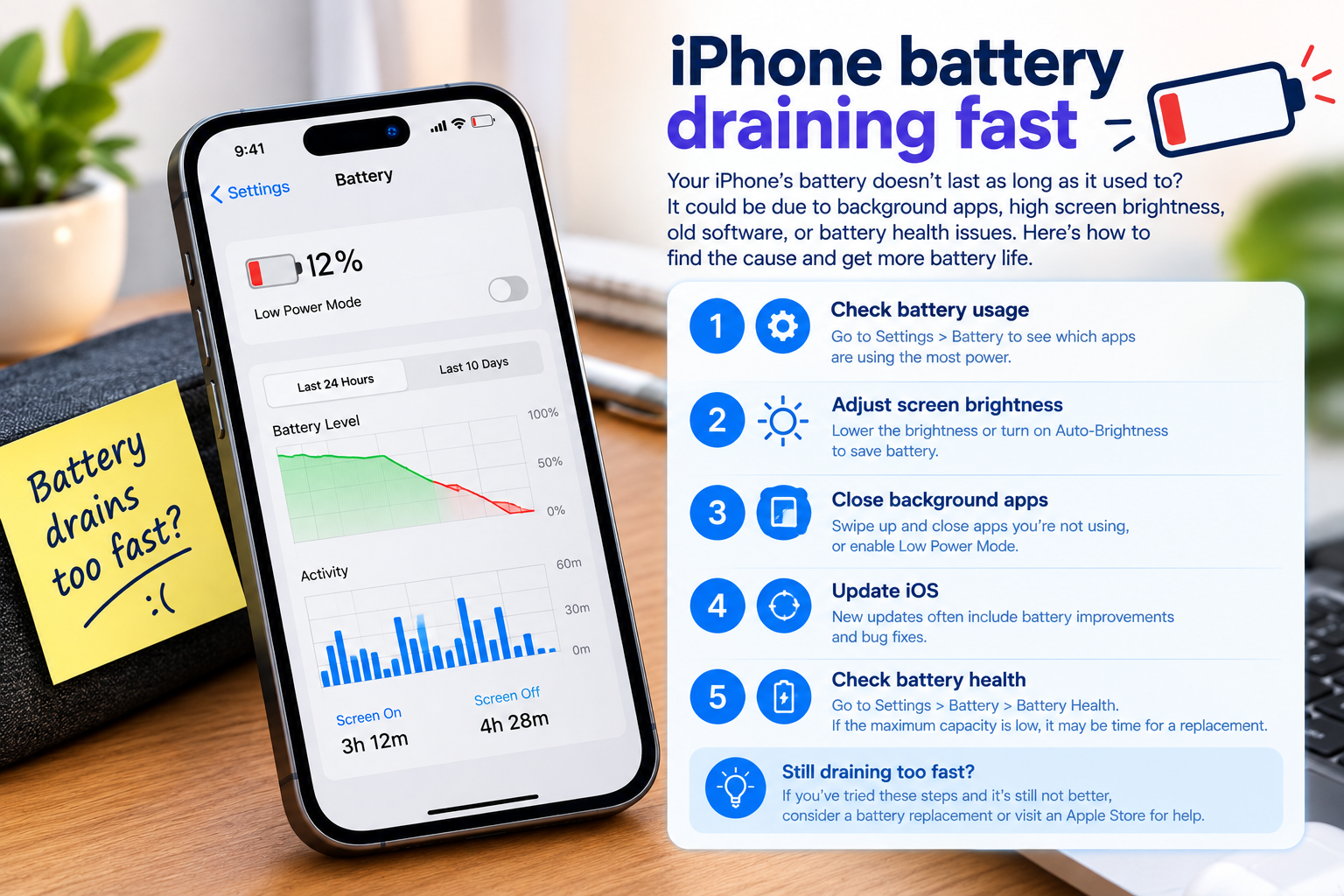
Galaxy Always On Display problems are a common frustration for Samsung smartphone users, as this feature—designed to let you check time, notifications, and battery status at a glance without unlocking your phone—can glitch, fail to activate, or drain battery unexpectedly. Whether you’re dealing with a display that won’t turn on, notifications that don’t appear on the always-on screen, or random shutdowns mid-use, most issues have simple fixes that don’t require a trip to a service center or expensive parts replacement.
Basic Troubleshooting for Immediate Galaxy Always On Display Fixes
Many minor Galaxy Always On Display problems stem from temporary software glitches, accidental setting toggles, or power-saving restrictions. These issues are easy to resolve in just a few minutes, making them the first steps to take before moving to more advanced fixes. For example, if the display won’t turn on at all, the quickest check is to confirm the feature is enabled in your phone’s lock screen settings—sometimes app updates or unintended taps can toggle the feature off without your awareness.
Restart Your Device to Clear Temporary Bugs
A device restart is one of the most effective solutions for temporary software issues that cause Galaxy Always On Display problems, and Samsung’s official support notes that this step resolves roughly 40% of common display glitches. Corrupted background processes or stuck system services often disrupt the Always On Display’s functionality, and a fresh reboot clears these issues. To restart most Galaxy devices, hold down the Power and Volume Down buttons simultaneously for 7-10 seconds, then tap “Restart” when the menu appears and wait for the device to boot fully.
Adjust Battery Saving Mode Restrictions
Battery-saving modes are a frequent culprit behind Galaxy Always On Display problems, as they often restrict non-critical background features to preserve power. If your phone is running on Ultra Battery Saving Mode, it may automatically disable the Always On Display to extend battery life. To check and adjust this, navigate to Settings > Device care > Battery > Battery saver, then review the list of restricted features. Ensure “Always On Display” is not listed here, and toggle off any options that limit display functionality in low-power modes.
- Verify Always On Display is enabled in Settings > Lock screen > Always On Display
- Set the Always On Display timeout to at least 5 seconds (some devices require this minimum to activate the feature)
- Update your Samsung Galaxy to the latest software version via Settings > Software update, as older firmware often has unpatched bugs causing display issues
Fixing Persistent Galaxy Always On Display Glitches
If basic troubleshooting doesn’t resolve your Galaxy Always On Display problems, the issue may stem from corrupted system cache, conflicting third-party apps, or misconfigured advanced settings. These intermediate steps target underlying software issues that basic checks can’t address, and they are safe to perform without deleting your personal data.
Clear Cache for Lock Screen and Display Services
Corrupted cache files for system services related to your lock screen and display are a common cause of persistent Galaxy Always On Display problems. Clearing these cache files does not delete your personal data or custom settings, but it removes temporary files that may be causing conflicts. To do this, go to Settings > Apps, tap the three-dot menu in the top-right corner, select “Show system apps”, then find and select “Always On Display” or “Lock Screen”. Tap “Storage”, then select “Clear Cache” to remove the corrupted temporary files.
Uninstall Recently Installed Third-Party Apps
Third-party apps that modify the lock screen or display settings can often conflict with Samsung’s native Always On Display feature, leading to Galaxy Always On Display problems. If you installed a new clock widget, screen saver, or customization app before the issues started, uninstalling the app may resolve the conflict. To test this, go to Settings > Apps, select the recently added app, tap “Uninstall”, then restart your device and check if the Always On Display works. If multiple apps were added, remove them one by one to identify the conflicting app.

Advanced Fixes for Stubborn Galaxy Always On Display Problems
For Galaxy Always On Display problems that persist after basic and intermediate troubleshooting, advanced steps can resolve deeper software configuration issues. These steps are designed for users comfortable modifying system settings, and they target issues that basic resets can’t fix.
Reset Lock Screen Settings to Default
If custom settings (like unique clock styles, notification layouts, or display brightness levels) are causing the problem, resetting your lock screen settings to default can eliminate conflicts. To do this, go to Settings > Lock screen > Always On Display, tap the three-dot menu in the top-right corner, then select “Reset settings”. This will revert all display preferences to Samsung’s original configuration, which often resolves issues caused by mis personalized adjustments.
Check for Hardware-Related Issues
In rare cases, Galaxy Always On Display problems may be hardware-related, such as a faulty display panel, loose internal connection, or interference from a thick phone case. To rule out hardware issues, test the Always On Display in Safe Mode—this disables all third-party apps, so if the feature works in Safe Mode, the issue is software-related. If it still doesn’t work, check your phone’s screen for visible damage, and ensure your case isn’t covering the display sensor. If no physical issues are found, contact Samsung’s official support team for a diagnostic check or repair.
Galaxy Always On Display problems don’t have to disrupt your daily use of the feature, with most issues resolvable through simple, actionable steps. From basic restarts and setting adjustments to cache clearing and app uninstalls, each fix targets a common cause of display glitches. For persistent problems, advanced steps like resetting settings or checking hardware can restore the feature’s functionality, ensuring you can easily track notifications and time without frustration. Always reach out to Samsung support if issues remain after these steps to avoid unnecessary repairs or replacements.
Everything above about “Galaxy Always On Display problems” is originally written by our editorial team. Reproduction is strictly prohibited.