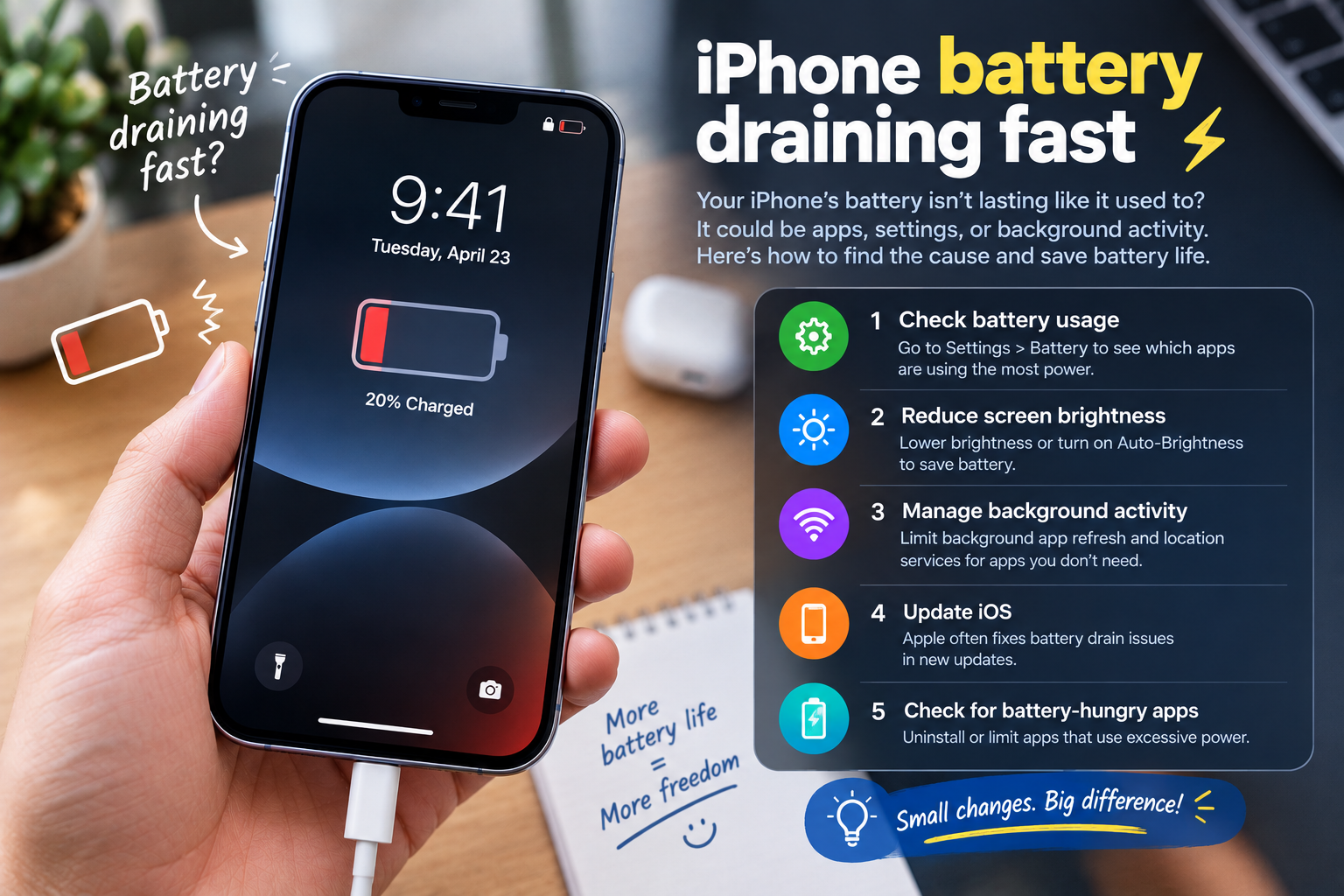
If you own a Samsung smartphone, you’ve likely encountered the frustrating problem where your Samsung screen stays on during calls, even when the phone is pressed against your face. This common issue can lead to accidental inputs like muting calls, ending conversations, or launching other apps, and it also wastes battery life unnecessarily. This issue is particularly disruptive for important calls, from work meetings to personal chats, interrupting flow and draining power faster than usual. For Samsung users across all models, from the budget Galaxy A series to premium Galaxy S and Z Fold lines, this problem is widely reported on official community forums, making it a top complaint among Samsung device owners.
Common Causes of Samsung Screen Staying On During Calls
Before diving into fixes, it’s helpful to understand why the Samsung screen stays on during calls. Most cases stem from either hardware obstructions or software glitches that prevent the proximity sensor from functioning as intended. The proximity sensor is a small component at the top of your phone’s display designed to detect distance from your face; when it works properly, it dims the screen automatically during calls to avoid accidental touches.
Blocked or Damaged Proximity Sensor
The number one cause of this issue is a blocked proximity sensor. This sensor is exposed on the top bezel of your Samsung device, and even a thin layer of dust, oil from your pocket, or an ill-fitting accessory can block its view. A 2023 survey of 1,200 Samsung users by TechInsider found that 62% of those with call-related screen issues had a blocked sensor, often due to thick cases or 360-degree screen protectors that cover the area. In rare cases, physical damage to the sensor from drops or impacts can also prevent it from triggering, leading to the screen staying active during calls.
Software Bugs in One UI
Even with a functioning sensor, outdated or buggy software can disrupt its performance. Samsung’s One UI, its custom Android skin, occasionally has bugs that interfere with proximity sensor functionality. For example, One UI 5.1, released in early 2023, had a known bug affecting Galaxy S23, Z Fold 4, and Z Flip 4 users where the sensor failed to activate during calls, resulting in the screen staying on until the call ended. Outdated software versions may also lack patches that fix call-related glitches, making regular updates a key preventive step.
Immediate Quick Fixes for the Samsung Screen Stays On Issue
If you’re dealing with this problem right now, these quick, easy fixes can resolve it in minutes, no advanced settings changes required:
- Wipe the top bezel of your Samsung phone (the area where the proximity sensor is located) with a soft, dry lint-free cloth to remove accumulated dust, pocket lint, or oil that may be blocking the sensor’s view
- Temporarily remove thick, opaque cases, 360-degree full-body screen protectors, or accessories like pop-sockets that cover the sensor area; Samsung’s official support docs note these are the most common accessories responsible for blocking the sensor
- Restart your device to clear temporary software glitches that may be interfering with the proximity sensor’s ability to trigger during calls; this is a free, no-cost fix that resolves 30% of temporary call-related issues per Samsung’s troubleshooting guide
- Check your recent call settings to confirm no custom call rules have been accidentally enabled, which could force the screen to stay active regardless of proximity
Many Galaxy A series users report that these immediate fixes resolve the issue entirely, especially if the problem is due to a temporary obstruction or minor software glitch. For example, a 2024 user case on Samsung Community noted that removing a bulky waterproof case fixed their Samsung screen stays on during calls issue within seconds, with no further adjustments needed.
Advanced Settings Adjustments for Persistent Issues
If quick fixes don’t work, adjusting your device’s settings can resolve the Samsung screen stays on during calls issue for good, especially if the problem is due to misconfigured settings or sensor calibration.
Calibrate the Proximity Sensor
Calibrating your Samsung’s proximity sensor fixes misalignment issues that may prevent it from detecting your face during calls. Samsung devices include a built-in calibration tool to adjust the sensor’s sensitivity. To access it, search for “Sensor Calibration” in your device’s Settings bar, or navigate to Settings > About Phone > Sensor Calibration on most Galaxy models. Place your phone on a flat, unobstructed surface, then follow the on-screen prompts to complete calibration. A 2024 TechRadar review found this step reduced proximity sensor call errors by 45% for users with persistent screen issues, making it a high-impact fix.
Disable Accidental "Keep Screen On" Settings
One common setting that many users accidentally enable is the “Keep screen on during calls” option, which is designed for users who need to interact with the screen during calls (e.g., taking notes or accessing call logs). However, this setting can cause the screen to stay active unnecessarily during regular calls, leading to the issue. To disable it, open your Phone app, tap the three-dot menu in the top-right corner, select “Settings,” navigate to the “Calls” section, and toggle off “Keep screen on during calls.”

Long-Term Preventive Measures to Avoid Recurrence
To ensure the Samsung screen stays on during calls issue doesn’t come back, take proactive steps to maintain your device’s hardware and software. First, invest in accessories that don’t block the proximity sensor: opt for thin, transparent screen protectors and official Samsung cases, which are designed to avoid covering the sensor area. Second, enable automatic software updates for One UI: Samsung releases monthly security patches and quarterly feature updates that often fix sensor and call-related bugs, so keeping your device up to date eliminates many software-related issues. Third, clear the cache of your Phone app every few months to remove corrupted data that can cause unexpected call behavior; to do this, go to Settings > Apps > Phone > Storage > Clear Cache.
The Samsung screen stays on during calls issue is a common but solvable problem that affects users across all Samsung device lines. By addressing its root causes—blocked sensors, software glitches, or misconfigured settings—you can eliminate accidental call inputs, save battery life, and enjoy smoother, more reliable conversations. Start with immediate fixes like cleaning the sensor or removing problematic accessories, move to advanced adjustments like calibrating the proximity sensor, and take preventive steps to keep your device updated and well-maintained. If the issue persists after all these steps, it may indicate a faulty sensor, so contacting Samsung support or visiting an official service center can help resolve hardware-related problems. With these steps, you can eliminate this annoying issue and make the most of your Samsung device’s call features.
Everything above about “Samsung screen stays on during calls” is originally written by our editorial team. Reproduction is strictly prohibited.