
Samsung Dark Mode glitches is the central topic of this article, and the following content explains the key points, practical uses, and decisions around it.
Samsung Dark Mode is a beloved feature for reducing eye strain, saving battery, and enhancing user experience on Galaxy devices, but like any software function, it can run into unexpected issues such as sudden switching to light mode, delayed activation, or pixelated display artifacts—collectively known as Samsung Dark Mode glitches. These glitches can be frustrating, especially when you’re in low-light environments or trying to conserve power, so understanding how to identify and resolve them is key to getting the most out of your Samsung phone’s interface settings.
Basic Troubleshooting Steps for Immediate Glitch Resolutions
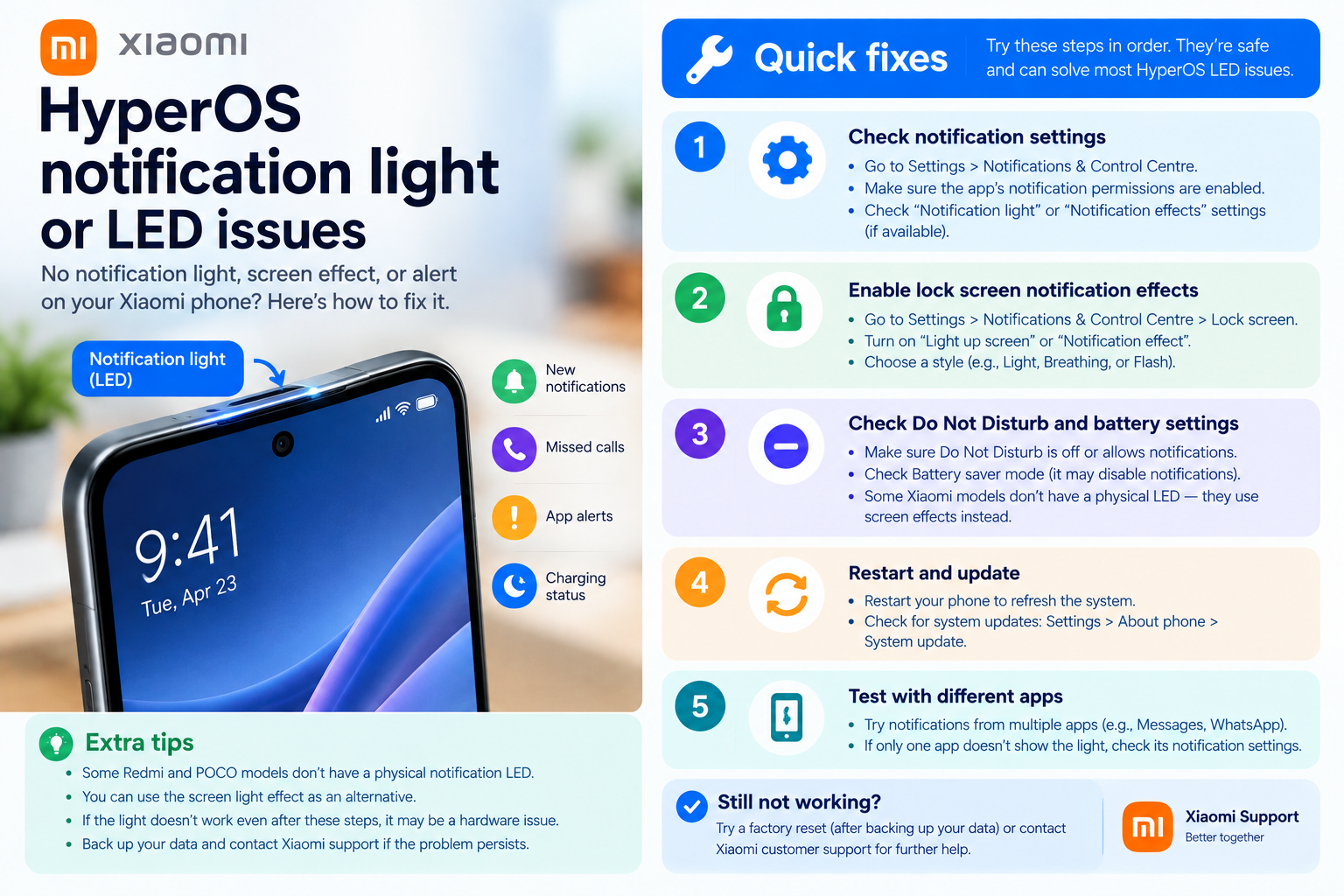
Most Samsung Dark Mode glitches stem from temporary software conflicts or unapplied updates, so starting with simple fixes is the fastest way to restore functionality. These steps are universal across most Galaxy models, from the entry-level A-series to premium S and Z Fold lines.
- Restart your Samsung device: A reboot clears temporary cache files and system processes that often cause display-related glitches, making it one of the most effective first steps for fixing dark mode issues.
- Toggle Dark Mode off and back on: Navigate to Settings > Display > Dark mode, switch it off, wait 10 seconds, then re-enable this resets the system’s dark mode configuration and resolves minor sync errors.
- Check for pending software updates: Samsung regularly releases security patches and bug fixes that address display issues. Go to Settings > Software update > Download and install to ensure your device has the latest fixes for dark mode glitches.
Fixing Schedule-Related Samsung Dark Mode Glitches
Many users rely on Samsung’s auto dark mode, which switches between light and dark based on a set schedule or location-based sunset/sunrise times. Glitches here often occur due to mismatched settings or location errors, leading to unexpected mode changes at the wrong times.
Incorrect Location Data for Sunset/Sunrise Schedules
If you use the "Turn on at sunset, turn off at sunrise" option, your Galaxy device needs accurate location data to calculate the exact times. A common glitch is when dark mode activates at the wrong time because Location Services are disabled, or the device has outdated permission to access precise location. For example, if you travel to a new city and your location isn’t updated, the schedule might trigger in the middle of the day, causing dark mode to switch off unexpectedly in low light. To fix this, go to Settings > Location, ensure it’s enabled, and verify that "Precision location" is turned on for improved accuracy.
Conflicting Power Saving Mode Settings
Samsung’s Power Saving Mode is designed to conserve battery, but it sometimes overrides system display settings like dark mode. A frequent glitch is dark mode switching to light mode automatically when Power Saving activates, even if your custom dark mode schedule is active. This happens because Power Saving prioritizes performance over display preferences. To resolve this, go to Settings > Battery and device care > Battery > Power saving, and uncheck options like "Optimize display colors" or "Disable background data" that might interfere with dark mode functionality.
Resolving App-Specific Samsung Dark Mode Glitches
Even if your system dark mode works flawlessly, some apps may not switch to dark mode, or may display glitched elements like white text on light backgrounds—these are app-specific Samsung Dark Mode glitches that require targeted fixes. Popular apps like Chrome, Instagram, and Samsung Internet are common culprits due to their own built-in theme settings.
Disabling Third-Party App Dark Mode Overrides
Most apps have their own in-app dark mode settings, which can conflict with Samsung’s system-level dark mode, causing visual inconsistencies. For example, if your system is set to dark mode but Instagram is configured to light, it might show a mix of dark and light elements or pixelated edges. To fix this, open the app’s settings, navigate to the theme option, and select "Use system default" instead of a custom light or dark setting. This ensures the app aligns with your device’s dark mode preferences.
Clearing App Cache for Glitch-Prone Applications
Corrupted app cache files can lead to display glitches that mimic Samsung Dark Mode issues, such as distorted text or background colors. The Samsung Internet browser and social media apps are particularly susceptible to this. Clearing the app’s cache removes temporary files that may be causing conflicts, without erasing saved data like logins or preferences. To do this, go to Settings > Apps > [Select the glitchy app] > Storage > Clear cache. After clearing, restart the app and check if the dark mode glitches are resolved.
Advanced Fixes for Persistent Samsung Dark Mode Glitches
If basic and intermediate fixes don’t resolve your dark mode glitches, deeper system-level adjustments may be necessary. These fixes are recommended only if other steps fail, as they modify core display settings.
Resetting Display Settings to Default
Custom display settings like color balance, screen resolution, or font size can sometimes interfere with dark mode rendering, leading to blurry or mismatched backgrounds. For instance, if you’ve manually adjusted the color temperature to an extreme value, dark mode elements may appear washed out or distorted. To reset, go to Settings > Display > Screen resolution > Reset to default, and set color balance to the recommended "Adaptive" mode. This undoes any custom tweaks that might be conflicting with dark mode.
Performing a Factory Reset (Last Resort)
For rare, persistent glitches that affect multiple system features and dark mode, a factory reset can resolve underlying software corruption. Note that this will erase all data, so back up your files to Samsung Cloud or an external storage device first. To perform a reset, go to Settings > General management > Reset > Factory data reset. After the reset, reconfigure your device settings, including dark mode, and check if the issue is resolved.
Samsung Dark Mode glitches can range from minor inconveniences like delayed activation to more severe display distortions, but most issues are solvable with targeted troubleshooting. Start with basic steps like restarting your device and toggling dark mode, then move to checking schedule settings and app-specific configurations. For stubborn glitches, adjusting display settings or performing a factory reset can restore smooth functionality. By addressing these common problems, you can enjoy all the benefits of Samsung’s dark mode—from reduced eye strain to extended battery life—without interruptions.
Everything above about “Samsung Dark Mode glitches” is originally written by our editorial team. Reproduction is strictly prohibited.