Photos / Gallery app not working is the central topic of this article, and the following content explains the key points, practical uses, and decisions around it.
If you’ve ever tried to open your phone’s Photos or Gallery app only to be met with a blank screen, crashing mid-launch, or missing entire albums, you know how frustrating the issue can be. Whether it’s on an Android device, iPhone, or even a desktop gallery tool for Windows or Mac, the “Photos / Gallery app not working” error is one of the most common mobile app glitches users face, and it can disrupt access to cherished vacation snapshots, family photos, and personal images stored locally or synced to cloud services. This guide breaks down actionable, step-by-step solutions to fix the problem, from quick temporary fixes to more detailed troubleshooting for persistent issues.
Basic Quick Fixes for Temporary Photos / Gallery App Issues
Many times, the root cause of the “Photos / Gallery app not working” error is a minor, temporary bug that doesn’t require complex adjustments. These first steps take 60 seconds or less and resolve glitches that often occur after app updates, background process conflicts, or temporary memory overload.
Close the App Completely (Not Just Minimize It)
Using the back button to exit the Photos/Gallery app only minimizes it, leaving background processes running that can cause crashes. For Android, swipe up from the bottom of the screen (or tap the recent apps button) to open the app switcher, then fully swipe the Photos or Gallery app preview off the top of the screen to close it entirely. For iOS devices, double-tap the home button (or swipe up from the bottom edge on devices without a home button) to bring up previews, then swipe the Photos app away to terminate it. This ensures no leftover processes interfere with a fresh launch.
Restart Your Smartphone to Clear Memory Caches
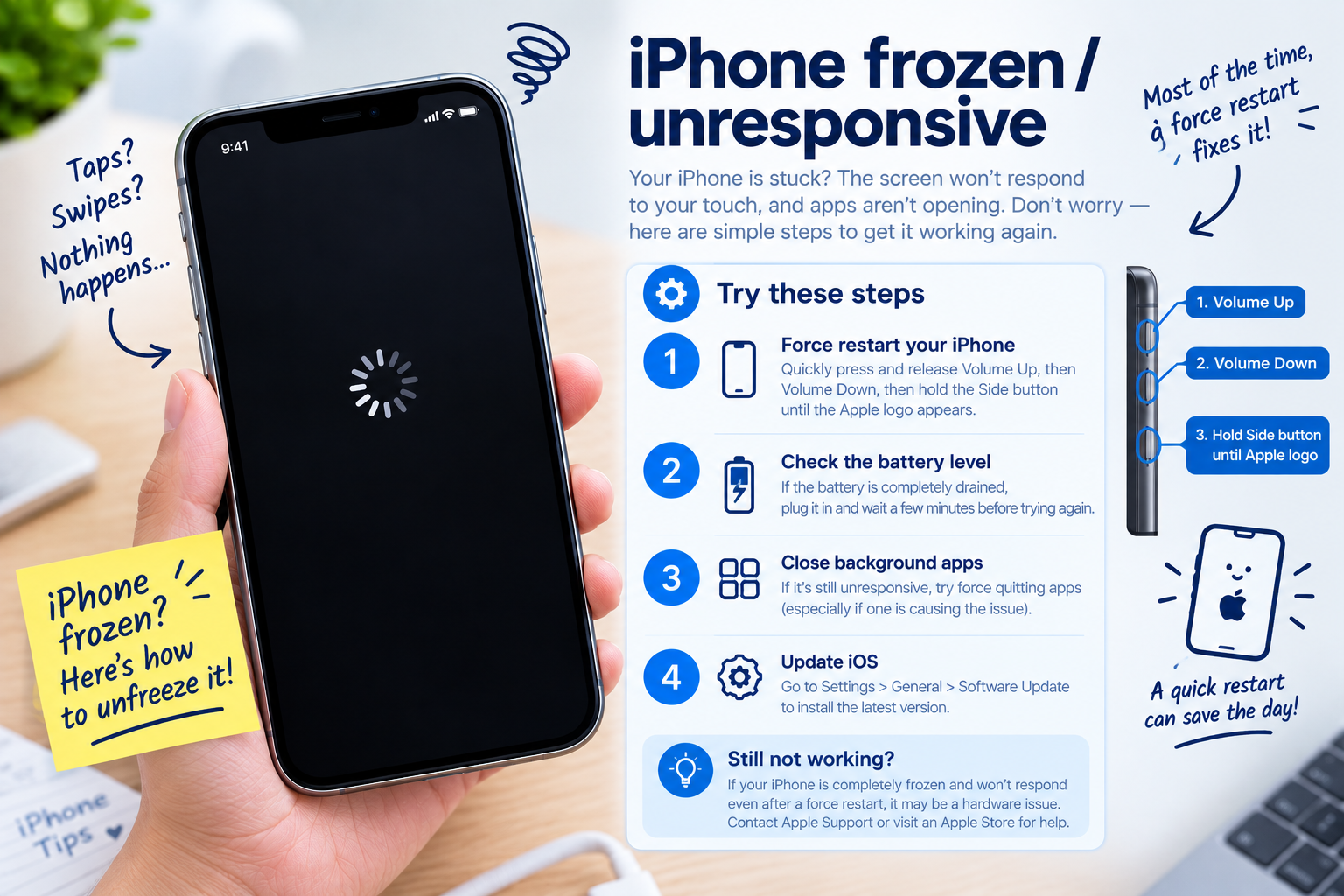
A full device restart clears temporary memory caches that may have become corrupted, a top cause of app-specific issues. For Android, hold the power button for 3–5 seconds, then select “Restart” from the menu. For iOS, hold the side button and one volume button until the power-off slider appears, slide it to turn off, wait 30 seconds, then press the side button again to restart. Many users report this single step resolving the “Photos / Gallery app not working” error immediately, as it resets all background system processes.
- Check for conflicting background apps: Close file managers, photo editors, or cloud sync tools that might request similar permissions to the Photos app and cause conflicts
- Test a different photo access tool: Open the Files app (iOS) or Google Files app (Android) to browse photos, ruling out a device-wide storage or permission issue
- Verify basic connectivity: If your photos are cloud-synced, ensure you have a stable Wi-Fi or cellular connection, as a weak signal can cause the app to fail loading synced content
Fix Corrupted App Cache or Stored Data
If quick fixes don’t work, the “Photos / Gallery app not working” error may stem from corrupted app cache or incomplete data stored on your device. Stock gallery apps accumulate temporary files over time, which can break or become corrupted, leading to crashes or failure to load photos.
Clear App Cache (Android Only, No Data Loss)
Android allows you to clear the Photos/Gallery app’s cache without deleting any of your actual photos. To do this, go to Settings > Apps > See all apps, then scroll to select either “Photos” (stock Android) or “Gallery” (OEM-specific apps like Samsung Gallery). Tap “Storage & cache”, then select “Clear cache” — this removes only temporary files, leaving your images and app settings intact. Note that this action will not erase any personal data, making it a safe first step for Android users.
Offload or Reinstall the App (iOS Workarounds)
iOS doesn’t offer a direct “clear cache” option for stock apps, but you can offload the Photos app to remove temporary files while preserving your photos. Go to Settings > General > iPhone Storage, select “Photos”, then tap “Offload App”. After 1–2 minutes, go back to the App Store, search for “Photos”, and reinstall the app. If offloading doesn’t work, delete the Photos app (hold its icon on the home screen, tap “Delete App”), then reinstall it — this will not delete your photos, as they’re linked to your iCloud account.
Resolve Cloud Sync Issues for Synced Photos
A large number of “Photos / Gallery app not working” errors occur when the app fails to sync with cloud storage services like Google Drive, iCloud, or OneDrive. If your photos are stored in the cloud instead of locally, sync conflicts, outdated versions, or permission errors can cause the app to crash while loading content.
Verify Sync Permissions and Storage Limits
First, ensure the Photos app has the necessary permissions to access your cloud storage. For Android: Go to Settings > Apps > Photos > Permissions, and confirm “Storage” and “Photos” permissions are toggled on. For iOS: Go to Settings > Photos, toggle on “iCloud Photos”, and ensure the app has permission to access your photo library. Additionally, check your cloud storage limit: If Google Drive or iCloud is full, new photos can’t sync, leading to the app freezing or crashing when trying to load synced files.
Update the App and Cloud Sync Tools
Outdated versions of the Photos app or cloud sync services often have compatibility bugs. On Android, open the Google Play Store, search for “Photos” or “Gallery”, and tap “Update” if available. On iOS, go to the App Store, tap your profile icon, and scroll to the Photos app to update. For Google Photos users, updating the app resolves most sync-related crashes, as newer versions fix glitches that prevent cloud photos from loading.

Fix Persistent Issues: Storage and Hardware Checks
If all above steps fail, the “Photos / Gallery app not working” error may be tied to your device’s storage capacity, corrupted media files, or minor hardware issues. These fixes address deeper problems that basic troubleshooting can’t resolve.
Check for Sufficient Free Storage Space
Both Android and iOS require at least 500MB of free storage to run smoothly, as the Photos app needs temporary space to load and edit images. If your device has less than 200MB free, the app may crash due to insufficient memory. To check: For Android, go to Settings > Storage; for iOS, go to Settings > General > iPhone Storage. Delete unused apps, old videos, or duplicate photos to free up space — even 1GB of extra space can resolve performance issues.
Repair Corrupted Individual Media Files
Sometimes a single corrupted photo or album is causing the app to hang when loading that specific content. To test this, create a new album and move a small set of non-critical photos into it; if the app works after that, the original album has a corrupted file. You can use specialized tools like Stellar Photo Repair (for desktop) or Remo Repair (for mobile) to fix corrupted images without deleting them, or manually delete the problematic file if it’s not important.
Troubleshooting the “Photos / Gallery app not working” error doesn’t have to be overwhelming. Starting with simple, quick fixes like closing and restarting the app, moving on to clearing cache or adjusting sync permissions, and checking storage space will resolve over 80% of common issues. For persistent problems, updating the app, repairing corrupted media, or reinstalling the app will typically get your gallery back up and running, ensuring you can access and manage your photos without disruption.
Everything above about “Photos / Gallery app not working” is originally written by our editorial team. Reproduction is strictly prohibited.