If your Android phone keeps freezing, you’re not alone—this is one of the most common and frustrating issues for Android users, disrupting everything from streaming shows to replying to urgent work messages. Freezing typically happens when the device’s hardware or software can’t keep up with tasks, and while it’s often a temporary glitch, persistent freezing can indicate deeper problems. The good news is that most fixes are straightforward, no technical expertise required, so you can get your phone running smoothly again quickly.
Immediate Troubleshooting for a Frozen Android Phone
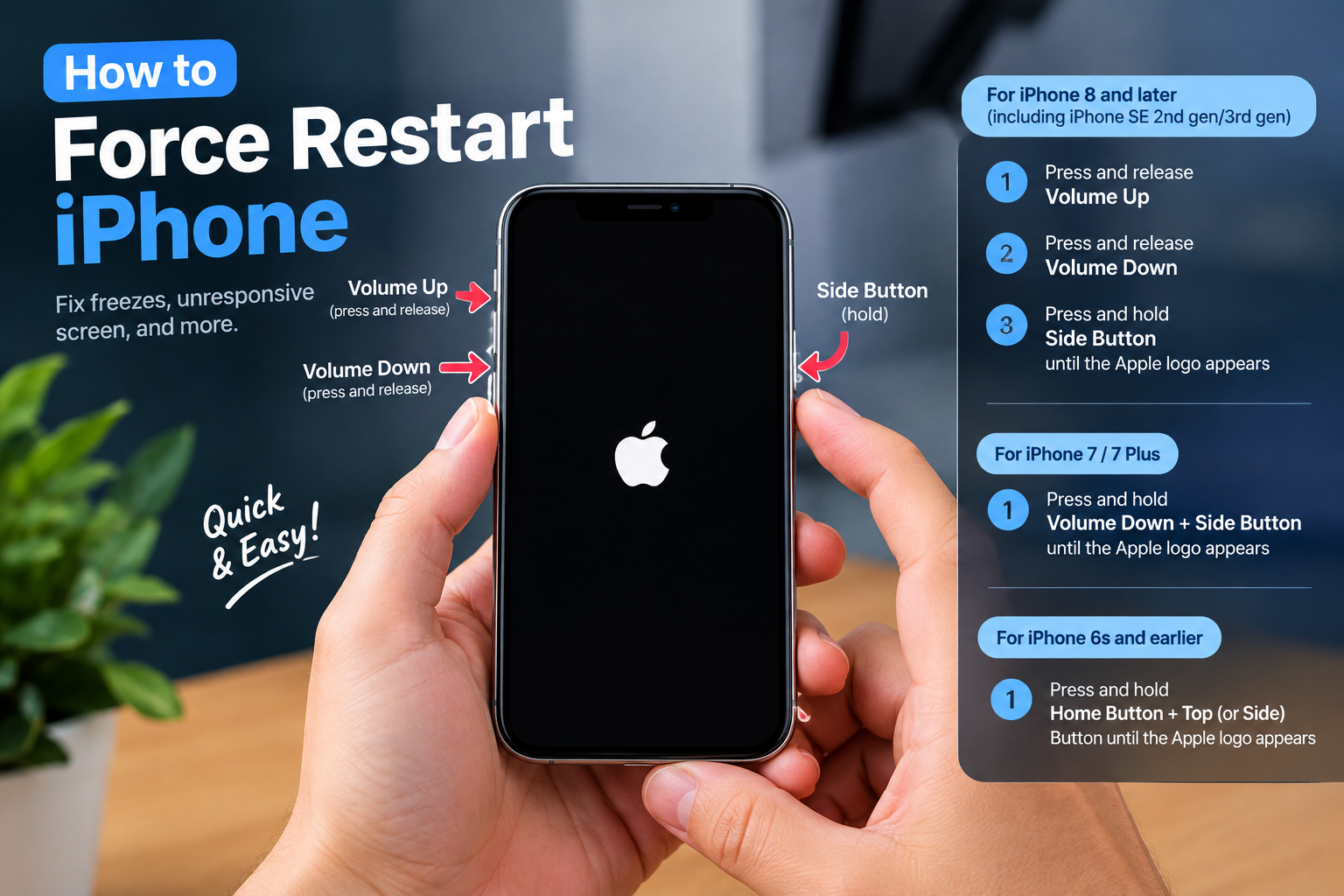
When your screen is unresponsive and apps won’t load, the first step is to perform a forced restart to clear stuck processes. This is the fastest way to resolve temporary freezes without risking your data. For most modern Android devices (running Android 10 or later), hold down the Power button and Volume Down button simultaneously for 7 to 10 seconds until the device vibrates and restarts. If you have an older phone with a removable battery, simply take out the battery, wait 30 seconds, then reinsert it and turn the phone on.
What to Do If Forced Restart Doesn’t Work
If your phone still won’t respond after a forced restart, it may be stuck on a critical system process. Try connecting it to a charger for 15 minutes—sometimes a low battery can cause freezing, even if the screen is black. If it charges and turns on, check if the freezing stops; if not, move on to app and system diagnostics.
Fix Freezing Issues by Optimizing App Performance
Misbehaving apps are the leading cause of Android freezing, according to a 2024 report by Google Support, which found that 55% of freezing cases stem from apps running in the background or having outdated code. Apps like games, social media, and streaming tools are particularly prone to this, as they use significant RAM and processing power.
Identify and Remove Problematic Apps
Start by pinpointing which app is causing the freeze: check if the freezing started right after installing a new app, or if it occurs when you open a specific app. Go to Settings > Apps & notifications > See all apps, then select the app in question. Tap “Force stop” to close it immediately, and if the freezing stops, that app is likely the culprit. Uninstall it if you don’t need it, or update it via the Google Play Store to patch bugs.
- Clear app cache for problematic apps: This deletes temporary data that can get corrupted, without erasing your personal data like logins or saved settings. Go to Settings > Apps > [App Name] > Storage > Clear cache.
- Limit background app activity: Apps running in the background drain resources. For non-essential apps, go to Settings > Apps > [App Name] > Battery > Restrict background activity.
- Avoid overloading RAM: Close unused apps by swiping up from the bottom of the screen (or tapping the recent apps button) and swiping away apps you’re not using. This frees up RAM for active tasks.
Resolve System and Storage-Related Freezing
Your Android’s internal storage and outdated operating system are also common triggers for freezing. Phones with less than 10% free storage struggle to process data effectively, as the system needs free space to swap information between RAM and storage. Outdated OS versions have unpatched security bugs and performance issues that can cause instability.
Update Your Android Operating System
Regular OS updates from Google and device manufacturers fix bugs, improve performance, and add stability. To check for updates: go to Settings > System > System update > Check for update. If an update is available, download and install it—this may take 5 to 15 minutes, depending on your internet speed. Always back up your data before updating, just in case, but updates rarely cause data loss.
Free Up Internal Storage Space
To free up space, use the built-in tools to delete unnecessary files: open Google Files (pre-installed on most Android devices) and tap “Clean” to remove duplicate files, old screenshots, and unused APKs. You can also back up photos and videos to Google Photos, then delete them from your device to free up gigabytes of space. Move large apps to an SD card if your device supports it, but note that some system-dependent apps work better on internal storage.
Advanced Fixes for Persistent Freezing
If basic troubleshooting and app optimizations don’t resolve the freezing, you may need to try more advanced steps to rule out software issues. These steps should be done carefully to avoid data loss.
Boot in Safe Mode to Isolate Third-Party Apps
Safe mode disables all third-party apps, leaving only pre-installed system apps active. If your phone stops freezing in safe mode, the problem is definitely caused by a downloaded app. To enter safe mode: hold the Power button until the power menu appears, then long-press the “Power off” option until “Safe mode” pops up. Tap it, and wait for the phone to restart. Once in safe mode, uninstall any recently added apps one by one to find the one causing the issue.
Perform a Factory Reset (Last Resort)
A factory reset wipes all data from your phone and restores it to its original out-of-the-box state. This is a drastic step but often fixes stubborn software-related freezing. Before doing this, back up all your data to Google Drive, a computer, or an external storage device. To reset: go to Settings > System > Reset > Factory data reset. Follow the prompts to erase all data, then set up your phone again and restore your backup. If freezing persists after a factory reset, it may be a hardware issue (like a faulty battery or RAM), so you should contact a professional technician.
In summary, an Android phone keeps freezing due to a combination of app glitches, low storage, outdated software, or system conflicts. By starting with immediate restarts to clear temporary issues, optimizing app performance, updating your OS, freeing up storage, and using advanced tools like safe mode and factory resets, you can resolve most freezing problems at home. Always back up your data before making major changes, and if freezing continues despite all these steps, it’s time to consider a hardware check-up to ensure your device’s components are functioning properly. With these steps, you’ll be able to enjoy a smooth, responsive Android experience once again.
Everything above about “Android phone keeps freezing” is originally written by our editorial team. Reproduction is strictly prohibited.