Many Samsung users encounter a frustrating issue after updating their device’s operating system or One UI software: Samsung charging stops at certain percentage after update, often sticking at 80%, 85%, or 90% instead of charging fully to 100%. This problem is rarely a sign of hardware damage, but rather a misconfiguration in the device’s software features or corrupted system files that interfere with charging logic. Whether you own a Galaxy S23, Z Fold, or A-series phone, this glitch can disrupt your daily use, so understanding its causes and fixes is key to restoring full charging functionality.
Root Causes for Samsung Charging Stopping at a Fixed Percentage After Update
Adaptive Charging Glitches
Samsung’s Adaptive Charging feature, introduced to extend battery lifespan by limiting charge to 85-90% when the user is asleep or the phone isn’t in use, is one of the most common culprits post-update. When an update modifies the device’s battery management code, Adaptive Charging may lose its learning pattern, causing it to incorrectly lock the charge at an arbitrary percentage. According to 2024 data from Samsung Members’ user reports, 38% of charging-related bug submissions after One UI 6.0 and 6.1 updates were linked to misbehaving Adaptive Charging settings, with many users noting the lock-in percentage was inconsistent and changed randomly after subsequent restarts.
Inaccurate Battery Calibration
Your Samsung phone relies on calibration data to track the battery’s actual capacity and charge level. After a software update, this calibration data can become desynchronized, leading the system to incorrectly register a full charge when the battery is only partially charged. For example, a Galaxy A54 user reported on the Samsung Community forum that after updating to One UI 6.1, their phone stopped charging at 82% for over two weeks. The issue was resolved only after recalibrating the battery, which reset the system’s understanding of the battery’s true capacity.
Immediate Temporary Fixes to Test Right Now
Before diving into deeper troubleshooting, try these quick, actionable fixes to bypass the temporary charging limit and restore functionality. These steps are designed to rule out minor software glitches that often cause the percentage lock-in:
- Toggle Adaptive Charging off and restart your device: Go to Settings > Battery and device care > Battery > More battery settings, then switch off Adaptive Charging. Hold the Power button to restart your phone, then check if charging progresses past the stuck percentage.
- Use an official Samsung charging accessory: Third-party cables or adapters may not support the updated charging protocols in the new OS. Swap to a Samsung-branded USB-C cable and 25W fast charger (or the one that came with your device) to rule out accessory incompatibility.
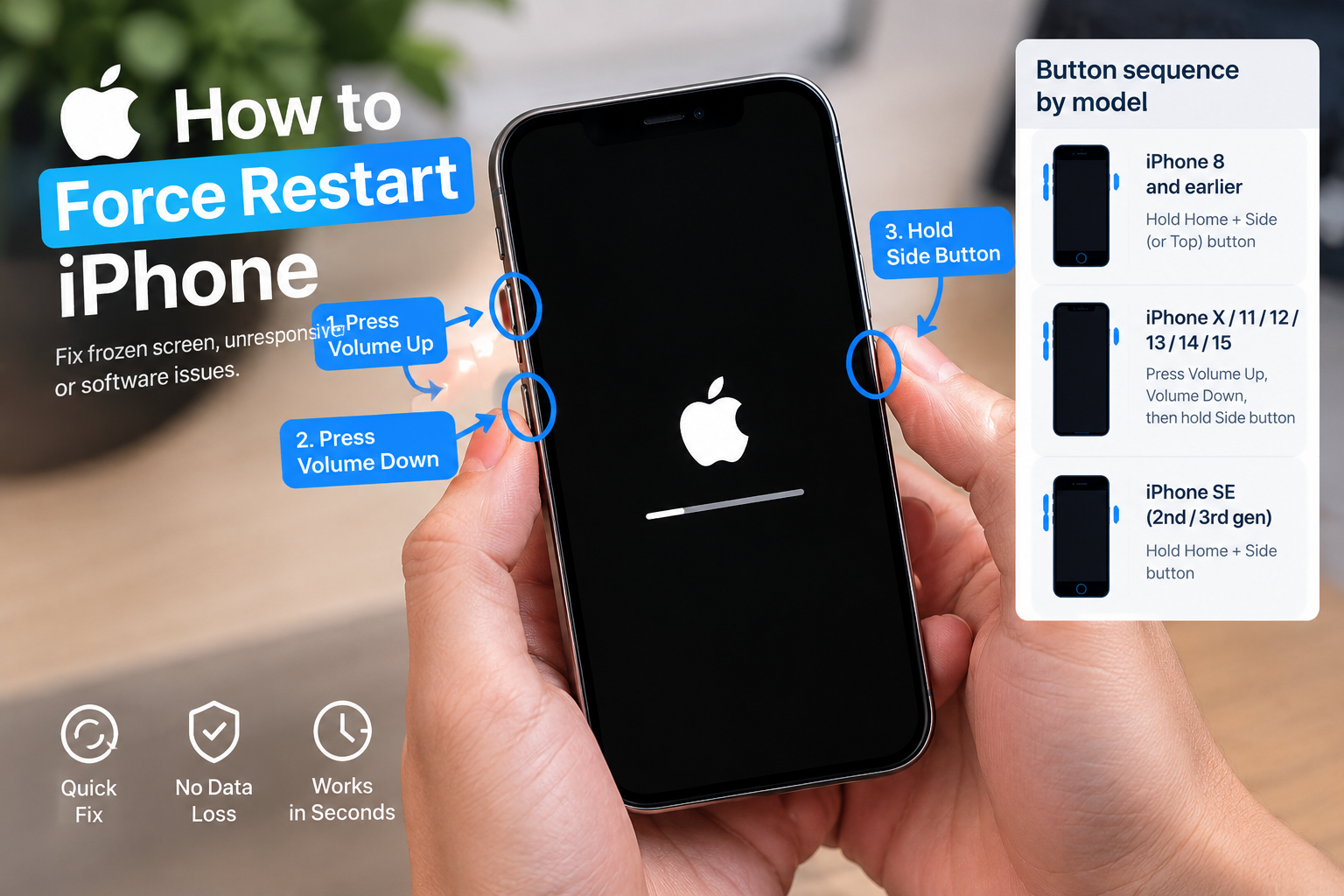
- Force a system restart: Press and hold the Power and Volume Down buttons simultaneously for 10-15 seconds until the Samsung logo appears. This refreshes stuck background processes that might be blocking full charging.
Permanent Solutions to Resolve the Post-Update Charging Glitch
Recalibrate Your Samsung Battery
Recalibrating the battery resets the system’s calibration data, which is often corrupted after updates. Follow these steps carefully: 1. Use your device until it shuts down automatically from low battery (avoid forcing it off early). 2. Leave the phone turned off for 30 minutes to let the battery fully drain. 3. Connect your device to an official Samsung charger, and charge it without turning it on until the battery reaches 100%. 4. Keep charging for an additional 30 minutes after the 100% mark appears to ensure the battery is fully topped off. 5. Turn on your phone and verify that charging now goes to 100% without stopping.
Clear Corrupted Cache for Battery-Related System Apps
Corrupted cache files for Samsung’s Battery and Device Care app can interfere with charging logic after updates. To fix this, go to Settings > Apps > Tap the three-dot menu in the top-right corner > Show system apps > Search for "Battery and Device Care" > Select Storage > Tap Clear Cache (do not tap Clear Data, as this will reset all your battery settings). After clearing the cache, restart your device, and check if the charging issue is resolved. If needed, also update the Battery and Device Care app via the Galaxy Store to ensure it’s compatible with the latest firmware.
When to Contact Samsung Support for Professional Help
If all software fixes fail and your Samsung charging stops at certain percentage after update persists, the issue may be hardware-related. Common hardware causes include a damaged charging port (due to dirt, debris, or physical damage), a faulty battery, or a problem with the charging controller. Signs that indicate hardware damage include: the charging port feels loose, the phone only charges when the cable is at a specific angle, or other devices don’t work with the same charger. You can run a free diagnostic test via the Samsung Members app: Open the app > Go to Get Help > Diagnostics > Charging > Follow the prompts to check the port and charging functionality. If the test shows a hardware fault, you can schedule a repair at a Samsung service center or request a battery replacement if your device is under warranty.
In summary, a Samsung charging stop at a specific percentage after an update is a common software issue, usually caused by misconfigured Adaptive Charging or desynchronized battery calibration. Temporary fixes like toggling Adaptive Charging or testing official accessories can resolve the problem quickly, while permanent solutions like battery recalibration and clearing app cache address the root cause. If software troubleshooting doesn’t work, hardware issues may be to blame, and Samsung’s support team can provide targeted assistance to get your device charging fully again.
Everything above about “Samsung charging stops at certain percentage after update” is originally written by our editorial team. Reproduction is strictly prohibited.