If you’ve recently encountered AI features not working (Apple Intelligence / Galaxy AI / HyperOS AI), you’re not alone—millions of users across iOS 18, One UI 6, and HyperOS have reported glitches ranging from unresponsive AI assistants to failed generative text or image tools. These AI features are designed to streamline tasks like summarizing messages, translating content, or editing photos, but bugs, outdated software, or misconfigurations can derail their functionality. Below, we break down actionable fixes tailored to each platform, along with universal troubleshooting steps to resolve common issues.
Basic Universal Troubleshooting for All Three AI Systems
The first step to resolving AI features not working (Apple Intelligence / Galaxy AI / HyperOS AI) issues starts with foundational checks that apply across all devices. Many times, the problem stems from overlooked settings or missing updates rather than a platform-specific bug, making these steps the fastest way to rule out simple causes.
Check Device Compatibility and Minimum Requirements
Each AI system has strict hardware and software prerequisites that must be met to access its features. For Apple Intelligence, this requires an iPhone 15 Pro or later running iOS 18 or higher—older models lack the neural engine power needed for on-device AI processing. Galaxy AI is exclusive to Samsung devices with One UI 6.1 or later, including the Galaxy S24 series, Z Fold 5, and Z Flip 5; budget Galaxy A series devices are often excluded. HyperOS AI works on Xiaomi devices launched in 2023 or newer, such as the Xiaomi 14 series and Redmi Note 13 Pro, as 2022 and older devices don’t support HyperOS’s AI tooling. If your device doesn’t meet these specs, you won’t be able to use the AI features at all, so confirm this first before proceeding to other fixes.
Verify AI Features Are Enabled in Settings
Even if your device is compatible, AI features may be turned off accidentally during a software update or system reset. For Apple Intelligence, go to Settings > Siri & Search > Apple Intelligence and ensure all toggles—including Summaries, Generative Emojis, and Writing Tools—are switched on. For Galaxy AI, open Settings > Advanced Features > Galaxy AI and enable each tool you want to use, like Circle to Search, Live Translate, or AI Photo Editor. For HyperOS AI, navigate to Settings > Special Features > AI Labs and toggle on the specific AI functions (e.g., AI Summary, AI Cutout) you need for daily use. Skipping this step often leaves users confused when AI tools don’t appear in their app menus.
Platform-Specific Fixes for Persistent AI Glitches
Once you’ve completed the basic checks, these targeted fixes address issues unique to each AI platform, as users often report distinct problems for Apple Intelligence, Galaxy AI, and HyperOS AI. These fixes target platform-specific bugs that universal steps may not resolve, ensuring you can get your AI tools working again quickly.
Fixes for Apple Intelligence Not Working
Common Apple Intelligence issues include failed image generation, unresponsive Siri prompts, or missing Summaries for long messages. First, ensure iCloud Drive is enabled, as Apple Intelligence relies on cloud sync for features like cross-device continuity and iMessage Summaries. If the problem persists, reset Siri & Dictionary by going to Settings > Siri & Search > Reset Siri & Dictionary—this fixes corrupted voice recognition data that can cause AI tool failures. For generative AI issues, check that you haven’t exceeded the monthly limit for free Apple Intelligence usage, or restart your device to clear temporary glitches that may be blocking cloud-based AI processing.
Fixes for Galaxy AI Not Working
Galaxy AI users often face problems with Circle to Search, Live Translate, or AI Photo Edit. A key fix here is clearing the cache for the Galaxy AI app: go to Settings > Apps > Galaxy AI > Storage > Clear Cache—this resolves corrupted temporary files that prevent features from loading properly. If Live Translate isn’t working, ensure your device has an active internet connection (Galaxy AI requires cloud processing for real-time translation) and that you’ve granted necessary permissions like microphone and camera access. For AI Photo Edit issues, check that the photos you’re editing are in a supported format (JPEG, PNG) and not stored on an external SD card, as Galaxy AI may have limited access to files on removable storage.
Fixes for HyperOS AI Not Working
HyperOS AI problems typically include failed AI summaries, unwanted AI-generated edits, or disabled AI tools in the app drawer. To fix this, try clearing the Xiaomi AI Services cache: go to Settings > Apps > AI Services > Storage > Clear Cache. Additionally, ensure that your HyperOS is updated to the latest stable version—Xiaomi frequently releases patches to fix AI feature bugs, and running an outdated OS can cause compatibility issues. If AI summaries aren’t generating for messages, check that the Messages app has been granted AI access permissions in Settings > Privacy > AI Permissions, as missing permissions block the tool from processing your content.
Advanced Troubleshooting for Stubborn AI Issues
If basic and platform-specific fixes haven’t resolved AI features not working (Apple Intelligence / Galaxy AI / HyperOS AI), these deeper steps can address more persistent issues that are not fixed by standard checks. These steps go beyond simple settings to resolve hidden glitches that may be causing your AI tools to fail.
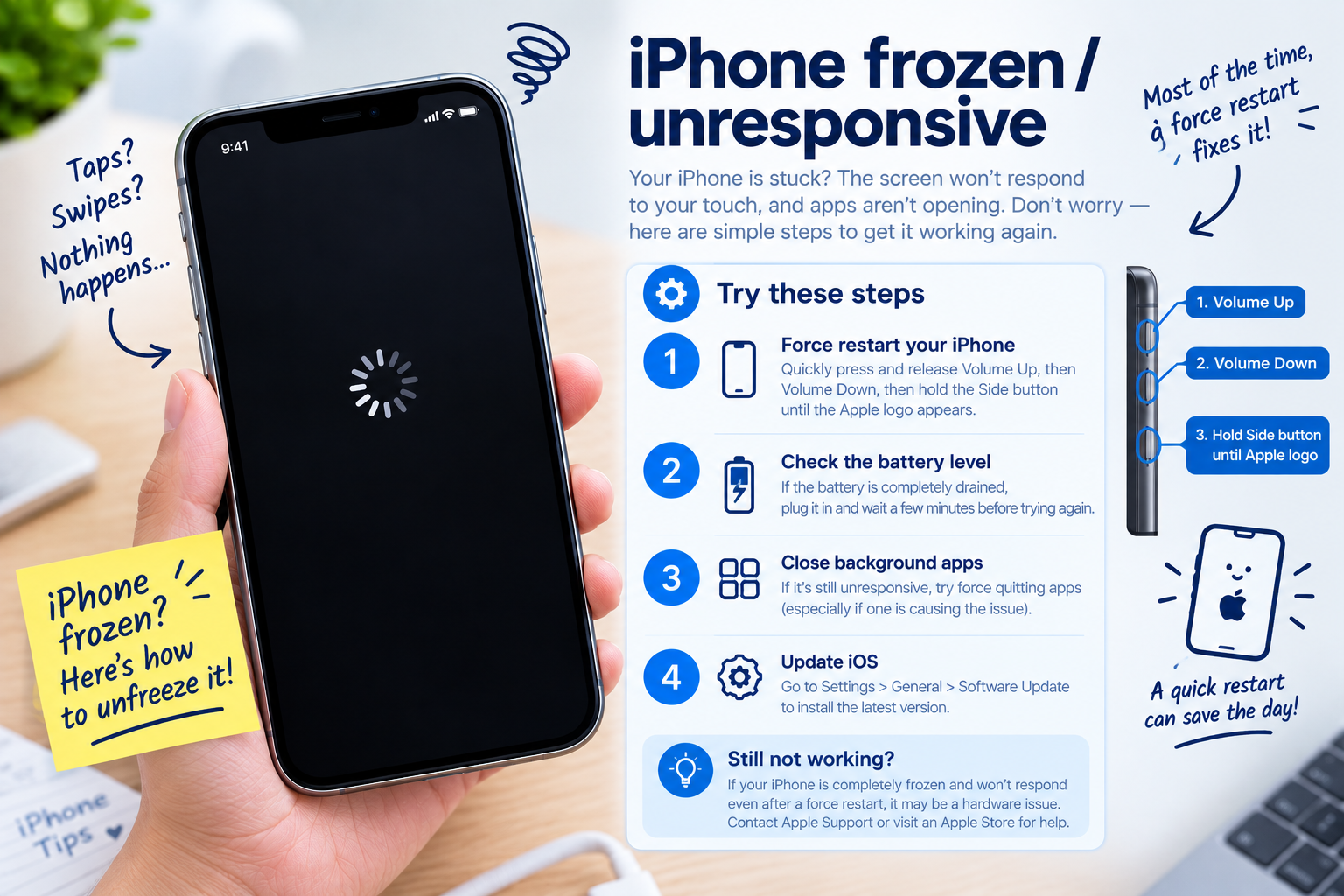
- Force restart your device: For iPhone 15 models, press and release the volume up button, then the volume down button, then hold the side button until the Apple logo appears. For Samsung Galaxy devices, hold the power and volume down buttons for 10 seconds to trigger a forced restart. For Xiaomi HyperOS devices, hold the power button and volume down button simultaneously to force a reboot. This clears frozen background processes that can interfere with AI tool functionality.
- Reset AI-specific settings to default: On Apple, go to Settings > General > Transfer or Reset iPhone > Reset > Reset All Settings (this won’t delete personal data, just reset custom preferences). On Samsung, use the dedicated “Reset Galaxy AI Settings” option in the Advanced Features menu. On Xiaomi, reset all AI permissions via Settings > Privacy > AI Permissions > Reset Defaults to clear misconfigured access controls.
- Reinstall or re-enable AI-related features: For Apple Intelligence, some tools are tied to the Siri framework, so resetting Siri & Dictionary is effective, but for Galaxy AI, you can disable and re-enable the feature in Settings > Advanced Features. For HyperOS, clear all app data for AI Services (note: this will remove custom AI preferences but not personal photos or messages) to eliminate corrupted data that blocks AI function.
When to Contact Official Support
If none of the troubleshooting steps work, it may be a platform-wide server outage or hardware-specific issue that requires manufacturer support. For Apple, reach out via the Apple Support app or a local Genius Bar for issues related to Apple Intelligence server outages or hardware neural engine defects. For Samsung, use the Samsung Members app to report Galaxy AI glitches, as their support team often shares urgent patches for platform-specific bugs. For Xiaomi, contact HyperOS support via the Mi Community app to check if there’s an ongoing issue with your device’s AI features or if a pending software update will resolve the problem.
AI features not working (Apple Intelligence / Galaxy AI / HyperOS AI) is a common, fixable issue that affects millions of users, but most cases can be resolved with simple, actionable steps. By first confirming device compatibility and enabling settings, then moving to platform-specific and advanced fixes, you can restore access to generative tools, voice assistants, and other AI-powered features. If all other steps fail, official support is available to address rare server or hardware issues, ensuring you can leverage the full potential of your device’s cutting-edge AI capabilities.
Everything above about “AI features not working (Apple Intelligence / Galaxy AI / HyperOS AI)” is originally written by our editorial team. Reproduction is strictly prohibited.