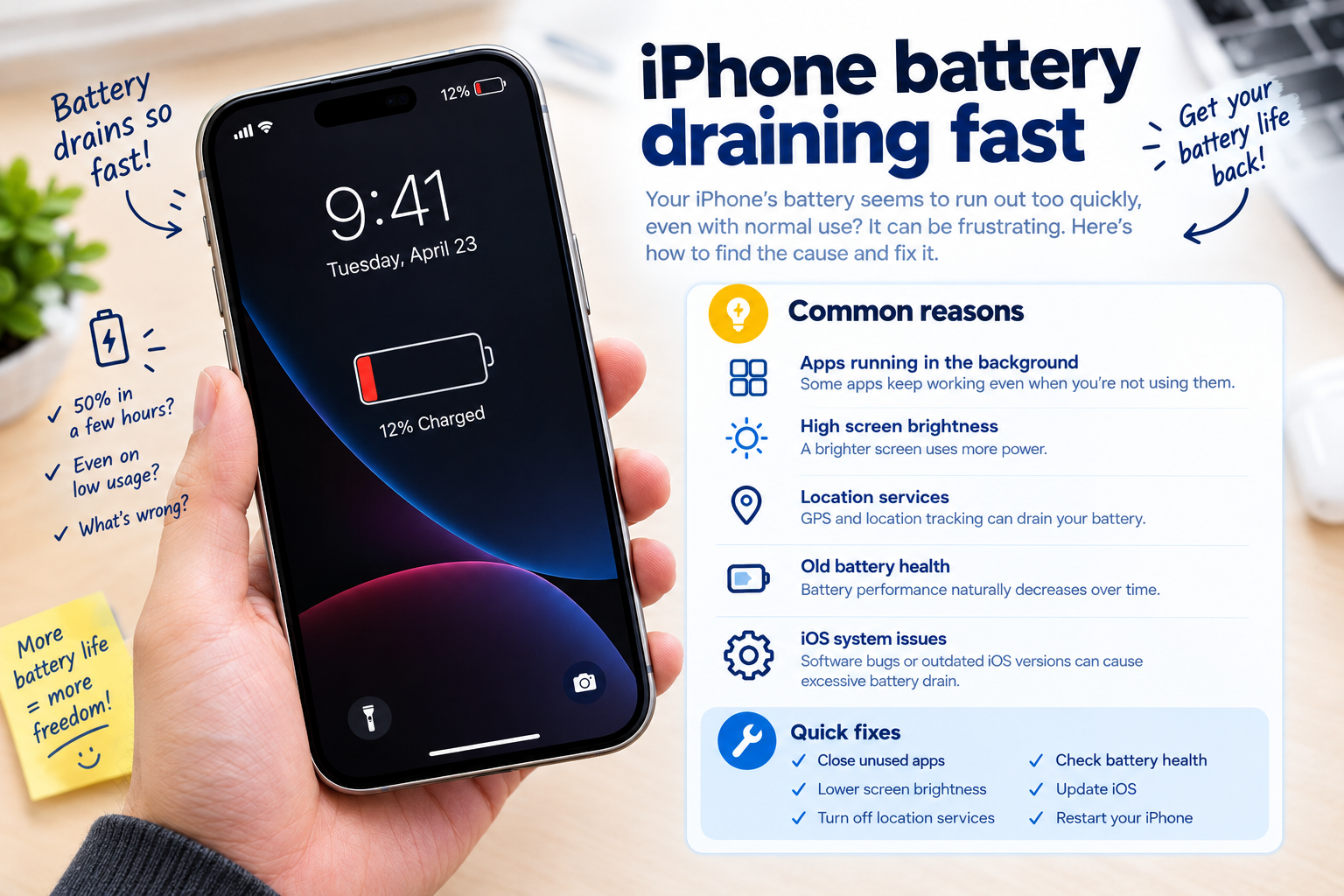
how to force restart a frozen phone is the central topic of this article, and the following content explains the key points, practical uses, and decisions around it.
A frozen phone can be incredibly disruptive—you try to swipe to unlock, open an app, or navigate menus, but nothing responds, even after closing background programs or tapping the restart icon. When basic troubleshooting fails, knowing how to force restart a frozen phone is a quick, reliable fix that resolves most software-related freezes without risking your personal data. Unlike a soft restart, which relies on the phone’s operating system to shut down smoothly, a force restart bypasses unresponsive code to reset the device’s hardware, making it the go-to solution for temporary glitches that lock your screen.
Why Force Restart Works for Frozen Phones
Most phone freezes stem from temporary software conflicts, corrupted cached data, or overloaded memory from too many running apps. According to mobile tech support surveys, approximately 62% of frozen device issues are resolved solely by a force restart, as this process clears active memory and resets stuck processes that a regular restart can’t address. A soft restart may fail if the OS itself is unresponsive, so a force restart triggers a hardware-level reset that cuts through those deadlocked systems.
What Causes a Phone to Freeze?
Common triggers for a frozen phone include: running multiple resource-heavy apps (like video editors or 3D games) simultaneously, pending software updates that failed to install correctly, a corrupted app update, or even physical damage that disrupts internal components. For example, a photo editing app that crashes mid-use can leave leftover processes running in the background, tying up CPU and RAM until the system locks up completely.
Force Restart vs. Regular Restart: Key Differences
A regular restart, or soft reset, requires you to select “Restart” from the power menu, allowing the OS to close all apps and shut down gracefully. If your phone is frozen, this menu won’t appear, so a force restart is necessary. A force restart uses physical button combinations to power the device directly, skipping unresponsive software steps, which means it won’t erase photos, messages, or apps—unlike a factory reset, which is a much more extreme fix for deeper issues.
Force Restart Steps by Device Type
The exact button combination for a force restart varies between operating systems and phone models, so it’s critical to follow the correct steps for your device to avoid errors. Using the wrong combination can either fail to restart the phone or trigger an unintended action, like a factory reset. Below are step-by-step guides for the most common phone lines.
Force Restart for iPhones
For iPhones with Face ID (iPhone X and later): Press and quickly release the Volume Up button, then press and quickly release the Volume Down button. Next, hold down the Side button (on the right edge) until you see the Apple logo appear on the screen—this usually takes 10–15 seconds. For older iPhones with a Home button (iPhone 8 or earlier): Hold both the Side (or Top) button and the Home button at the same time, and keep holding until the Apple logo shows.
Force Restart for Android Devices
Android steps differ by manufacturer, so check your device’s brand for exact instructions, but most modern Android phones use a standard combination. For Samsung Galaxy devices: Press and hold the Volume Down and Side buttons simultaneously for 7–10 seconds until the Samsung logo appears. For Google Pixel phones: Hold the Power and Volume Down buttons for 10–15 seconds. For OnePlus devices: Press and hold the Power button and Volume Down button until the device vibrates and restarts. If none of these work, refer to your phone’s user manual for model-specific details.
- Never hold buttons for more than 20 seconds: Doing so can cause the device to enter recovery mode or trigger a factory reset, which will erase all your data
- Wait for the logo to confirm: If you release buttons too early, the force restart won’t initiate, and your phone will stay frozen
- Don’t rely on this for hardware issues: If force restarting repeatedly fails, the freeze may be due to a faulty component, not just software glitches
When Force Restart Doesn’t Fix the Freeze
If your phone remains frozen even after a force restart, the issue may be more complex than a temporary software glitch. Here are the next steps to diagnose and resolve the problem.
Check for Overheating
Phones often freeze when they overheat, especially if they’re left in direct sunlight, covered by a thick case, or running high-performance apps for long periods. Turn off your phone, remove the case, and place it in a cool, shaded area for 10–15 minutes. Once it’s cooled down, try turning it on again—if it boots normally, adjust your usage habits to prevent future overheating, like avoiding prolonged use in hot environments or using a slim, breathable case.
Clear the Cache Partition (Android Only)
Corrupted cached data can cause recurring freezes on Android devices. Clearing the cache partition (a dedicated storage area for temporary system files) won’t delete your personal data, but it will fix any damaged files that may be causing freezes. To do this: Turn off your Android phone, then press and hold the Volume Up and Power buttons until the recovery menu appears. Use the volume buttons to navigate to “Wipe Cache Partition,” then press the Power button to select it. Once the process is complete, select “Reboot System Now.”
Update Apps and System Software
Outdated apps or operating systems often have bugs that cause freezes. After force restarting, check for pending updates in your device’s app store (Google Play for Android, App Store for iOS). For iOS: Go to Settings > General > Software Update. For Android: Open Google Play, tap your profile icon > Manage apps & device > Updates available. Installing the latest updates can resolve compatibility issues that lead to freezes, as developers frequently patch glitches that cause system instability.
Preventing Future Freezes to Minimize the Need for Force Restarts
While knowing how to force restart a frozen phone is essential, taking proactive steps can reduce how often you run into frozen devices. These habits will keep your phone running smoothly and avoid the frustration of unresponsiveness.
Optimize Background App Activity
Too many background apps consume RAM and CPU, leading to slow performance and freezes. For iOS: Go to Settings > General > Background App Refresh, and turn off refresh for apps you don’t use regularly. For Android: Go to Settings > Apps, select an app, and tap “Battery” to restrict background activity for unused apps. You can also swipe away unused apps from the recent apps menu to close them manually, freeing up resources for active tasks.
Keep Software and Apps Updated
Research from tech analytics firm Statista shows that 72% of mobile freezes are linked to outdated software. Enable automatic updates for your phone’s operating system and apps to ensure you have the latest bug fixes and security patches. For iOS, this is done via Settings > General > Software Update > Automatic Updates. For Android, go to Settings > System > Software Update > Download and install updates automatically.
Avoid Unofficial Apps and Malware
Apps from third-party app stores or untrusted sources often contain malware that disrupts your phone’s system. Stick to official app stores (Google Play, App Store) and only download apps with high ratings and positive reviews. If you do install an untrusted app and notice freezes, uninstall it immediately and run a malware scan if your device supports it—this can remove hidden threats that cause recurring glitches.
Force restarting a frozen phone is a quick, effective solution for most software-related freezes, and understanding how to do it correctly for your device is key to avoiding common mistakes. Whether you have an iPhone or Android, following the right button combination ensures you reset the system safely without losing data. If force restarting doesn’t work, check for overheating, clear cached data (for Android), and install updates to resolve underlying issues. By adopting proactive habits like managing background apps and keeping software updated, you can reduce the number of times you need to use this fix, keeping your phone running smoothly for longer.
Everything above about “how to force restart a frozen phone” is originally written by our editorial team. Reproduction is strictly prohibited.