A malfunctioning phone display can disrupt daily tasks from answering calls to editing documents, so knowing exactly what to do when phone display is not working is critical to resolving issues quickly before they escalate. Whether your screen is completely black, flickering uncontrollably, unresponsive to touch, or showing weird lines and dead pixels, most display-related problems stem from simple software glitches or minor hardware issues that don’t require expensive part replacements. This comprehensive troubleshooting guide walks you through actionable steps to fix your phone display, from basic resets to targeted hardware checks, helping you restore functionality without immediate professional help.
Basic Software Troubleshooting: Fixing Glitches That Cause Display Issues
The most common display problems are tied to temporary software malfunctions, especially after a recent app update, OS change, or forced close of a critical system process. These glitches often present as a frozen screen, delayed touch response, or sudden blackout that a quick reset can resolve without deleting any of your data.
Force Restart Your Phone to Clear Temporary Glitches
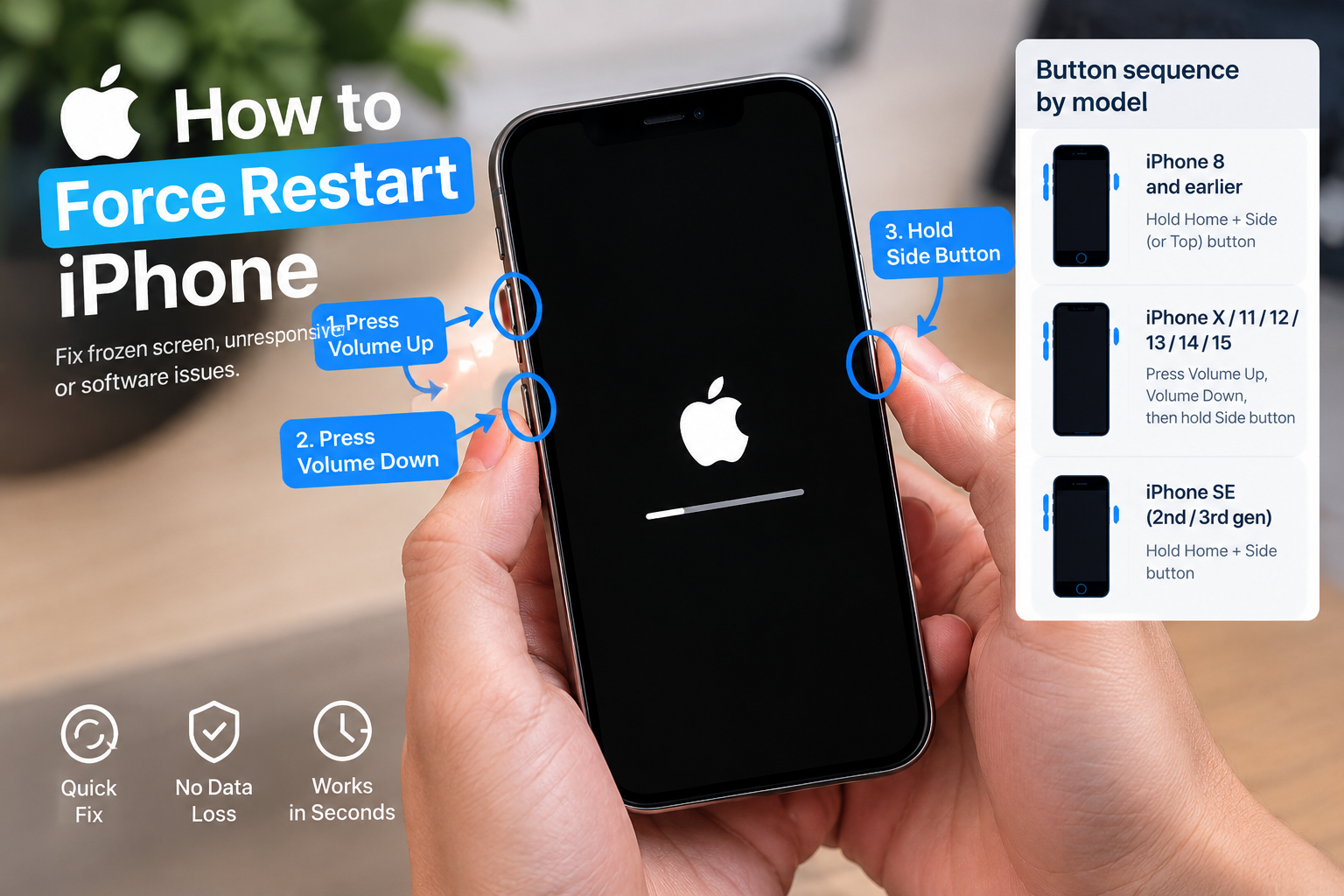
A force restart bypasses the standard shutdown sequence to reset the phone’s core system processes, which can fix a frozen or unresponsive display. The method varies by device: for iPhones running iOS 16 or later, press and release the volume up button, press and release the volume down button, then hold the side button until the Apple logo appears. For older iPhones (iPhone 7/7 Plus), hold both the volume down and sleep/wake buttons for 10 seconds. For Android phones, most models require holding the power and volume down buttons for 10–15 seconds until the device vibrates and restarts; check your brand’s support page for exact steps for unique models like Samsung or Google Pixel.
- Install pending OS updates: Outdated system software often has bugs that cause display errors. Go to Settings > General (iOS) or Settings > System Update (Android) to download and install the latest available update, as many updates include fixes for display-related issues.
- Boot into Safe Mode to rule out app conflicts: Third-party apps can interfere with display functionality, especially newly installed or unoptimized ones. For Android, press and hold the power button, then tap and hold "Power Off" until "Safe Mode" appears—this disables all third-party apps, letting you test if the display works without them. For iPhones, safe mode is less common, but restarting and holding the side button during boot-up can disable most third-party tools temporarily.
- Reset display settings to default: Accidental changes to brightness, color filters, or adaptive display can mimic a broken screen. Go to Settings > Display & Brightness (iOS) or Settings > Display (Android) to reset all settings to their original defaults, which often resolves color distortion or unresponsive touch issues.
Hardware Checks: Ruling Out Physical Damage or External Factors
If software fixes don’t work, the next step is to inspect hardware-related issues that might be causing your display to malfunction. These include physical damage, faulty accessories, or internal component loose connections that affect the screen’s performance.
Inspect the Screen and Device for Visible Damage
Start with a visual check: look for cracks, dents, or liquid damage on the screen or around the frame. A cracked screen can lead to loose display connectors, which cause flickering or partial blackouts. For liquid damage, even small spills (like coffee or soda) can seep into the display’s internal layers and short-circuit connections. If your phone has an IP water resistance rating (IP67 or IP68), avoid using rice as a fix—instead, turn it off immediately, don’t charge it, and take it to a technician within 24 hours to prevent permanent damage. For non-waterproof phones, leaving it in a sealed bag of uncooked rice for 24–48 hours can absorb moisture, but this is a temporary solution at best.
Test the Display with an External Monitor
To confirm if the issue is with your phone’s internal screen or the main system board, connect your phone to an external display. For iPhones, use a Lightning to HDMI adapter or AirPlay to mirror your screen to a TV or monitor. For Android, use a USB-C to HDMI adapter or Chromecast. If the external display works perfectly, the problem is isolated to your phone’s internal screen (which may need replacement). If the external display also shows issues, the problem lies with your phone’s mainboard or display controller chip, requiring more complex repair.
When to Seek Professional Repair for Persistent Display Issues
Most minor display issues can be fixed with DIY steps, but some problems require expert intervention to avoid further damage. Attempting to open your phone or replace the display yourself can void your warranty or cause permanent harm, especially if you lack technical experience.
Common signs that you need a professional include: a completely black screen that doesn’t respond even after multiple restarts, flickering that persists in safe mode, vertical or horizontal lines running across the display, or unresponsive touch areas that don’t improve after resetting settings. If your phone is still under manufacturer warranty (usually 1–2 years for most devices), contact the brand’s support team to get free or discounted repair, as accidental damage may also be covered by extended protection plans. Certified technicians can diagnose the exact issue—whether it’s a broken display, faulty connector, or internal component—and fix it with genuine parts, ensuring your phone works properly again.
In summary, the key takeaways for fixing a non-working phone display are: start with basic software fixes like force restarts and updating your OS, rule out external factors like faulty chargers or screen protectors, check for physical or liquid damage, test the display with an external monitor to isolate the problem, and only seek professional help if DIY steps fail. By following this structured approach, you can save time and money while resolving most display issues quickly, getting your phone back to full functionality.
Everything above about “what to do when phone display is not working” is originally written by our editorial team. Reproduction is strictly prohibited.