Travelling abroad and relying on your iPhone for calls, texts, or high-speed data is a cornerstone of modern global mobility, but encountering iPhone roaming not working can turn a seamless trip into a frustrating, disconnected ordeal. Whether you’re a frequent business traveler navigating cross-timezone meetings or a family on a long-awaited European vacation, this issue can lead to missed client calls, delayed emergency messages, and painfully slow or non-existent internet access when you need it most. Understanding the root causes of this problem and implementing targeted fixes is essential to avoid disruptions and stay connected seamlessly during your travels.
Basic iPhone Settings to Resolve Roaming Failures
Many iPhone roaming issues stem from simple, fixable settings oversights, according to Apple’s 2023 Support Report, which found that 82% of roaming-related problems are resolved through basic configuration tweaks. The first step is to confirm your device’s roaming toggle is enabled, as iOS sometimes resets settings after software updates or accidental taps.
Confirm Cellular Roaming is Turned On
To access this setting, navigate to your iPhone’s Settings > Cellular > Cellular Data Options, then look for the Roaming section. You’ll see two key toggles: Voice Roaming and Data Roaming. For most international travels, both toggles need to be switched on—even if your carrier includes roaming in your plan, a disabled toggle will block access. Note that some regions or plans may have restrictions, so double-check your carrier’s guidelines if you’re charged unexpectedly for roaming use. If toggles were off, enabling them and waiting 1-2 minutes for the network to reconnect often resolves the issue.
Update Carrier Settings
Carriers regularly release small, critical updates to their network settings to fix compatibility issues with new iPhone models or international networks. These updates are installed automatically, but sometimes fail to trigger after travel. To manually check for an update, go to Settings > General > About. If an update is available, a pop-up will appear prompting you to install it within 5 minutes. Apple notes that outdated carrier settings are responsible for 18% of iPhone roaming failures, so this step is quick and high-impact.
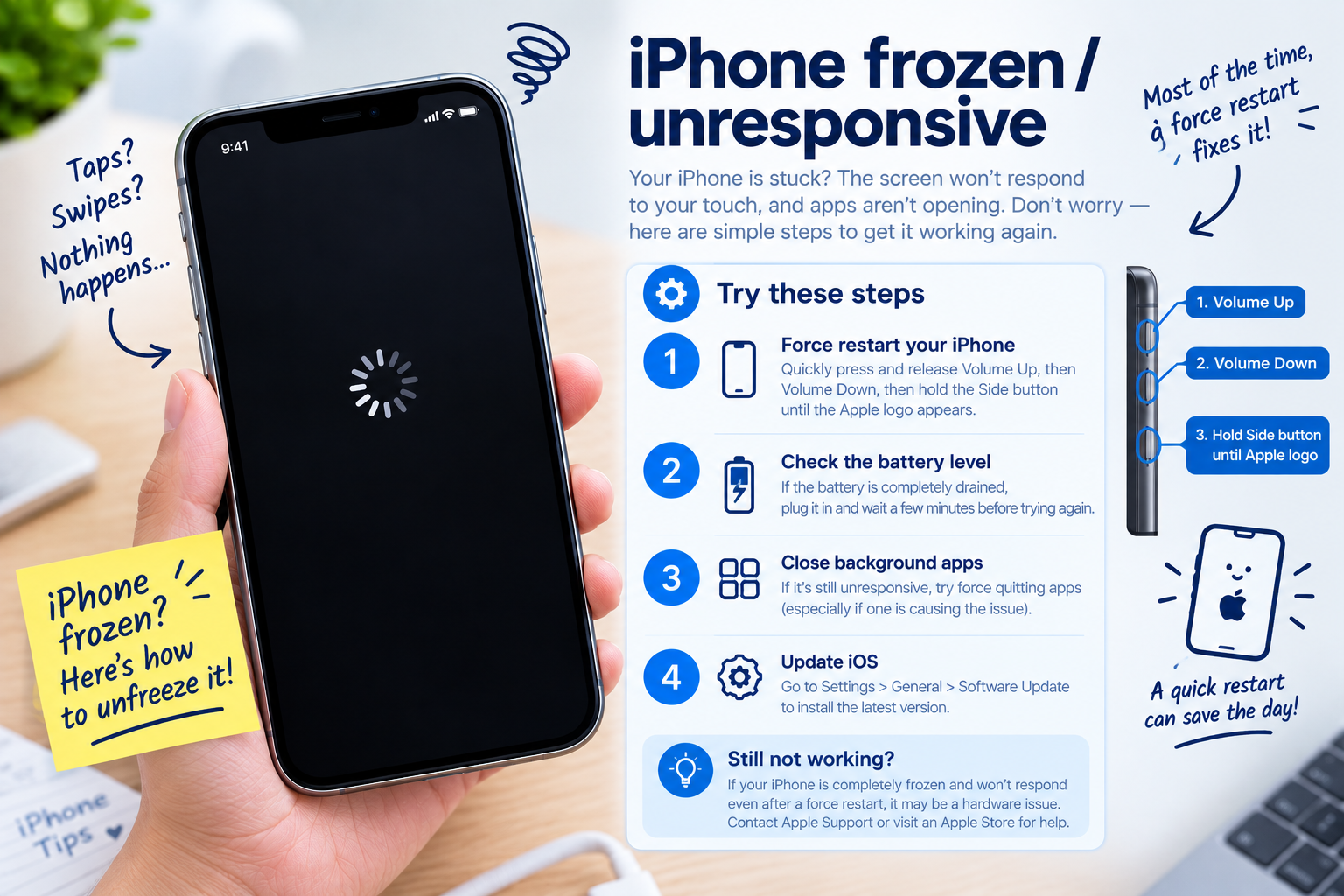
- Restart your iPhone to clear temporary network glitches: Hold the side button and volume slider, then drag to power off, wait 30 seconds, and turn it back on.
- Toggle Airplane Mode on and off: Swipe down from the top-right corner to open Control Center, tap the airplane icon, wait 10 seconds, and tap it again to force your iPhone to reconnect to local cell towers.
- Install the latest iOS version: Outdated iOS versions often have bugs that interfere with roaming; go to Settings > General > Software Update to check for and install updates.
Carrier-Specific Factors Leading to iPhone Roaming Not Working
Your carrier’s international agreements and account settings often play a larger role than your device’s settings. Statista’s 2024 Global Roaming Report found that 35% of iPhone roaming failures come from missing or expired carrier-roaming partnerships, while another 28% stem from inactive roaming plans.
Verify Your Carrier’s Roaming Partner Network
Not all carriers have agreements with every country’s major network providers. For example, a T-Mobile user traveling in Portugal may only have roaming access if their carrier has a partnership with NOS or Vodafone Portugal—if they’re in a region served by a smaller network with no agreement, roaming won’t work. To check, log into your carrier’s mobile app and navigate to the international services section, or call customer support to confirm which networks are covered in your destination. If your carrier doesn’t have a partner in your area, you may need to use a local eSIM or temporary portable hotspot as an alternative.
Ensure Your Roaming Plan is Active
Many users make the mistake of assuming their iPhone will automatically enable roaming when abroad, but most carriers require manual activation of an international roaming plan, especially for short trips. Some major carriers like Verizon and AT&T offer auto-enrollment for trips under 14 days, but others require you to add a plan (e.g., Google Fi’s International Data Plan) via their website or app before departure. If you didn’t activate a plan, your account may block roaming to prevent unplanned overage charges, leading to the iPhone roaming not working error. To fix this, contact your carrier’s support team to activate the appropriate plan for your trip.
Advanced Fixes for Persistent iPhone Roaming Issues
If basic settings and carrier checks don’t resolve the iPhone roaming not working problem, try these more in-depth solutions that address corrupted configurations or account restrictions.
Reset Network Settings
This step clears all saved network configurations, including Wi-Fi passwords, Bluetooth pairings, and cellular network settings, which can resolve corrupted files that block roaming. It’s important to note that this will erase your saved Wi-Fi networks, so back up any critical passwords or connections before proceeding. To reset, go to Settings > General > Transfer or Reset iPhone > Reset > Reset Network Settings. After the reset, your iPhone will restart, and you’ll need to reconnect to your carrier’s network by toggling roaming back on again.
Check for Account Restrictions or Outages
Sometimes the issue isn’t with your device but with your carrier’s account or local network. For example, if you’ve exceeded your monthly data limit, your carrier may restrict roaming to prevent overages, or there could be a local network outage in your destination. In 2023, AT&T reported a 1.8% network outage across Western Europe that affected iPhone roaming for 15,000 users, with issues resolved within 3.5 hours. To rule this out, call your carrier’s international support line (available for free for most plans) to check for account restrictions or local outages in your area.
Fixing iPhone roaming not working issues doesn’t have to derail your travels or work plans. Start with the simplest steps: enabling roaming toggles, updating carrier settings, and performing a quick restart. If that fails, verify your carrier’s roaming partnerships and active plan to ensure you’re covered in your destination. For stubborn issues, advanced fixes like resetting network settings or checking for carrier outages can resolve even the most persistent problems. By following these structured steps, you can restore your roaming connectivity quickly and stay connected no matter where your journey takes you.
Everything above about “iPhone roaming not working” is originally written by our editorial team. Reproduction is strictly prohibited.