If you’ve ever tried to rely on iPhone Voice Control to send a hands-free message, adjust your music, or navigate your device while your hands are busy—only to hit a wall where iPhone Voice Control not responding, you know how disruptive this can be. This iOS feature is designed to make your iPhone more accessible and convenient, so when it fails to work as expected, finding a solution becomes a top priority. The good news is that most cases of iPhone Voice Control not responding are solvable with simple, easy-to-follow steps, from quick resets to targeted setting adjustments.
Quick Software Fixes for Immediate iPhone Voice Control Glitches
Perform a Soft Reset on Your iPhone
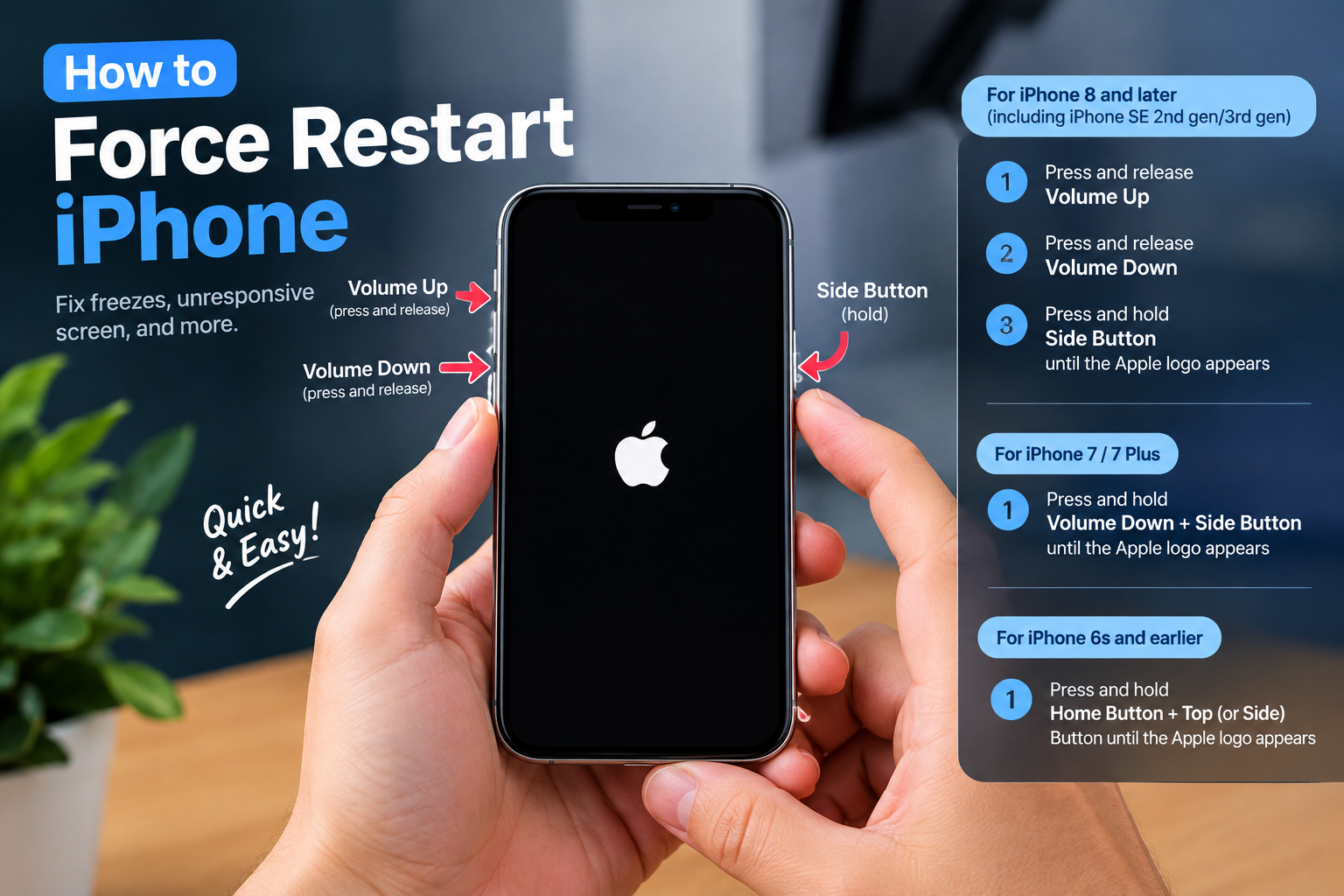
A soft reset is one of the most effective first steps for resolving temporary iOS bugs that might be causing iPhone Voice Control not responding. This process closes background apps and refreshes the system without deleting any data, making it safe for all users. The method varies slightly depending on your iPhone model: for Face ID models (iPhone X and later), press and hold the side button plus either volume button until the power-off slider appears, then drag it to turn off your device. After 30 seconds, press and hold the side button again until the Apple logo appears.
Toggle Voice Control Off and On
Sometimes a minor connection blip between your iPhone and Voice Control’s server can cause it to stop responding. Toggling the feature off and back again forces a reconnection, which often resolves the issue. To do this, open Settings > Accessibility > Voice Control, then tap the toggle switch to turn it off. Wait 10 seconds, then tap the switch again to re-enable the feature. Test Voice Control with a simple command like “Open Messages” or “Adjust volume” to see if it works as intended.
Adjusting Voice Control Settings to Resolve Chronic iPhone Voice Control Not Responding
Check for iOS Updates to Fix Compatibility Bugs
Outdated iOS versions often come with hidden glitches that can interfere with Voice Control functionality. Apple frequently releases updates that address accessibility issues, including those affecting voice commands. To check for updates, go to Settings > General > Software Update. If an update is available, tap “Download and Install” and follow the on-screen prompts. After updating, restart your iPhone and test Voice Control again—many users report that updating resolves long-standing responsiveness problems that quick resets couldn’t fix.
Disable Conflicting Voice Features
Having both Siri and Voice Control enabled simultaneously can lead to command conflicts, where Siri intercepts requests meant for Voice Control, causing the latter to not respond. To fix this, go to Settings > Accessibility > Voice Control, and disable the “Listen for ‘Hey Siri’” option. Alternatively, if you prefer using Siri, disable Voice Control entirely when not needed, or adjust the settings so only one voice feature is active at a time to avoid interference.
Hardware and Connectivity Checks for iPhone Voice Control Not Responding
While most issues with Voice Control stem from software settings, hardware or connectivity problems can also prevent the feature from working correctly. These checks help rule out physical issues that might impede voice recognition:
- Clean Your iPhone’s Microphone: Dust, debris, or a misaligned screen protector can block the microphone, muffling your voice and making it impossible for Voice Control to pick up commands. Use a soft, dry microfiber cloth to gently clean the microphone grille, located at the bottom edge of most iPhones.
- Test the Microphone with a Different App: Open the Voice Memos app and record a short audio clip. If you can’t hear your voice clearly during playback, the microphone may be faulty, requiring a visit to an Apple Store or contact with Apple Support for repair.
- Disconnect Bluetooth Accessories: If you’re using Bluetooth earbuds, a car kit, or another accessory, disconnect it temporarily and test Voice Control using the iPhone’s built-in microphone. Bluetooth conflicts can redirect audio away from the device’s mic, leading to unresponsive Voice Control.
When faced with iPhone Voice Control not responding, starting with the simplest fixes—like a soft reset or toggling the feature—can often resolve the issue in minutes. If those steps don’t work, adjusting your iOS settings, updating to the latest operating system, and checking for hardware or connectivity problems will typically identify the root cause. For persistent issues that don’t improve with these steps, reaching out to Apple’s support team can provide specialized troubleshooting to get Voice Control working again.
Everything above about “iPhone Voice Control not responding” is originally written by our editorial team. Reproduction is strictly prohibited.