If you’ve ever been locked out of using your iPhone because it’s stuck on the Apple logo during startup, you’re not alone—this common issue leads millions to search for “iPhone stuck on Apple logo how to fix” to resolve the problem quickly, without losing their photos, messages, or app data.
Initial Quick Fixes for Temporary Glitches
Most cases of an iPhone stuck on the Apple logo stem from minor software crashes or temporary hardware conflicts, which can often be resolved with simple actions that don’t require advanced tools. These fixes are safe and won’t erase your data if done correctly.
Force Restart Your iPhone
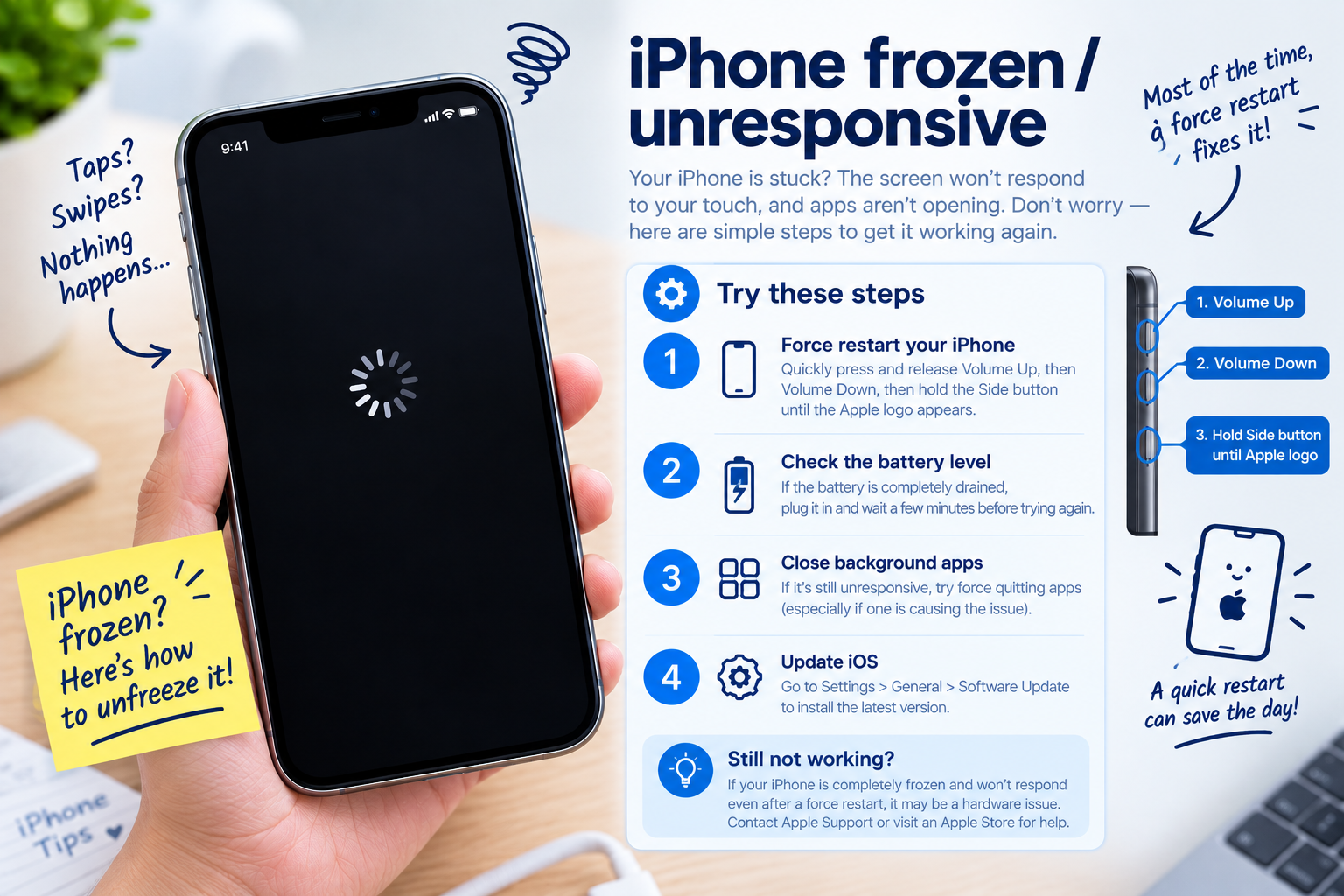
Force restarting clears temporary memory and resolves frozen processes that might be preventing the device from booting properly. The method varies by iPhone model: for iPhone 8, SE (2nd/3rd gen), and later models, quickly press and release the volume up button, then the volume down button, then hold the side button until the Apple logo appears. For iPhone 7 and 7 Plus, hold both the volume down and side buttons for 10-15 seconds. For older models with a home button, hold the home and side buttons simultaneously.
Charge Your iPhone Fully
A depleted or faulty battery can cause the device to stall at the Apple logo. Plug your iPhone into a MFi-certified lightning cable and a working power outlet (avoid USB ports on computers, as they may not supply enough consistent power) and leave it charging for at least 15-20 minutes. If the battery was completely drained, it may take a few more minutes to show a charging icon before booting up normally.
- Use only Apple MFi-certified cables to avoid charging interruptions or damage to the port
- Inspect the charging port for lint or debris that could block the connection between the cable and device
- Test the power outlet with another small device to confirm it’s supplying power
Advanced Fixes for Persistent Software Problems
If quick fixes don’t resolve the issue, the problem likely involves corrupted iOS system files, a failed software update, or app conflicts. These methods require a computer and should be attempted only if you’re comfortable with basic troubleshooting steps.
Update Your iPhone via Finder or iTunes
Connect your iPhone to a Mac (running macOS Catalina or later) using a lightning cable, or to a Windows PC or older Mac that has iTunes installed. Open Finder or iTunes—if your device is in a boot loop, you’ll see an option to “Update” instead of “Restore.” Selecting Update will reinstall the latest compatible iOS version without erasing your personal data, fixing any corrupted system files that caused the Apple logo freeze. The process typically takes 10-15 minutes, and your iPhone will restart automatically once complete.
Use Recovery Mode for Critical Software Repairs
If the Update option isn’t available, recovery mode can address more severe software issues. To enter recovery mode, connect your iPhone to your computer, then follow the force restart steps but don’t release the buttons when the Apple logo appears—keep holding until the recovery mode screen (a computer and lightning cable icon) displays. Select “Update” to reinstall iOS; if this fails, you may need to select “Restore,” which will erase your data, so back up your files to iCloud or Finder before proceeding if possible.
Hardware Checks for Persistent Boot Issues
In some cases, an iPhone stuck on the Apple logo is a hardware problem, not a software one. This is especially true if the issue started after a drop, water exposure, or physical damage.
Inspect for Physical and Liquid Damage
If your iPhone was recently dropped or exposed to water, check for visible cracks in the screen or body, and look for the liquid contact indicator (LCI) in the charging port—if it’s red instead of white, water damage is likely the cause. Liquid can corrode internal components, preventing the device from booting past the Apple logo.
Avoid DIY Repairs for Internal Components
Trying to replace the battery, display, or logic board yourself can lead to further damage if you’re not experienced with iPhone hardware. If you suspect a faulty hardware part, contact an Apple Authorized Service Provider (AASP) or independent repair shop to get a professional diagnosis and fix.
Preventive Measures to Avoid Future Apple Logo Freezes
Taking proactive steps can reduce the chance of your iPhone getting stuck on the Apple logo again and keep your device running smoothly.
- Back up your iPhone regularly via iCloud or Finder to protect your data in case of boot issues or hardware damage
- Install iOS updates promptly, as they fix software bugs and security vulnerabilities that can cause boot loops
- Avoid downloading apps from unvetted third-party sources, as they may contain malware that disrupts system files
- Keep your iPhone away from extreme temperatures (over 95°F or below 32°F) and moisture to prevent hardware damage
- Use MFi-certified charging accessories to avoid damaging the charging port or battery
When your iPhone is stuck on the Apple logo, start with simple fixes like force restarting and charging, then move to advanced software repairs via Finder or iTunes if needed. For suspected hardware issues, professional repair is the safest way to avoid further damage. Following preventive practices like regular backups and iOS updates will help minimize the risk of this frustrating issue occurring again.
Everything above about “iPhone stuck on Apple logo how to fix” is originally written by our editorial team. Reproduction is strictly prohibited.