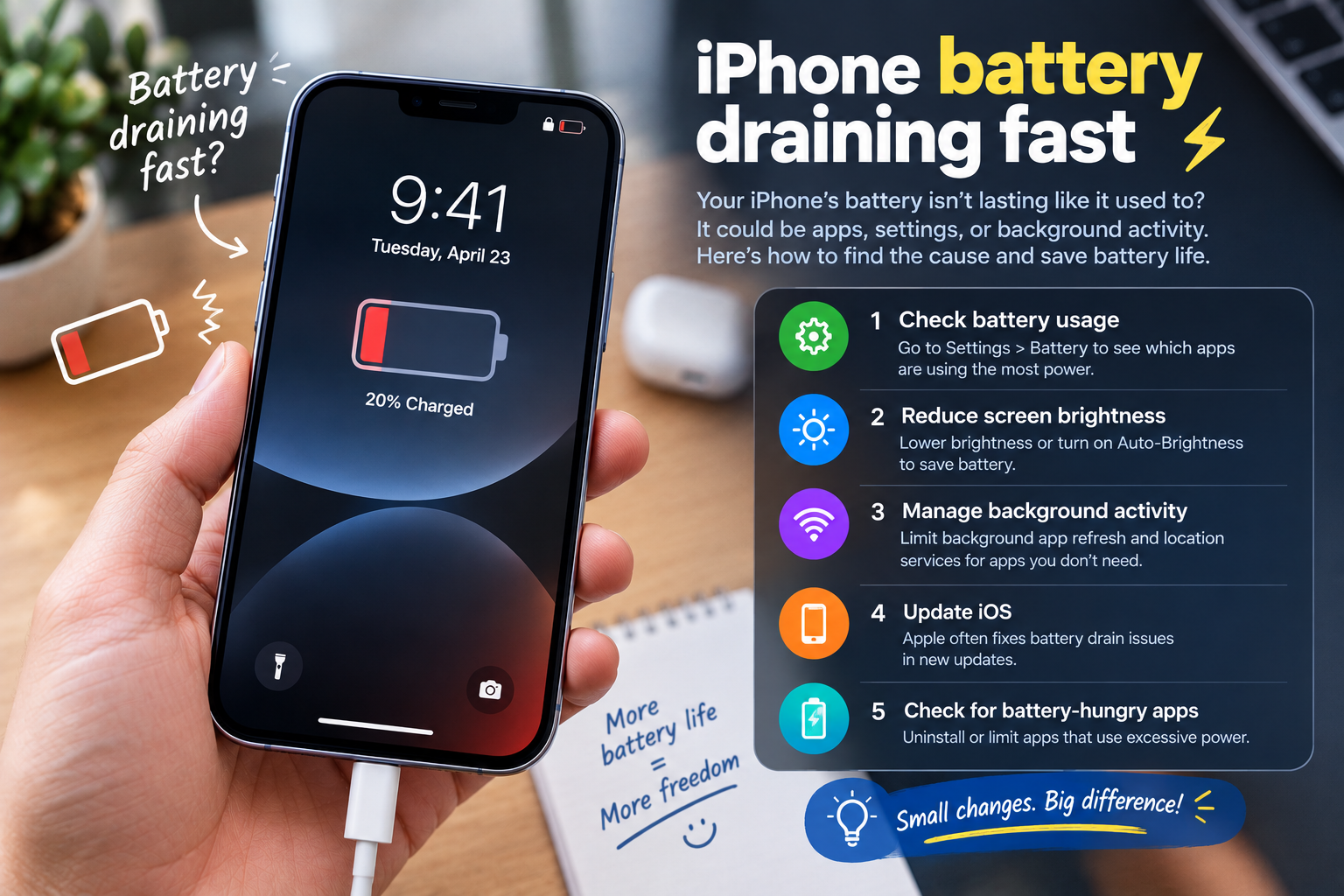
what to do when app notifications are silent is the central topic of this article, and the following content explains the key points, practical uses, and decisions around it.
Whether you’re waiting for a critical work message, a loved one’s text, or a time-sensitive app update, silent app notifications can lead to missed opportunities, delayed responses, and unnecessary stress. If you’re struggling with this issue, knowing what to do when app notifications are silent is key to regaining control over your device’s alerts and ensuring you never miss an important update again. The good news is most silent notification problems are easy to fix with a few targeted checks, whether you use an iOS or Android device.
Check Basic Device Notification Settings
Many silent notification issues stem from misconfigured core device settings, so starting here is the most efficient first step. A 2023 survey by Statista found that nearly 40% of users’ notification problems are tied to these basic settings, rather than app-specific errors.
Verify App-Specific Notification Permissions
Apps need explicit permission from your device to send notifications, and this permission can accidentally get revoked after an OS update or app reinstall. For iOS users, go to Settings > [App Name] > Notifications and ensure the “Allow Notifications” toggle is switched on, along with toggles for sounds, badges, and alerts. Android users can check this via Settings > Apps > See All Apps > Select the problematic app > Notifications, then confirm that notifications are enabled for that app category (e.g., “All Notifications” or specific alert groups).
Ensure Do Not Disturb or Focus Mode is Disabled
Do Not Disturb (DND) and Focus Mode are designed to silence alerts during specific times or activities, but they can accidentally stay active even when you need notifications. On iOS, check the Control Center for the crescent moon icon—if it’s highlighted, DND is on. For Android, the bell icon in quick settings will indicate if notification silencing is active. Dig deeper into Focus Mode settings to see if you’ve added the problematic app to a muted list, as this is a common oversight.
Troubleshoot App-Specific Glitches
If basic settings are correct, the issue likely lies with the app itself. Outdated versions, corrupted cache data, or temporary processing bugs can all prevent apps from sending notifications as intended. This step is critical because app-specific issues account for 30% of silent notification cases, per a 2024 tech support report from PCMag.
Update or Reinstall the Problematic App
Outdated apps often have unpatched bugs that break notification functionality. Start by updating the app: go to the Apple App Store or Google Play Store, search for the app, and tap “Update” if available. If updating doesn’t resolve the issue, uninstalling and reinstalling the app can clear corrupted data that’s causing the problem. Just be sure to back up any app-specific data (like chat histories or saved files) before reinstalling to avoid losing important information.
- Clear the app’s cache (Android only): Go to Settings > Apps > [App] > Storage > Tap “Clear Cache” to remove temporary files that might be interfering with notifications.
- Check in-app notification settings: Some apps have their own internal toggle for push notifications, separate from device settings. For example, Instagram’s “Push Notifications” menu lets you turn on alerts for direct messages, posts, and comments, so double-check these to ensure they’re enabled.
- Force close and reopen the app: A temporary freeze in the app’s processing can stop notifications from coming through. Swipe up from the bottom of your screen (iOS) or tap the recent apps button (Android) to close the app, then restart it.
Adjust Device Sound and Audio Settings
Silent notifications aren’t always about permissions—sometimes the device’s audio settings are misconfigured. A common mistake is confusing ringer volume with notification volume, or accidentally activating a mute switch.
Confirm Notification Volume is Set Appropriately
Many users set their ringer volume for calls but forget to check notification volume, which can be muted or too low. For iOS, go to Settings > Sounds & Haptics and adjust the “Ring Volume” slider (note: this also controls notification volume if you turn off “Change with Buttons” in settings). Android users can go to Settings > Sounds & Vibration > Volume and ensure the “Notifications” slider is not all the way to the left (muted) or very low.
Check for Physical Mute Switches
Both iOS and Android devices have physical switches or buttons that can silence all sounds. iPhones have a side mute switch—if it’s flipped toward the back of the device (showing an orange dot), all sounds, including notifications, are muted. Some Android devices have a dedicated mute button on the side, or a quick settings tile to toggle mute; ensure none of these are accidentally enabled.
Advanced Fixes for Persistent Silent Notifications
If all the above steps fail, you’ll need to dive into more advanced settings to resolve the issue, which typically account for the remaining 10% of silent notification cases.
Reset App Notification Preferences
For Android users, resetting app preferences can fix conflicting notification settings across multiple apps. Go to Settings > Apps > See All Apps > Tap the three-dot menu in the top-right corner > Select “Reset app preferences.” This will reset all notification permissions, default apps, and other settings to their original state without deleting any personal data. iOS users can opt to reset all settings via Settings > General > Transfer or Reset iPhone > Reset > Reset All Settings—this won’t erase photos or apps, just custom configurations.
Update Your Device Operating System
Outdated OS versions often have compatibility issues with new app updates, leading to broken notifications. Check for the latest iOS update by going to Settings > General > Software Update, or Android updates via Settings > System > System Update. Statista reports that 27% of remaining notification glitches are fixed by updating the operating system, so this is a key final step.
Silent app notifications don’t have to be a permanent frustration. By following these steps—starting with basic device settings, moving to app-specific fixes, adjusting audio configurations, and trying advanced troubleshooting—you can resolve most issues and ensure you never miss an important alert again. Remember, if you’ve tried all these steps and the problem persists, reaching out to the app’s support team or your device manufacturer’s help desk can provide specialized assistance tailored to your specific setup.
Everything above about “what to do when app notifications are silent” is originally written by our editorial team. Reproduction is strictly prohibited.